ALPINE MULTIMEDIA SYSTEM
" Car info " menu
From the "Car info" menu, select the "System" tab.
Use this menu to display various items of information and to update the multimedia system and navigation maps.
The updates are proposed automatically by the system.
tip
Some update installations may render your vehicle temporarily unavailable for use. If so, please refer to the indications displayed on the screen.
warning
For safety reasons, carry out these operations when the vehicle is stationary.
"System information" screen
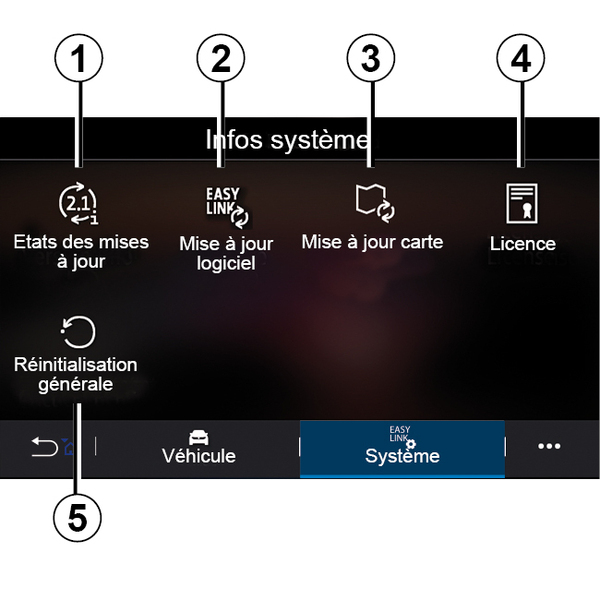
- 1.
« Update status » ;
- 2.
« Software update » ;
- 3.
« Map update » ;
- 4.
« Licence » ;
- 5.
« Factory reset ».
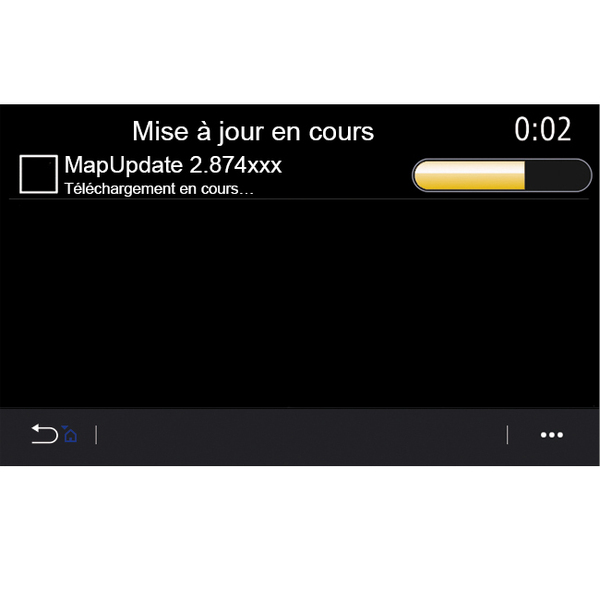
« Update status » 1
This menu provides information on the progress of updates to the multimedia system and navigation maps:
- name of the update;
- status of the updates.
Note: the "Update status" menu 1 is available when an update is in progress.
Multimedia system update
« Software update » 2
From this menu you can:
- view the current software version and the serial number of your multimedia system;
- find out the date of the last update;
- check if an update is available;
- update the various systems from the multimedia system.
Note:
- you will be notified via Notifications if an update is available. See the section on "Managing notifications";
- updates can only be searched for and downloaded if your vehicle is located in a geographical area covered by a mobile network. For more information, see System settings.
If a new update is available a notification will appear on your multimedia system screen to inform you after the engine is switched off.
warning
Before starting the installation, park the vehicle far away from traffic and apply the parking brake.
warning
Never run the engine in an enclosed space as exhaust gases are poisonous.
warning
Do not park the vehicle or run the engine in locations where combustible substances or materials such as grass or leaves can come into contact with the hot exhaust system.
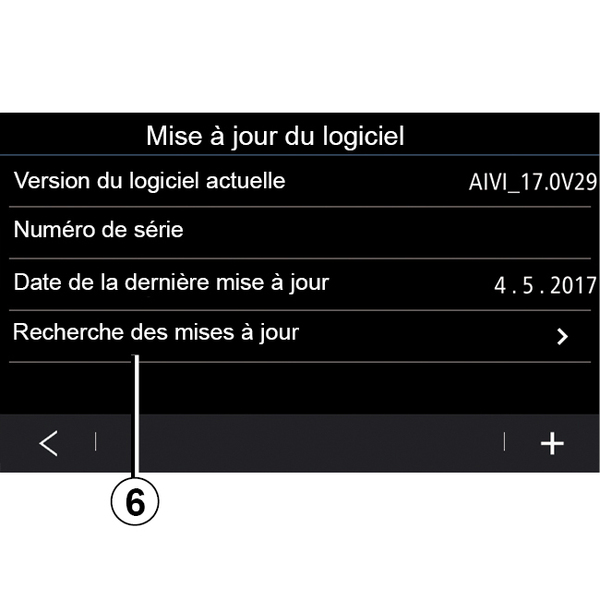
Follow the instructions displayed on the multimedia system screen to proceed with the installation.
You can also search for updates directly by pressing "Check for updates" 6. After searching the multimedia system, you can access the next update if available 7.
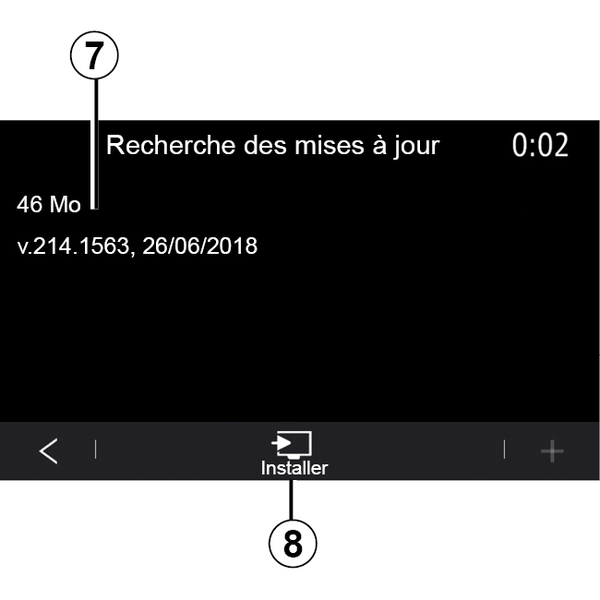
Start the update installation 7 by pressing "Install" 8.
Follow the instructions shown on the multimedia system screen. You can leave your vehicle after pressing "OK" to confirm installation, without waiting for the update to finish.
Updating the navigation maps
« Map update » 3
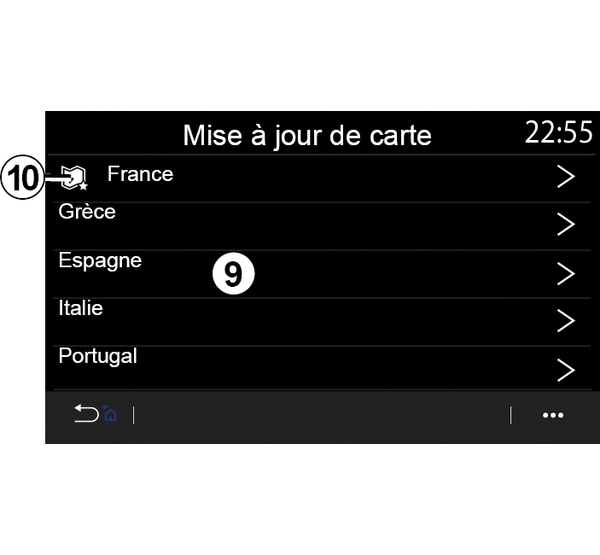
You can view the list of countries 9 installed on the navigation system.
Only the country registered as the favourite 10 will be updated automatically.
To update your maps, first check that all of your vehicle services are activated Activating services.
Changing the favourite country
The favourite country 10 can only be changed once via the multimedia system. The favourite country can be defined once the vehicle is in your hands and the services are activated.
A message appearing on the screen of your multimedia system offers to locate your vehicle in order to detect the favourite country.
If you wish to change the favourite country 10 again, please contact an approved dealer.
Note: by default, your favourite country is based on the detected vehicle location.
Updating the navigation maps manually
It is necessary to update the maps regularly. For all countries, maps must be updated manually using a USB drive (vehicles not equipped with a navigation system are also affected).
Note:
- the USB drive must be FAT32 formatted and have a minimum capacity of 32 GB and a maximum capacity of 64 GB;
- the USB drive is not provided with the system.
To update the maps from your computer, go to https://renault-connect.renault.com then connect to your "My Renault" account.
The vehicle must be identified before the maps can be updated. The vehicle is identified using:
- the VIN (vehicle identification number);
- a virtual image of the vehicle using a USB flash drive.
Updates by the vehicle VIN
From your computer, log in to your "My Renault " account and download the Map Toolbox software, then enter the VIN of the vehicle to be updated.
The Alliance CONNECT Toolbox software shows the types of update that are available:
- "Complete update";
- "Update available by country".
Note: only countries where an update is available for the selected vehicle are suggested in the list of "Updates available by country".
tip
User responsibility during updating. It is very important to follow the instructions carefully during updating. Failure to follow these instructions (removing the USB flash drive, etc.) may corrupt and cause irreversible damage to the data.
Select the updates you want to install on the multimedia system, then download the updates to the USB flash drive.
Once the data is downloaded to the USB flash drive, you can remove the USB flash drive from your computer, ejecting it before removing it, then go to your vehicle.
From your vehicle, insert the USB flash drive into your vehicle's USB port. The multimedia system detects new apps and offers to install them. Follow the instructions shown on the multimedia system screen.
This updating procedure must be carried out while the engine is running in the case of combustion vehicles and with the engine on in the case of hybrid and electric vehicles.
Note: once the USB flash drive has been inserted into your vehicle's USB port, do not carry out any operation on the multimedia system, its controls or on any vehicle devices (telephone, audio, navigation, etc.) to avoid interrupting the updating process.
When the update procedure is complete, you can remove the USB flash drive from your vehicle.
tip
To benefit from updated maps and speed limits, it is recommended that you regularly install updates via the website: https://renault-connect.renault.com.tip
The maps and speed limits are updated simultaneously. On vehicles not equipped with navigation, it is also necessary to carry out updates in order to update the speed limit indications.Updating by creating a virtual image of your vehicle using a USB drive
From your vehicle, insert a USB drive which is FAT32 formatted and has a minimum capacity of 32 GB and a maximum capacity of 64 GB into your vehicle's USB port, then wait for 10 seconds (ensure that no other USB drive is connected).
The multimedia system then saves a virtual image of your vehicle to the USB drive, which will enable the Alliance CONNECT Toolbox software to identify the updates available for your navigation system.
After the virtual image has been taken, remove the USB flash drive from the USB flash drive of your vehicle, then go to your computer.
tip
Any new USB flash drive inserted is analysed and its image is stored in the multimedia system. Depending on the USB flash drive's capacity, the multimedia screen can be put on standby. Wait a few seconds. Only use USB flash drives that conform to the national requirements in force.
From your computer, download the Alliance CONNECT Toolbox software then insert the USB drive containing the virtual image of your vehicle.
The Alliance CONNECT Toolbox software shows the types of update that are available:
- "Complete update";
- "Update available by country".
Note: only countries where an update is available for the selected vehicle are suggested in the list of "Updates available by country".
Select the updates you want to install on the multimedia system, then download the updates to the USB flash drive.
Once the data is downloaded to the USB flash drive, you can remove the USB flash drive from your computer, ejecting it before removing it, then go to your vehicle.
From your vehicle, insert the USB flash drive into your vehicle's USB port. The multimedia system detects new apps and offers to install them. Follow the instructions shown on the multimedia system screen.
This updating procedure must be carried out while the engine is running in the case of combustion vehicles and with the engine on in the case of hybrid and electric vehicles.
Note: once the USB flash drive has been inserted into your vehicle's USB port, do not carry out any operation on the multimedia system, its controls or on any vehicle devices (telephone, audio, navigation, etc.) to avoid interrupting the updating process.
When the update procedure is complete, you can remove the USB flash drive from your vehicle.
warning
Do not park the vehicle or run the engine in locations where combustible substances or materials such as grass or leaves can come into contact with the hot exhaust system.
warning
Never run the engine in an enclosed space as exhaust gases are poisonous.