ALPINE PORTAL
Introduction
Your multimedia system has a voice recognition system:
- « Google Assistant » ;
- voice command via smartphone replication.
The voice recognition system can be used to control some functions on the multimedia system and on your smartphone by voice command. You can use your multimedia system or your smartphone while keeping your hands on the steering wheel.
Use the voice command by addressing the multimedia system as if you were speaking to a person naturally.
Note: the position of the voice recognition button may vary. Please refer to the vehicle user manual for further information.
You can use the voice recognition systems:
- of the multimedia;
- of the smartphone available via smartphone replication.
For more information on smartphone replication, please see the "Android Auto™ , CarPlay™" Android Auto™ , CarPlay™.
Using the multimedia system's voice recognition
Main functions controlled by the voice command of your multimedia system
Some voice commands can be used to access the following vehicle functions:
- Navigation;
- Music;
- Radio;
- Phone;
- Vehicle functions (air conditioning, Drive Mode);
- Connected services (weather, news, etc.);
- ...
Note: if you wish to use voice recognition, make sure that you are located in a network coverage area. Certain functions cannot be accessed in the event of poor reception.
Connecting to an account Google® enables you to further customise the assistant when the vehicle is connected. For example, it is possible to call saved contacts or to find out about the content of the calendar Google®.
Note:
- "Google Assistant" is not yet available in all languages. For more information on availability or to try another language (on condition of availability), please see support.google.com;
- voice commands become enriched and improve with software updates;
- the instructions below are general descriptions and include third-party vendors. The availability, version and functionality may vary or be modified.
Voice controls
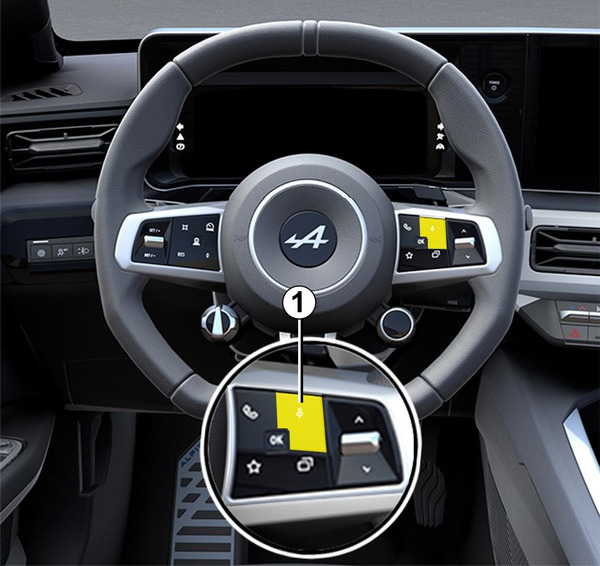
You can use voice control to call a contact in your phonebook, enter a destination and change the radio station without touching the screen. Briefly press button 1 and an audible confirmation will sound along with a visual confirmation on the screen.
" Google Assistant " activation
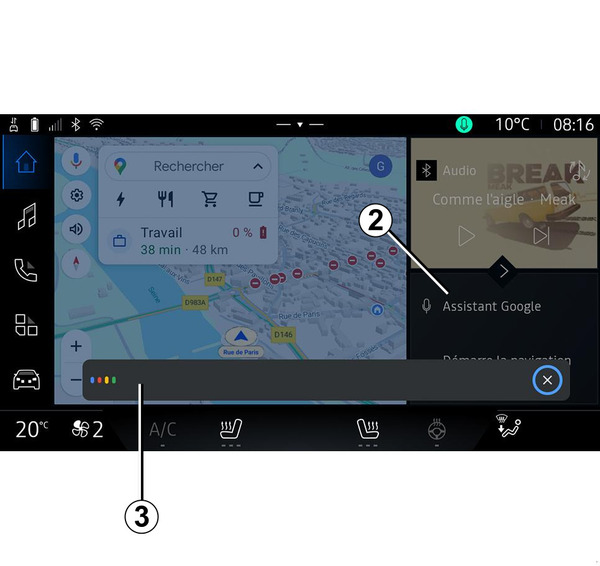
There are several ways to activate the voice recognition system:
- after stating the "Ok Google" or "Hey Google" voice command and receiving audible feedback and visual feedback on the screen 3, state your request (e.g. "Go home");
or
- by briefly pressing the voice recognition button 1 in your vehicle;
or
- by pressing the widget "Google Assistant" 2;
or
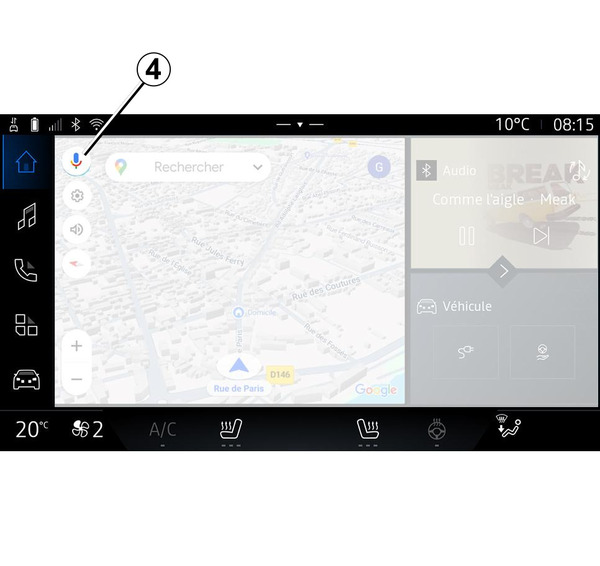
- by pressing the 4 icon from the "Navigation"
 .
.
"Voice recognition" menu
From the "Vehicle" world
 , "Settings", "Google®", then "Google Assistant", you can:
- select the assistant's "Language";
- activate/deactivate the "Say Ok Google" voice command;
- authorise custom results;
- proactively display custom results;
- receive notifications from the "Google Assistant".
"Navigation" control with voice recognition
There are several methods available to enter a destination using the voice control included with your multimedia system.
Note: to benefit from all of the features, you must activate your Google® account and have saved addresses. For further information, please refer to the section on ''User settings" User settings.
To start a voice command linked to navigation, activate the voice command then, after the beep, state your command in relation to one of the following topics:
- "Points of interest";
- "Destination";
- "Home";
- "Work";
- "Route information";
- "Guidance";
- ...
"Points of interest"
To search for a POI (point of interest) using the voice command.
Examples:
- "Go to the baker";
- "Drive me to the Paris train station";
- "Take me to the Eiffel Tower";
- ...
"Destination"
To enter a complete address using voice command.
Examples:
- "Go to 7 rue de la Joie, Paris";
- "Take me to Paris";
- "Go to Montmartre, Paris";
- ...
Note: the examples can be adapted according to the country and the language.
"Home" and "Work"
To get to your home or work using voice command.
Examples:
- "Go home";
- "Drive me home";
- "Take me to work";
- ...
Note: to use the "Go home" or "Go to work" voice function, you must enter a Google® account and save an address.
"Route information"
To be informed of the route in progress using voice command.
Examples:
- "What is my route?";
- "What is the arrival time?";
- "What is the remaining distance?";
- ...
"Guidance"
To take action on current route guidance using voice command.
Examples:
- "Activate/deactivate the voice guidance";
- "Avoid toll roads";
- "Cancel the route";
- ...
"Audio" command with voice recognition
You can activate the music or radio using the voice command included in your multimedia system.
To launch a voice command related to the "Audio"
 , activate the voice command then, after the beep, state your command in relation to one of the following topics:
- "Audio source";
- « Radio » ;
- "Music";
- "Playback commands";
- ...
"Audio source"
You can change the audio source.
Example:
- "Play the radio";
- "Launch the streaming music app";
- ...
« Radio »
You can choose the radio station.
Example:
- "Play Jazz radio";
- "Play 91.8";
- ...
"Music"
You can launch music (an audio track, playlists, etc.) only for streaming music.
Example:
- "Listen to <name of artist>, with <name of preferred application>";
- "Listen to <song title>, with <name of preferred application>";
- "Listen to <name of album>, with <name of preferred application>";
- "Play <name of playlist>, with <name of preferred application>";
- ...
Note: some streaming music applications require an associated account to be connected to it.
"Playback commands"
You can command the current playlist.
Example:
- "Playback";
- "Pause";
- "Next";
- "Previous".
Note: the commands may vary or may not be available depending on the application used.
"Phone" command with voice recognition
It is possible to call a number or a contact using the voice control included with your multimedia system.
To launch a voice command related to the "Phone"
 , activate the voice command then, after the beep, state your command in relation to one of the following topics:
- "Call";
- "Dial";
- "Call log";
- « SMS » ;
- ...
Note:
- you must activate data sharing on your phone, for more information please refer to the section on "Activating services" Activating services;
- you must activate authorisation of the customised results in the Google® settings. For more information please refer to the "System settings" section System settings.
"Call" and "Dial"
You can call a contact available in your phonebook or dial a telephone number.
Examples:
- "Call Grégory";
- "Call Grégory home";
- "Call my voicemail";
- "Dial 06 77 07...";
- "Dial 06 77 07...";
- ...
"Call log"
You can view the call history for your phone.
Example:
- "Call log";
- "Display calls";
- "Recent calls";
- ...
« SMS »
You can dictate and send an SMS or have an SMS read out.
Example:
- "Send to Fabien 'Let's meet later for ...'";
- "Read the SMS";
- "Reply to the SMS";
- ...
Note:
- you must activate data sharing so that you can have the SMS read by your multimedia system, for more information please refer to the section on "Activating services" Activating services;
- you must activate authorisation of the customised results in the Google® settings. For more information please refer to the "System settings" section System settings;
- only SMS received while driving can be read by the multimedia system.
"Vehicle functions" command with voice recognition
You can activate some of your vehicle's functions using the voice command integrated into your multimedia system.
To launch a voice command linked to the "Vehicle" world, activate the voice command then, after you hear the audible confirmation, state your command in relation to one of the following topics:
- "Range";
- "Heating level";
- ...
"Range"
You can obtain certain information relating to the battery life of your vehicle.
Example:
- "Can I go to Dunkerque";
- "What is my battery range?";
- ...
"Heating level"
You can activate certain functions associated with the heating level.
Example:
- "Activate ventilation on the feet";
- "Activate the heated steering wheel";
- "Increase the passenger seat heating";
- "Synchronise the temperature";
- "Reduce the temperature";
- "Set the temperature to 21 degrees";
- ...
"Connected Service" command with voice recognition
You can ask the connected services certain questions using the voice command included in your multimedia system.
To launch a voice command linked to the "Connected services", activate the voice command then, after the beep, state your command in relation to one of the following topics:
- "Weather";
- "News";
- "Sports";
- "Events";
- ...
Example:
- "How is the weather in Paris? " ;
- "What is today's news?" " ;
- "What is the score in the Paris – Marseille match? " ;
- ...
Using voice recognition by smartphone replication
Main functions controlled by your smartphone's voice command
When the smartphone is connected to the multimedia system via smartphone replication, some voice commands can be used to access the domains and apps available on the smartphone.
For more information on smartphone replication, please see the "Android Auto™, CarPlay™ " section Android Auto™ , CarPlay™.
Some voice commands can be used to access the following smartphone functions:
- Navigation ;
- Music;
- Phone ;
- ...
Note: if you wish to use your smartphone's voice recognition with the multimedia system, make sure that you are located in area with network coverage.
Smartphone replication command with voice recognition
tip
When you use voice recognition using smartphone replication, you use your phone's Internet connection, which is subject to charges and limitations imposed by your mobile operator.
To use your smartphone's voice recognition system with your multimedia system, you must:
- ensure that your smartphone has a voice recognition function that is compatible with your multimedia system;
- connect your smartphone to the multimedia system via smartphone replication.
For more information, please refer to "Connecting, disconnecting a phone" Connecting, disconnecting a telephone and "Android Auto™, CarPlay™" Android Auto™ , CarPlay™.
Voice controls
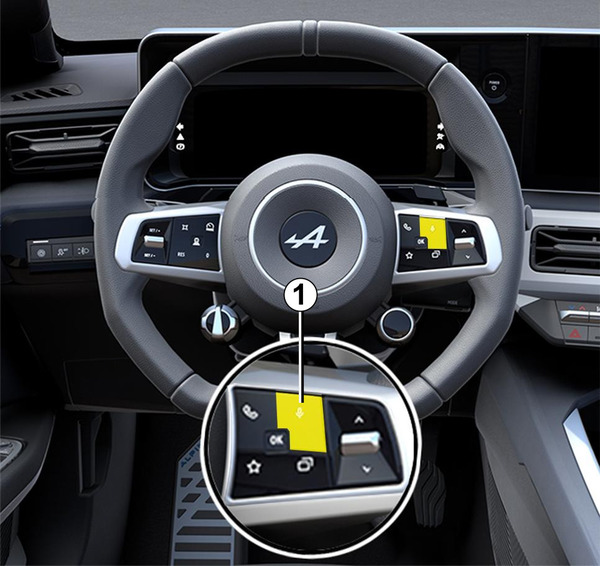
You can use the smartphone replication voice command without using the screen by long-pressing button 1; a confirmation will then sound and be displayed on screen.
Activation
To activate the voice recognition system:
- press and hold the voice recognition button 1 in your vehicle;
- from the "Replication" World

 , press the voice command associated to the application in use.
Note: when using voice recognition, always wait for an audible confirmation to sound before speaking.
To start a voice command linked to applications compatible with voice recognition, activate voice command, then say your request after the sound signal.
Using the phone application via smartphone replication, using voice command.
Example:
- "Call José";
- "Call the office";
- ...
Using the navigation application for smartphone replication, using voice command.
Example:
- "Go to Champs-Élysées in Paris";
- "Go home";
- ...
Note: the commands used for voice recognition depend on the application on the replicated smartphone.