ALPINE PORTAL
Pairing, unpairing a telephone
warning
For safety reasons, carry out these operations when the vehicle is stationary.
Introduction
This function enables your phone to be paired with the multimedia system.
You can access the "Pair new device" menu from:
- the "Phone" world
 , press "Connect using Bluetooth®" (if a paired phone is not present);
 - the "Applications" world
 , then "Devices Manager";
 - the "Vehicle" world
 , "Settings", then "Bluetooth®";
 - the "Phone" world
, press the "Settings" icon
 , then "Devices Manager" (if a phone is already paired);
 - the "Audio" World
 press "Connect usingBluetooth®" (if no phones are paired);
 - the notification centre, the "Settings" icon
, then "Bluetooth®".
Note: if no phone is connected to the multimedia system, some menus are disabled and the system offers to connect a phone.
Pairing your telephone will enable the multimedia system to access your telephone functions. No copies of your contacts or personal data will be saved in the multimedia system.
To enable the multimedia system to manage phones equipped with "dual SIM", configure your phone to use a defaultSIM. Please see your phone user manual.
Note:
- before pairing, ensure that your phone's Bluetooth® is activated and set its status to "visible";
- the vehicle must be stationary in order for a phone to be paired.
Pairing a telephone
To use your hands-free system, pair your Bluetooth® phone with the multimedia system.
For more information on activating the visible status of your phone, please refer to your telephone user manual.
Your phone may ask for authorisation to share your contacts, call logs, messages, etc. Accept sharing if you wish to access this information on the multimedia system.
From the "Phone" world
, then "Connect via Bluetooth®" or the "Applications" world
, then "Devices Manager" from your multimedia system:
- a message is displayed on the screen offering to pair a phone;
- press "Pair new device". The multimedia system searches for nearby telephones that have Bluetooth® activated and are visible;
- select your phone from the list of suggestions or select the multimedia system from your phone.
A message appears on the multimedia system screen as well as on the phone, inviting you to accept the pairing request if the proposed code is identical between the phone and the multimedia system.
Once your phone is paired to the multimedia system, you can select the services that you wish to use via the "Devices Manager". For more information, please refer to "Connecting, disconnecting a telephone" Connecting, disconnecting a telephone.
Note: the phone is linked to the profile used when pairing. The phone may be unavailable on other user profiles.
Pairing another telephone
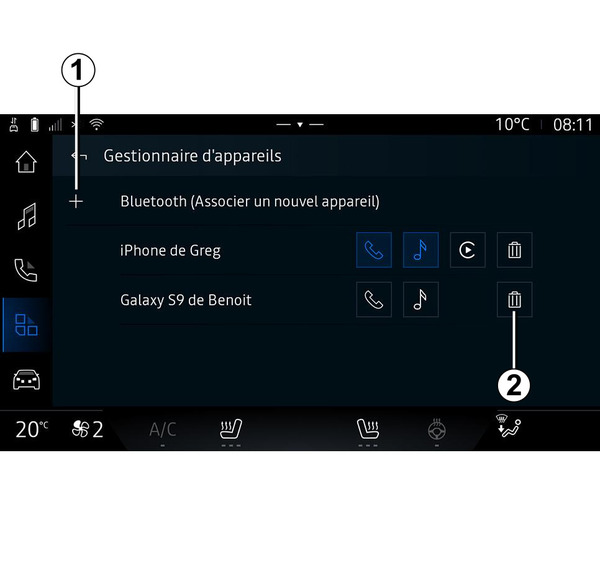
From the "Devices Manager" application you can pair a new phone to the multimedia system:
- press "Bluetooth® (Pair a new device)", then the 1 "Pair new device" icon;
- select your new phone from the list of suggestions, then finalise the pairing procedure.
You can also add a new phone from the "Vehicle" world
, "Settings", "Bluetooth®", "Pair new device", then select your new phone from the list of suggestions and finalise the pairing procedure.
Your new phone is now paired to the multimedia system.
You can pair up to six phones simultaneously (telephones used only via wired replication Android Auto™ or CarPlay™ appear in addition on the "Devices Manager"). Beyond that, it is recommended to manually unpair the phone of your choice before pairing a new one. Otherwise, the "Devices Manager" will automatically replace the device with the earliest date of use.
Unpairing a telephone
From the "Devices Manager" menu you can unpair the phone from the multimedia system:
- press the icon 2 of the phone to unpair;
- press "Yes" to confirm.
Connecting, disconnecting a telephone
warning
For safety reasons, carry out these operations when the vehicle is stationary.
tip
Certain features are only available while the vehicle is stationary.
Connecting a telephone
To connect a telephone, it must be paired beforehand. For more information, please refer to the section on "Pairing, unpairing a telephone" Pairing, unpairing a telephone.
Note: if no telephone is connected to the multimedia system, some menus will be disactivated.
Connecting your telephone will enable the multimedia system to access your telephone functions. No copies of your contacts or personal data will be saved in the multimedia system.
To enable the multimedia system to manage phones equipped with "dual SIM", configure your phone to use a default SIM. Please see your phone user manual.
Automatic connection
Once started, the multimedia system searches for any paired phones with Bluetooth® activated nearby (up to 10 metres away). The system automatically displays the data of the phone connected (phonebook, music, etc).
Note: when your phone is connected automatically to the multimedia system, the display of data (phonebook, SMS, contacts, etc.) will only be enabled if you previously allowed data sharing when pairing your phone to the multimedia system. For more information, please refer to the section on "Pairing, unpairing a telephone" Pairing, unpairing a telephone.
tip
For further information, please contact an approved dealer.
Manual connection
You can manually connect/disconnect your phone to/from the multimedia system using the "Bluetooth®" menu, which can be accessed from:
- the "Vehicle" world
, "Settings", then "Bluetooth®";
- the notification centre, "Settings"
, then "Bluetooth®".
From the " Bluetooth® " menu, a list of paired phones is displayed.
Select the services and the phone that you wish to connect and make sure it has Bluetooth® activated.
Note: if a call is ongoing while the telephone is being connected, it will automatically be transferred to the vehicle loudspeakers.
Manage service data
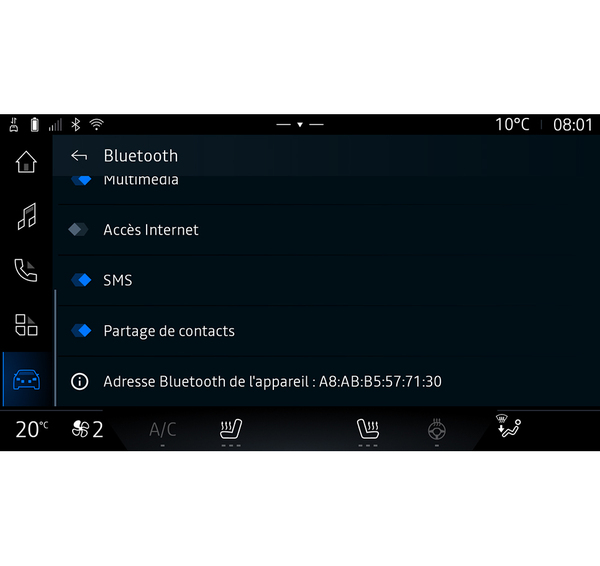
To access your phone directory, music and internet connection directly via the multimedia system, you must authorise service data sharing from the "Profiles" of your "Paired devices", available on the "Bluetooth®" menu. Select your phone from the list of "Paired devices" and then activate/deactivate the services you want to use:
- "Phone calls": make and receive calls;
- "Multimedia": access your music;
- "Internet access": access internet connection sharing by Bluetooth® (please refer to the section on "System settings" System settings);
- "SMS": send and receive SMS;
- "Contact sharing": access the phonebook and call log;
- ...
Note: if the service is highlighted, this indicates that it is activated.
tip
When you use the "Internet access" service, to speed up data transfers you can also use your phone's internet connection via "Access point and connection sharing" WIFI (subject to charges and limitations imposed by your mobile operator).
« Devices Manager »
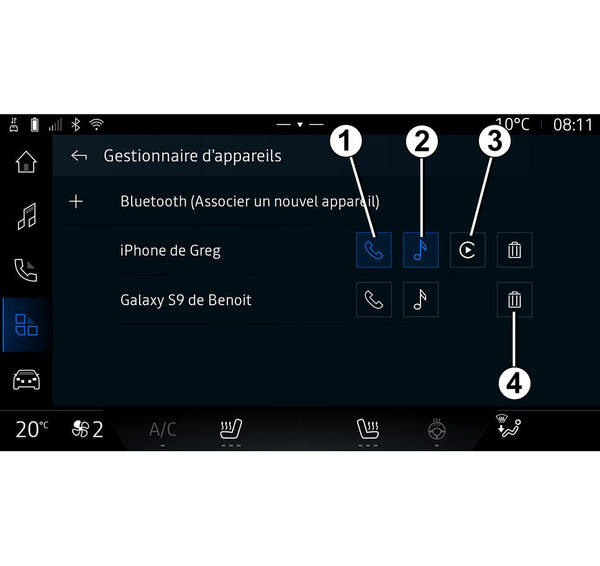
The device manager is used to manage connected phone services. It is best to use the "Devices Manager" app
 to manage these services.
From the "Applications" world
, then "Devices Manager", select your phone from the list of suggestions then select the telephone functions that you would like to activate/deactivate:
- « Phone » 1 ;
- "Music" 2;
- smartphone replication application 3;
- unpairing the phone 4.
Note:
- if the service icon is highlighted, this indicates that it is activated;
- Some phones may allow automatic data transfer.
You can also access the "Devices Manager" from the "Devices Manager" icon available in the "Phone" widget of the "Home screen" world
 .
.
Changing a connected telephone
From "Devices Manager", select the services to connect to another phone that is already paired and present in the list of devices.
Note: to change the connected telephone, you will first have to pair more than one telephone.
Disconnecting a telephone
From the "Applications" world
, then "Devices Manager", press the highlighted icon of the phone service that you want to disconnect:
- « Phone » 1 ;
- "Music" 2;
- smartphone replication application 3.
You can also disconnect the phone from the "Bluetooth®" menu: select your phone from the list of "Paired devices" and then press "Disconnect".
Note: if a call is in progress when the phone is disconnected, the call will be automatically transferred to your phone.