ALPINE PORTAL
" Vehicle " menu
warning
For safety reasons, carry out any adjustments while the vehicle is stationary.
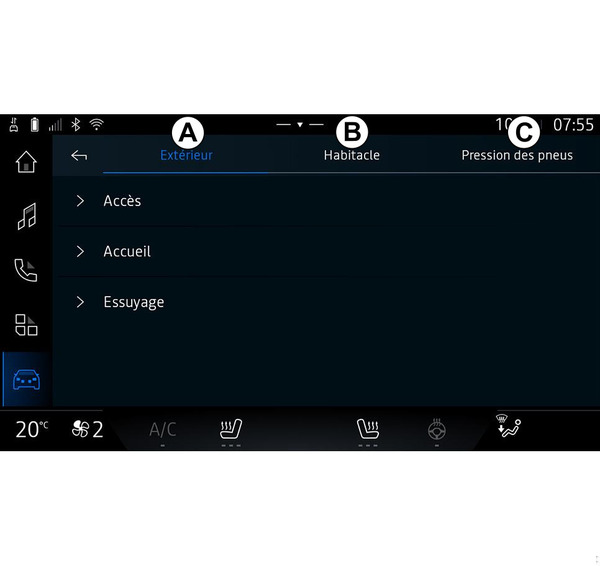
From the "Vehicle" world
 , select the "Vehicle" menu.
From this menu you can access the following tabs:
- "Outside" A;
- "Cockpit" B;
- "Tyre pressure" C.
Note: the availability of settings may vary according to the equipment level.
" Outside " A
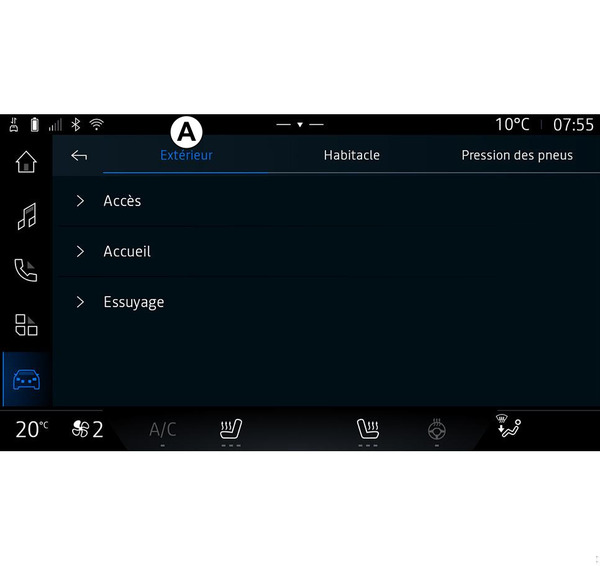
« Access »
Use this menu to activate/deactivate the following options:
- « Auto door lock while driving » ;
- « Hands-free lock/unlock » :
- « Silent mode » ;
Note: some options are available only if the previous functions are activated.
- « Silent mode » ;
« Welcome »
Use this menu to activate/deactivate the following options:
- « External lighting sequence » ;
- « Internal sequence sound » ;
- « Automatic mirrors' unfolding » ;
- « Internal light function » ;
- ...
« Wiping »
Use this menu to activate/deactivate the following options:
- "Rear wiper when in reverse gear": the rear screen wiper is activated when reverse gear is engaged;
Note: this function only operates if the front windscreen wipers are activated.
- « Automatic front wiper » ;
- ...
" Cockpit " B
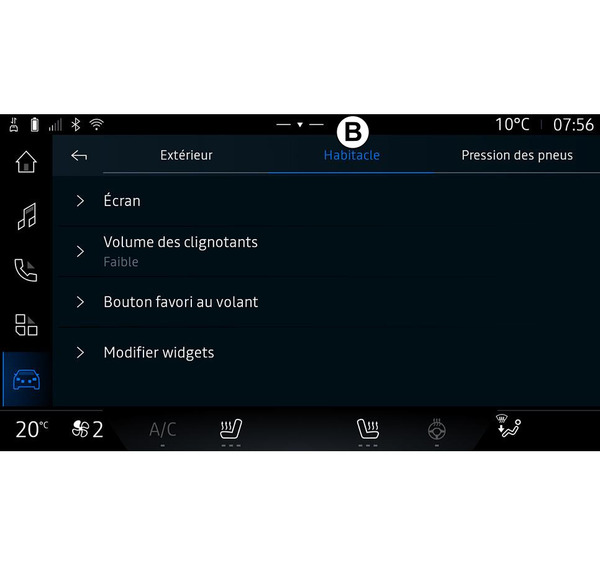
« Display »
This menu allows you to adjust the following lighting options:
- « Multimedia: daytime brightness » ;
- « Multimedia: nighttime brightness » ;
- « Cockpit brightness » ;
- ...
Note: some options are available only if the previous functions are activated.
« Turn indicator sound volume »
Use this menu to adjust the volume of the indicators in the passenger compartment:
- « Low » ;
- « Middle » ;
- « High ».
« Favourite button on the steering wheel »
Use this menu to configure the "Favourite button on the steering wheel" by allocating its function as one of the following:
- « Heated steering wheel » ;
- « Vehicle world menu » ;
- « Hands-free Park Assist » ;
- ...
Note: the available options may vary according to the equipment level.
« Edit widgets »
From this menu you can modify the widgets in the "Navigation" world
 (availability depends on your vehicle's equipment):
- « Audio » ;
- « Tyre Pressure » ;
- « Google Assistant » ;
- « Date and time » ;
- « Parking » ;
- ...
" Tyre pressure " C
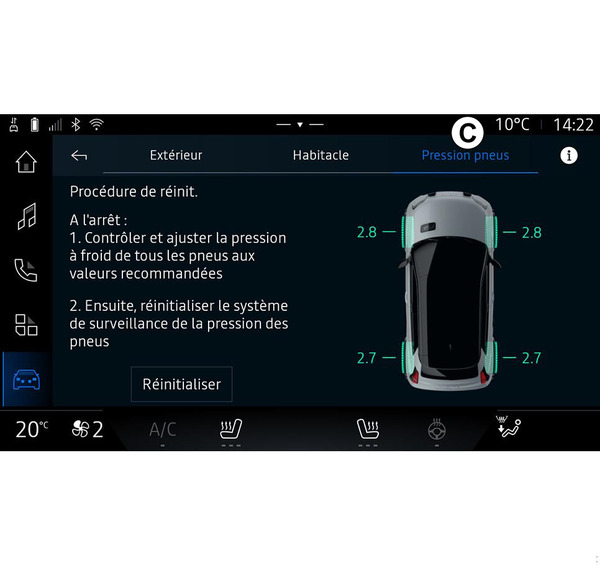
Use this menu to check the vehicle tyre pressure status and to carry out a reset.
For more information on tyre pressure, please see:
- the section on "Tyre pressure" Tyre pressure;
- your vehicle user manual.
Menu " Profile "
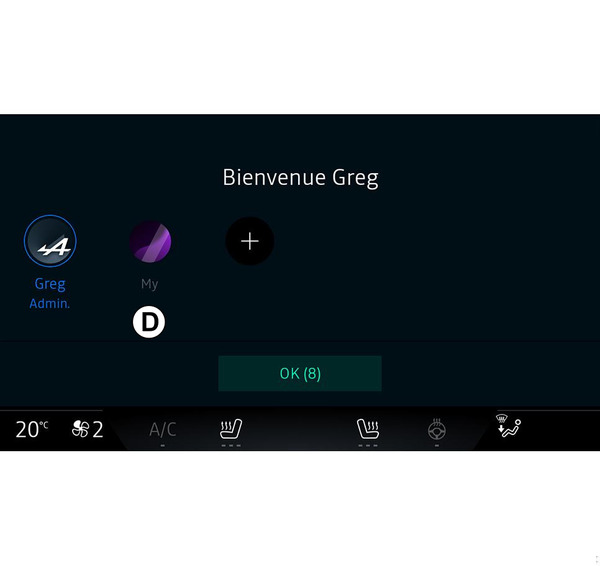
When the multimedia system is started, at D, you can choose or add a user profile to apply to the system and to the vehicle.
Select the desired user profile.
Note: it is only possible to change the profile while the vehicle is stationary.
You can access the "Profile" menu from the notifications centre at any time by pressing the image on your profile.
Features linked to user profile
The following settings are stored in the user profile:
- system language;
- "My Alpine" account;
- Google® account;
- DRIVE MODE settings;
- settings for the terms of use of personal data;
- display settings;
- audio settings;
- navigation settings;
- navigation history;
- navigation favourites;
- ...
Note: the first profile created will be the default Administrator profile. Some settings are only available via the Administrator profile.
Add a "Profile"
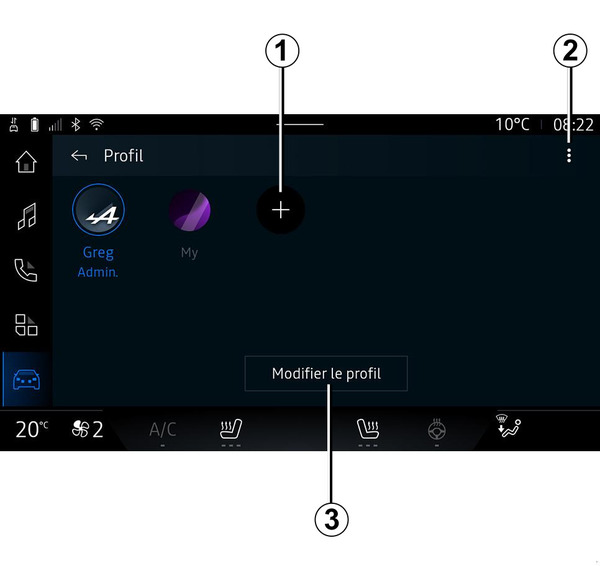
To add a new "Profile", press 1 then follow the instructions displayed on the multimedia screen.
Note:
- you can add up to five "Profile";
- every time you create a new "Profile" a configuration is required: please see the section on "Activating services" Activating services.
"Profile" settings
tip
To better protect your personal data, we recommend that you lock your profile.
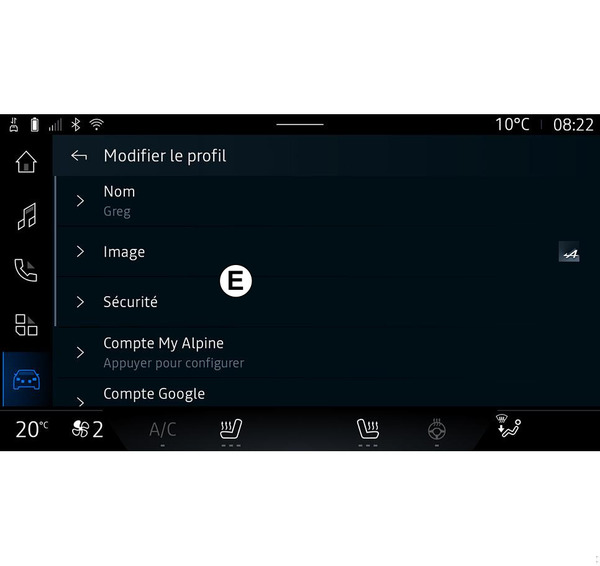
From 2 you can access the following functions:
- « Manage profiles » ;
- « Manage accounts » ;
- « Delete profile » ;
- « Guest profile ».
- « Name » ;
- « Picture » ;
- « Security » :
- "Select locking mode";
- "Delete ID".
- "My Alpine account" (only available on the Administrator profile);
- « Privacy terms » ;
- « Privacy settings » :
- « Accept all » ;
- « Refuse all » ;
- « Customise ».
For further information, please refer to the "Activating services" section Activating services.
- ...
Profile « Guest »
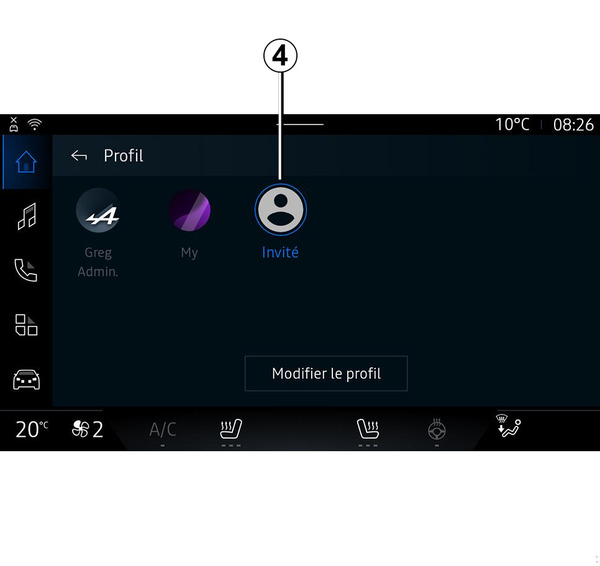
The "Guest" (GUEST) profile can be used to access some of the multimedia system functions like a user profile.
The "Guest" profile is reset every time the system restarts and the settings are not stored.