ALPINE MULTIMEDIA SYSTEM
Map
Displaying the map
From the home screen, press "Menu" then "Navigation" to access the map.
You can also access the map from the "Navigation" widget.
The map displays your current position and the information that you configured (display POI, weather, traffic information etc.).
To move around the navigation map, press and hold the map then slide your finger across the screen in the direction required.
Press Q to return to your current position.
warning
For safety reasons, carry out these operations when the vehicle is stationary.
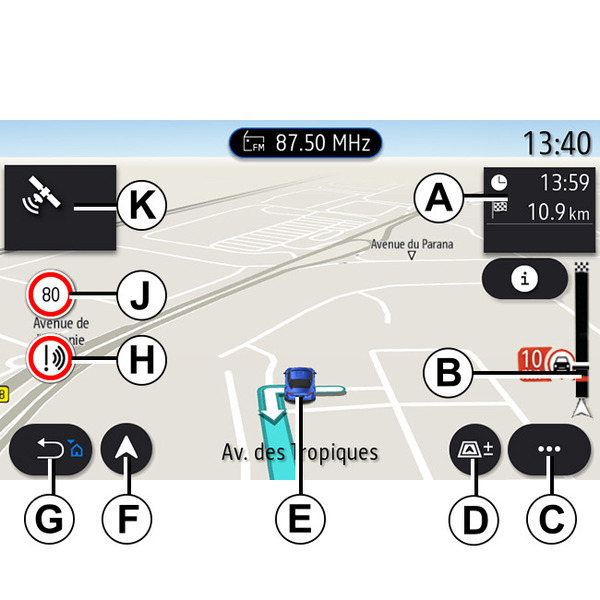
"Map" screen with a journey in progress
- A.
Journey information such as the arrival time, additional time due to traffic and the remaining distance to the next stage or final destination (depending on the parameters).
Note: pressing once on zone A will enable the multimedia system to display details on the journey stages.
- B.
Information on traffic conditions over the next few miles. Press this area to view the list of incidents on the route in progress.
- C.
Pop-up menu.
- D.
Views/Zoom:
- press the "±" button to display the zoom in and zoom out buttons;
- press the "Views" button to display the 2D/2DNorth, 3D/3DInception, "Traffic" view.
- E.
Location and the name of the street which you are on. Press to access additional features.
- F.
Navigation menu.
- G.
Return to the previous screen.
Note: press and hold to return to the main menu.
- H.
Hazard area warning.
- J.
Speed limit indicator panel.
- K.
While a route is in progress, information on upcoming road turns and the name of the next street on your route. Press the speaker icon once to activate/deactivate the guidance voice and repeat the last voice instruction.
- L.
Journey information such as your arrival time, additional time due to traffic and distance. Touch the unit to view the journey stages.
- M.
Information on the road types used (motorways, toll roads, motorail).
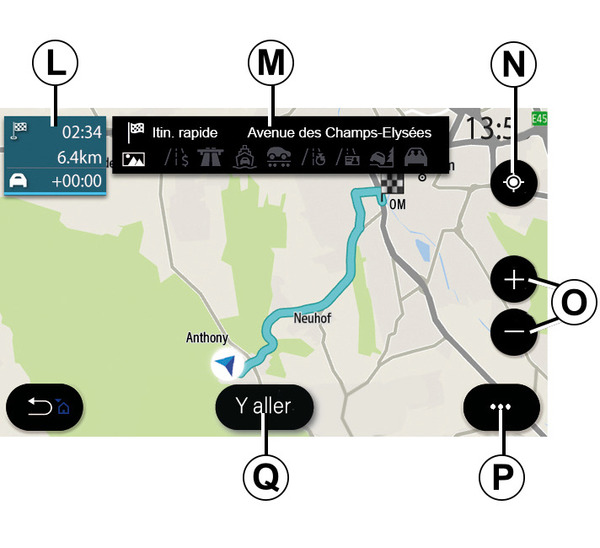
"Route calculation" screen
- N.
When a route is in progress, this function can be used to return to the route in progress after moving around the map.
- O.
Zoom: zoom in and out buttons.
- P.
Pop-up menu.
- Q.
Press the "Go" button to start the selected route.
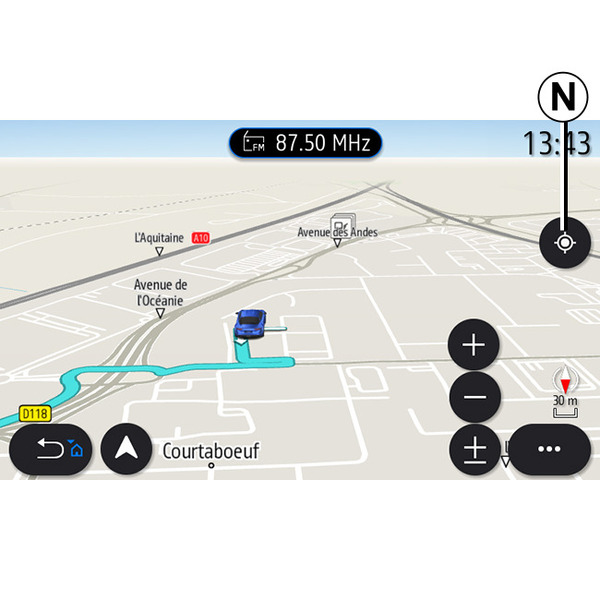
"Map" screen without a journey in progress
Use the N function to return to your position.
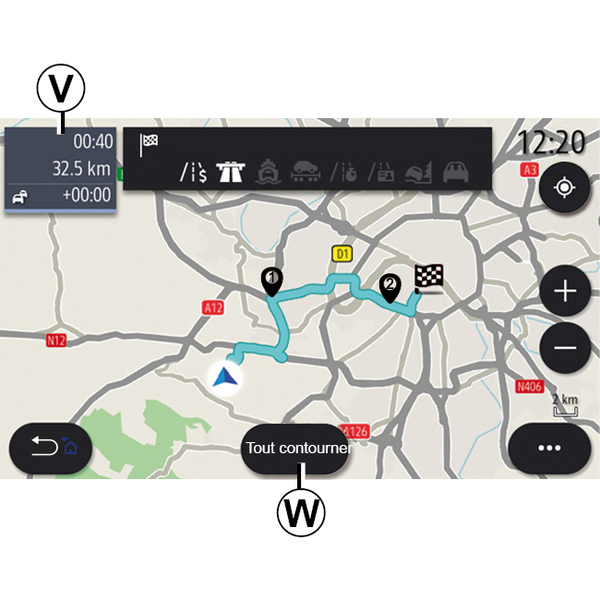
"Traffic" screen
- V.
View of traffic events on the map or by a list of events.
- W.
Press the "Avoid all" button while the guidance is in progress to avoid all areas with traffic problems.
Pop-up menu with no route in progress
Press the pop-up menu to access the "Settings" menu.
From the "Route" tab you can access the following settings:
- « Type of Route » ;
- "Take deviations";
- « Allow toll roads » ;
- « Allow motorways » ;
- "Allow ferries";
- « Allow car train » ;
- « Automatic guidance proposal » ;
- « Destinations shared with other devices » ;
- « Allow time-restricted roads » ;
- "Allow toll roads";
- « Avoidance areas » ;
- « Allow unpaved road ».
From the "Map" tab you can access the following settings:
- "Map colour";
- « Weather display » ;
- "2D/3D North, 2D /3DInception, "Traffic" views;
- « Traffic display » ;
- « Traffic signs » ;
- « Auto zoom » ;
- « My car » ;
- « Junction view » ;
- "Display POI";
- « Weather display ».
Pop-up menu with a route in progress
Press the pop-up menu to access the following menus:
- « Cancel route » ;
- « Guidance voice » ;
- "Route detail";
- « Settings ».
« Cancel route »
Stops the navigation in progress.
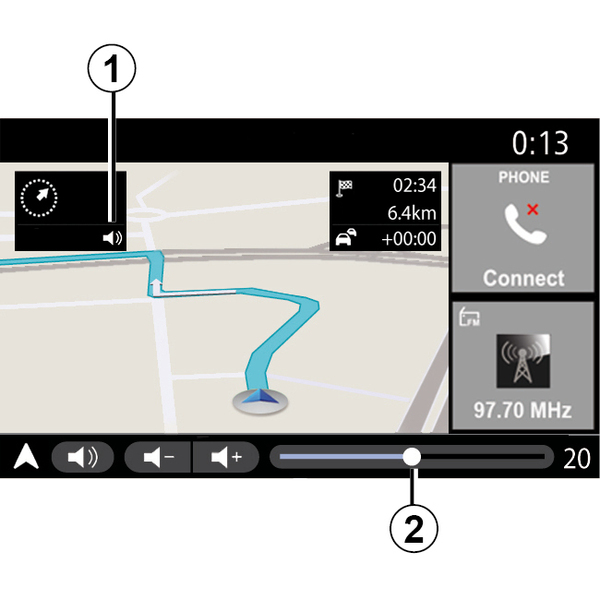
« Guidance voice »
To activate/deactivate the guidance voice, press the button 1.
Note: if this function is deactivated, no voice guidance instructions will be issued by the multimedia system.
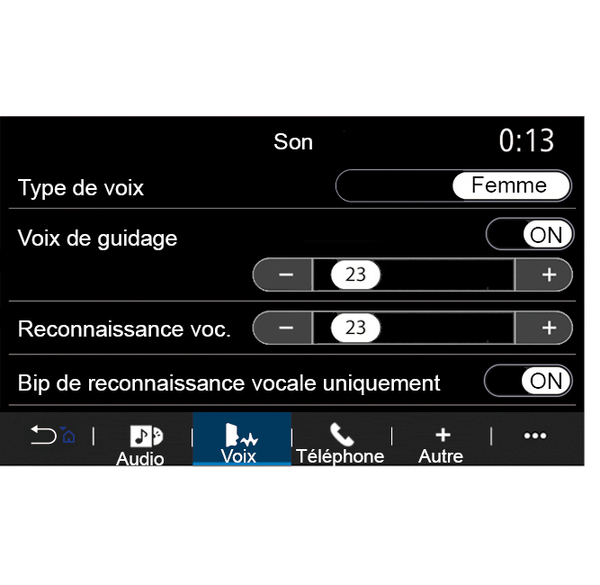
You can access the "Guidance voice" settings:
- from pop-up menu C;
- when voice information is emitted by the multimedia system, by pressing the volume controls.
Note:
- the volume controls can only be used for the current source ("Guidance voice", "Radio", "Phone");
- the volume indicator 2 is shown for information. You can't use it to adjust the volume level.
"Route detail"
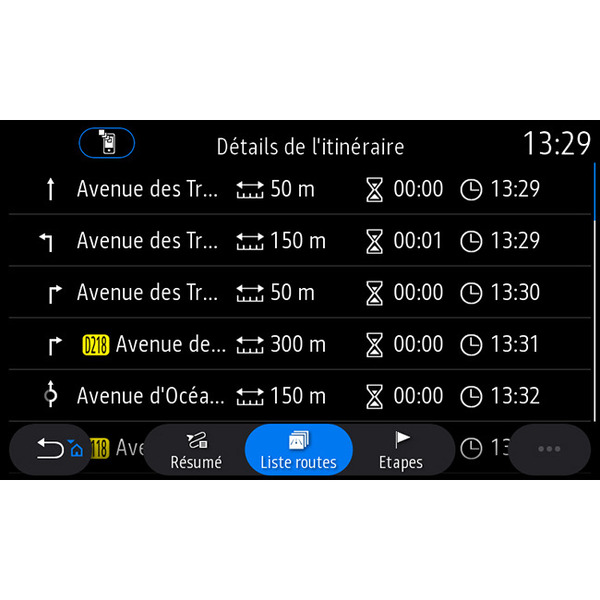
This function is used to view the details of the current route.
From the "Summary" tab you can view the departure address and destination address as well as the routes taken.
From the "Road list" tab you can view the route in detail.
From the "Stages" tab you can view the various stages as well as the distances and durations between each stage.
Display mode
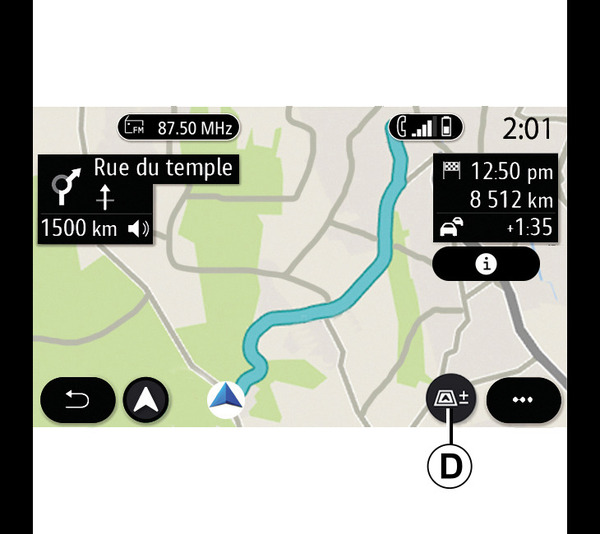
You can select between several display modes by pressing the View/Zoom button D.
Route view
The map displays your complete route.
2D view
The map displays your current location and faces the direction you are travelling in.
2D/North view
The map displays your current position facing North.
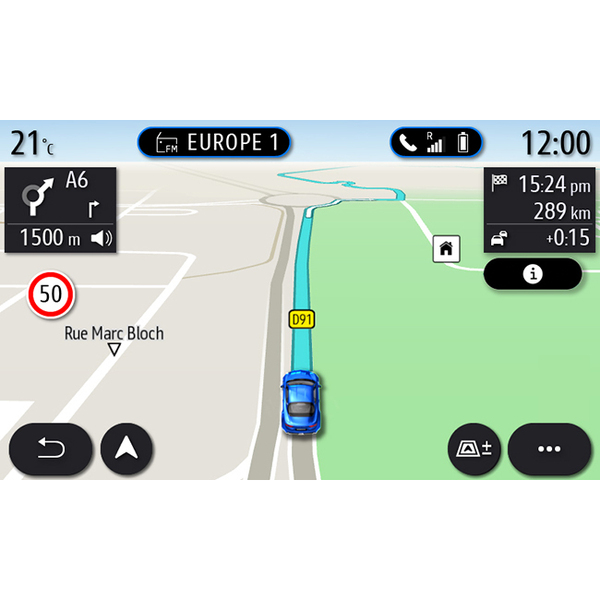
3D view
The map displays your current position on a 3D map surface. It automatically faces the direction of travel.
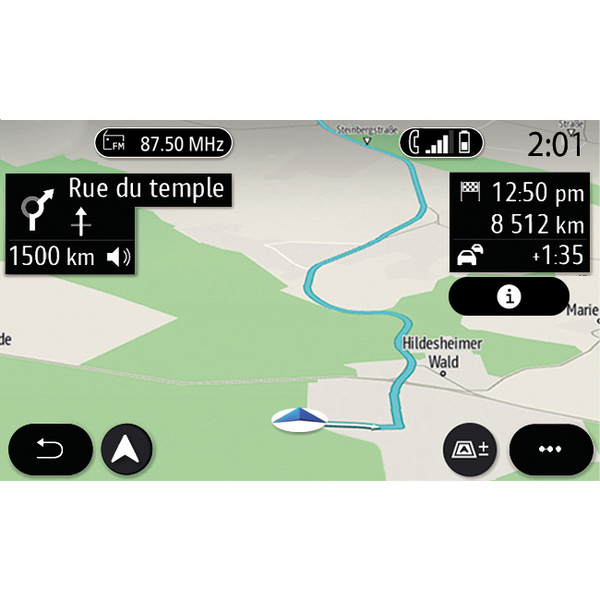
View 3DInception
(depending on equipment)
The map is angled slightly upwards to provide a longer distance of visibility. It automatically faces the direction of travel.
Guidance
Guidance is activated once the route has been calculated. The multimedia system guides you all the way along your route, informing you at each intersection of the direction to follow over several stages.
Stage 1: preparation
The multimedia system will inform you, using the navigation voice, that you will soon have to carry out a manoeuvre.
Stage 2: alert
The multimedia system announces the manoeuvre that you need to carry out.
e.g. "In 400 metres, take the next exit".
The screen displays a detailed representation or 3D image of the manoeuvre.
Stage 3: manoeuvre
The multimedia system indicates which manoeuvre should be carried out.
e.g. "Take the next right".
Once the manoeuvre has been completed, the map will appear in full screen.
Note: if you do not follow the driving recommendations or if you quit the calculated route, a new route is automatically calculated by the multimedia system.
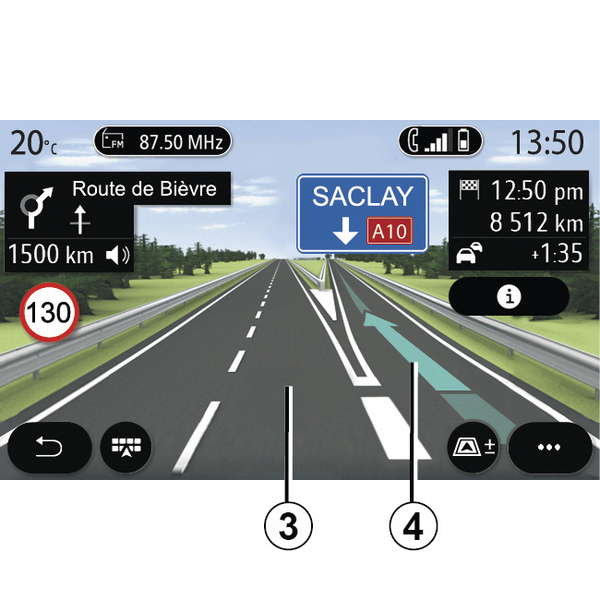
Lane
The display automatically switches to a more detailed view in order to guide you to the correct lane for the next manoeuvre:
- lane(s) 3 without direction arrow(s): the lane should not be taken according to the route calculated;
- lane(s) 4 with direction arrow(s): the lane should be taken according to the route calculated.
Note: other lanes may appear during the manoeuvre.
« Weather »
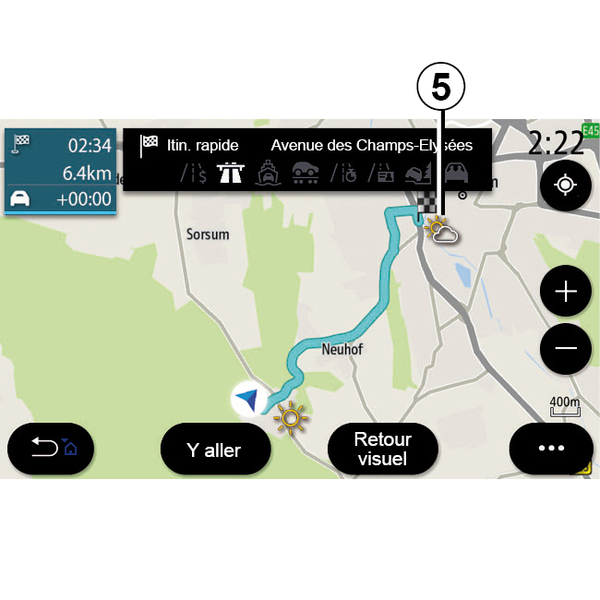
(availability depends on the country of sale)
From the pop-up menu, you can activate or deactivate the weather display on the map.
The multimedia system informs you of the weather forecast in the area around your position, or at the destination if a route is in progress.
Note: the services must be activated in order to display the weather Activating services.
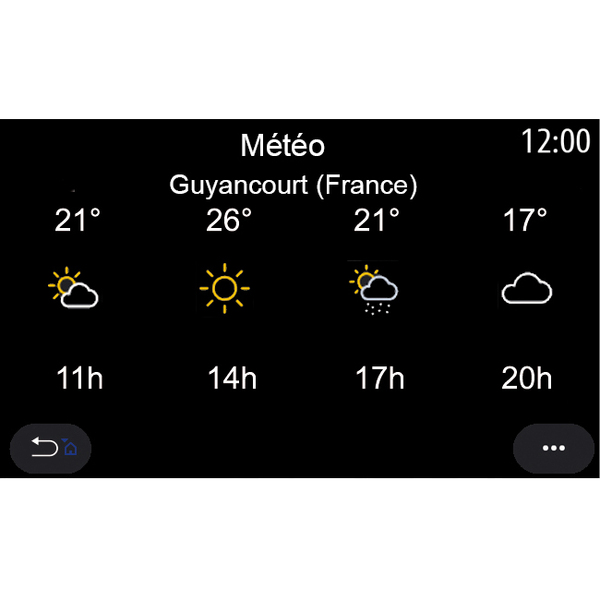
Press the weather icon 5 to view a weather forecast over the next few hours.
This information can also be accessed from the "Weather" widget.