ALPINE PORTAL
Smartphone replication
tip
When you use the "Android Auto™" app or the "CarPlay™" service, you are using your smartphone's internet connection (subject to charges and limitations imposed by your mobile operator).
tip
The "Android Auto™" app and the "CarPlay™" service functions may vary depending on the make and model of your smartphone. For further information, please refer to the manufacturer's website if there is one.
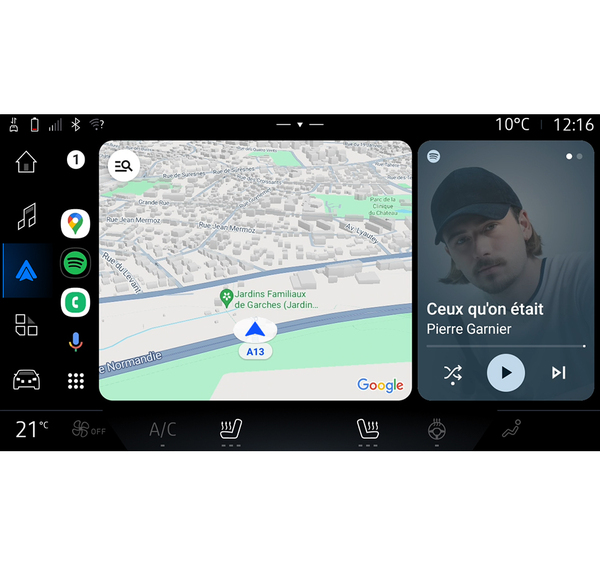
Android Auto™

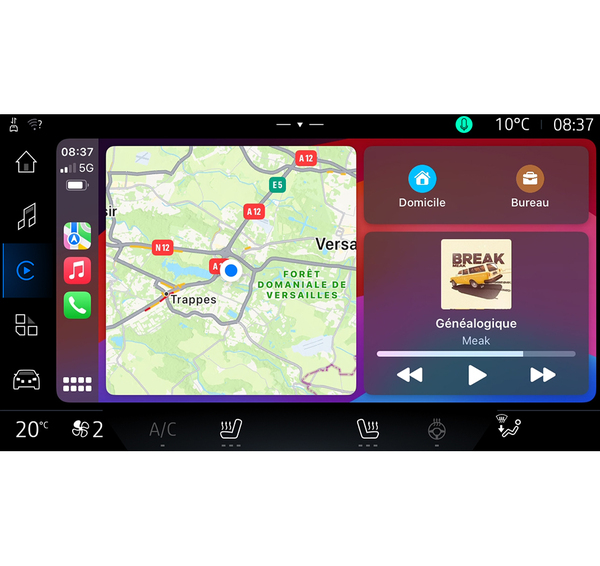
CarPlay™

This function enables you to replicate your smartphone in order to use some of its apps and functions on the multimedia system screen, via:
- « Android Auto™ »
;
- « CarPlay™ »
.
Note: when you use "Android Auto™" or "CarPlay™", you can access your smartphone's navigation and music apps.
These applications will replace similar applications integrated into your multimedia system which are already running.
Only one navigation system can be used among:
- « Android Auto™ » ;
- « CarPlay™ » ;
- the one included in your multimedia system.
Note: when you are using the "Android Auto™" application or the "CarPlay™" service, certain multimedia system functions will continue to run in the background. For example, if you start "Android Auto™" or "CarPlay™" and use the navigation on your smartphone while the radio on the multimedia system is currently playing, the radio will continue to be broadcast.
Introduction Android Auto™
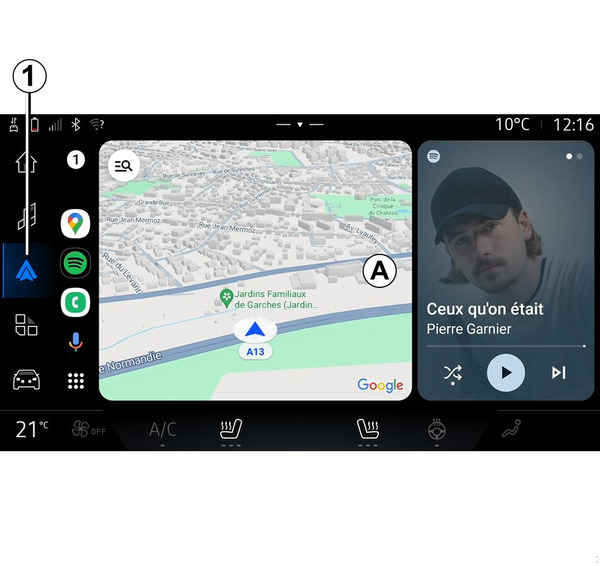
"Android Auto™" is an app that enables you to replicate your smartphone on the screen of your multimedia system.
Note:
- the "Android Auto™" app only works if your smartphone is connected to your vehicle's USB port or wirelessly by Bluetooth® to enable automatic WIFI connection to your system;
- to ensure that the app functions correctly, it is advisable to use USB cables recommended by the smartphone manufacturer.
First use
If you haven't done already, download and install the "Android Auto™" application via your compatible smartphone's application download platform.
Connect your smartphone to your multimedia system USB port or connect it using Bluetooth® to automatically initiate the WIFI connection.
Accept the requests on your smartphone in order to use the application.
Note: you can check the compatibility of your smartphone and its version of Android using the "Android Auto™" service: consult the Google® documentation.
The multimedia system suggests that you use the "Android Auto™" service.
The application is launched on the multimedia system and should be visible from area A. Smartphone replication replaces the "Phone" world
 and the 1
icon appears.
and the 1
icon appears.
If the procedure described above fails, repeat the operation.
Once used for the first time, smartphone replication will launch automatically for further sessions.
From the "Applications" world
 , then "Devices Manager", you can also activate/deactivate the smartphone replication function by pressing the "Android Auto™" replication icon
.
, then "Devices Manager", you can also activate/deactivate the smartphone replication function by pressing the "Android Auto™" replication icon
.
Exit replication
To exit "Android Auto™" wireless replication:
- press "Exit car mode" on the your smartphone notifications screen;
- deactivate the smartphone replication by pressing the replication icon " Android Auto™ "
or activate the " Phone "
, service from the " Devices Manager ". This action, performed from the " Devices Manager ", automatically transfers phone call and audio management Bluetooth® to the most recently connected device(s);
- select the approved dealer's app among the smartphone replication apps.
Introduction CarPlay™
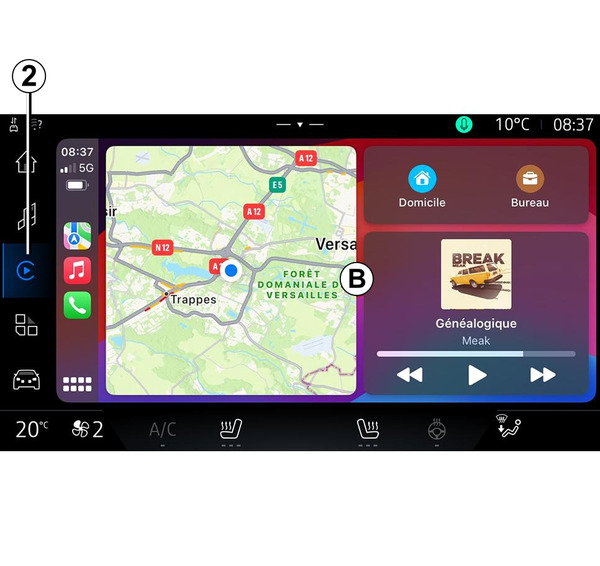
"CarPlay™" is a pre-installed service on your smartphone which enables you to use some apps on your smartphone via your multimedia system screen.
Note:
- the "CarPlay™" service only works if the SIRI service is activated, if the vehicle microphone is activated and if your smartphone is connected to your vehicle's USB port or wirelessly using Bluetooth® to enable automatic connection to your system by WIFI;
- to ensure that the app functions correctly, it is advisable to use USB cables recommended by the smartphone manufacturer.
First use
Connect your smartphone to your multimedia system USB port or connect using Bluetooth® to enable automatic WIFI connection to your system.
The multimedia system suggests that you:
- authorise the connection and data sharing;
- automatically connect to the "CarPlay™" service for future sessions.
Note: if you do not allow the multimedia system to remember these choices, a reminder message will be displayed each time you start.
Accept the requests on your smartphone in order to use the application.
The service is launched on the multimedia system and should be visible from area B. Smartphone replication replaces the "Phone" world
and the 2
icon appears.
If the procedure described above fails, repeat the operation.
From the "Applications" world
, then "Devices Manager", you can also activate/deactivate the smartphone replication function by pressing the "CarPlay™" replication icon
.
Exit replication
To exit "CarPlay™" wireless replication:
- deactivate the WIFI on your smartphone;
- deactivate the smartphone replication by pressing the replication icon " CarPlay™ "
or activate the " Phone "
, service from the " Devices Manager ". This action, performed from the " Devices Manager ", automatically transfers phone call and audio management Bluetooth® to the most recently connected device(s);
- select the approved dealer's app among the smartphone replication apps.
Voice recognition
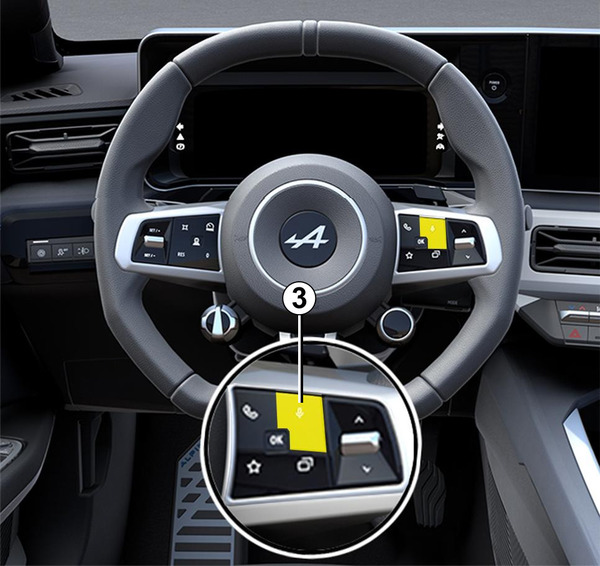
Press and hold the control 3 to activate/deactivate your smartphone's voice recognition function for controlling certain apps and functions by voice command.
Android Auto™
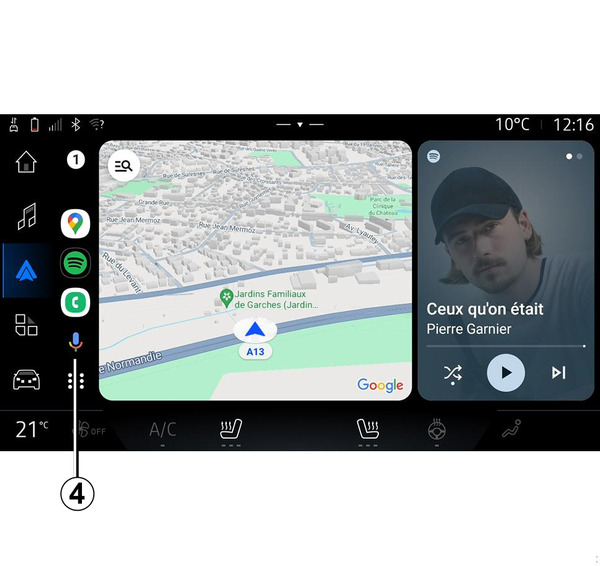
Using "Android Auto™" replication, you can also command some of the functions on your smartphone:
- by pressing the voice recognition button 4;
- by stating the "Ok Google" or "Hey Google" voice command.
CarPlay™
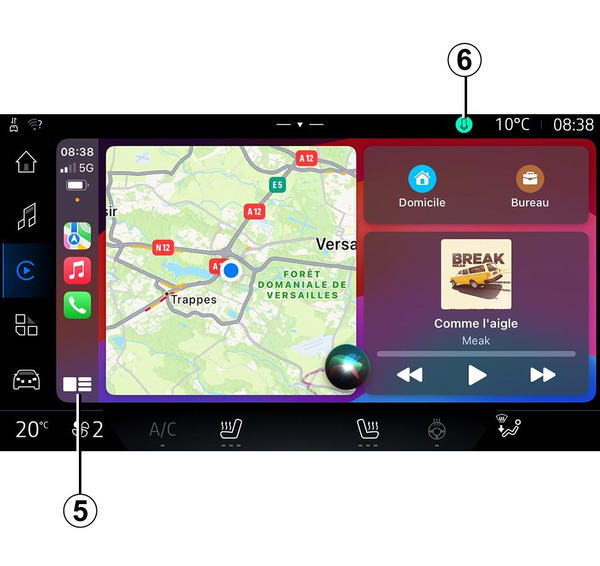
Using "CarPlay™" replication, you can also command some of the functions on your smartphone:
- by pressing and holding button 5;
- by stating the "Hey Siri" voice command, if the vehicle's microphone is activated 6.