ALPINE MULTIMEDIA SYSTEM
Phone call
" Phone " menu
From the main menu, press "Phone".
Note:
- from most menus you can press zone A to directly access the "Phone" menu.
- in order to make a call, your telephone must be connected to your multimedia system. For more information: Connecting, disconnecting a telephone.
"Call in progress" screen
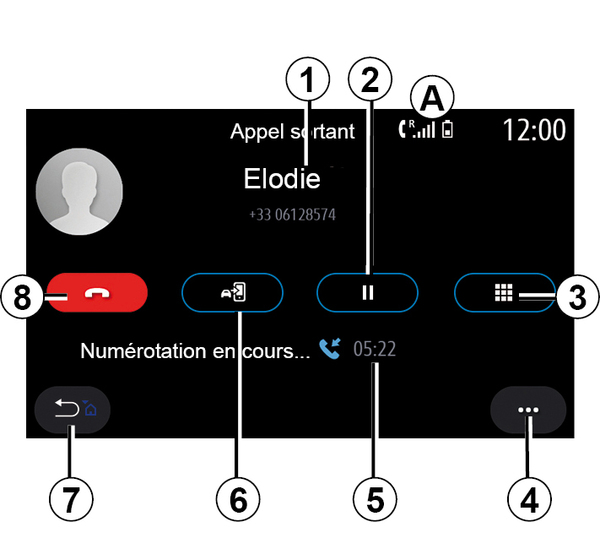
- 1.
Contact name and telephone number.
- 2.
Put current call on hold.
- 3.
Access the keypad to dial a number.
- 4.
Pop-up menu.
- 5.
Duration of current call.
- 6.
Transfer the call to the phone.
- 7.
Return to the previous menu.
- 8.
Hang up.
Making a call
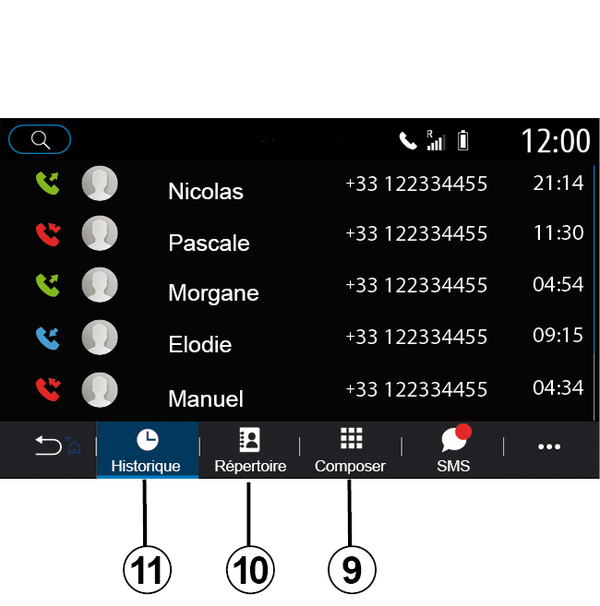
You can make a call by selecting:
- a number in the call log from the "History" menu 11;
- a contact in the phonebook from the "Contacts" menu 10;
- the buttons on the digital keypad from the "Dial" menu 9.
Receiving a call
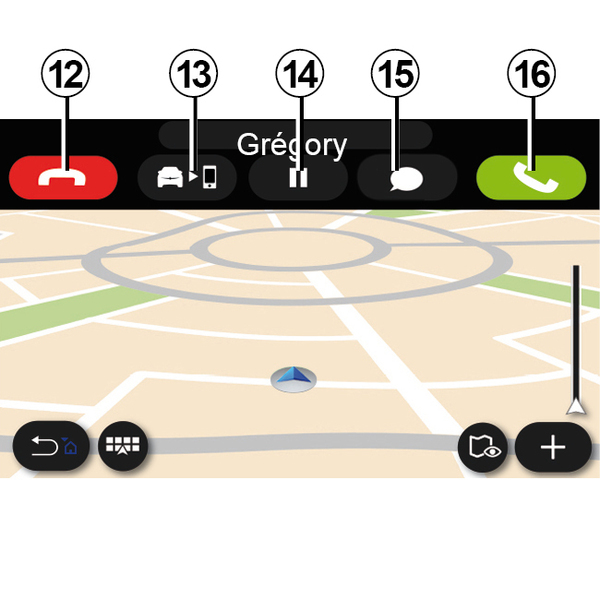
When receiving a call, the "Calls received" screen is displayed and it shows the following information:
- the name of the contact (if the number is present in the list of favourites number or in your phonebook);
- the caller's number (if the number is not present in your phonebook);
- "Private number" (if the number cannot be shown).
"Answer"
To take a call, press the "Answer" button 16. To end the call, press the "End call" button 12.
"Reject" a call
To reject a call, press and hold the "Reject" button 12. The person calling you will be redirected to your voicemail.
Put the call "on hold"
Press the "Put call on hold" button 14. The multimedia system will hang up and automatically put incoming calls on hold. A synthesised message asks your callers to wait.
Transfer to phone
Press the "Transfer" button 13 to transfer the call from the vehicle to the phone.
Note: some telephones may disconnect from the multimedia system during a call transfer.
Number keypad
Press the "Keypad" button 15 to access a number keypad..
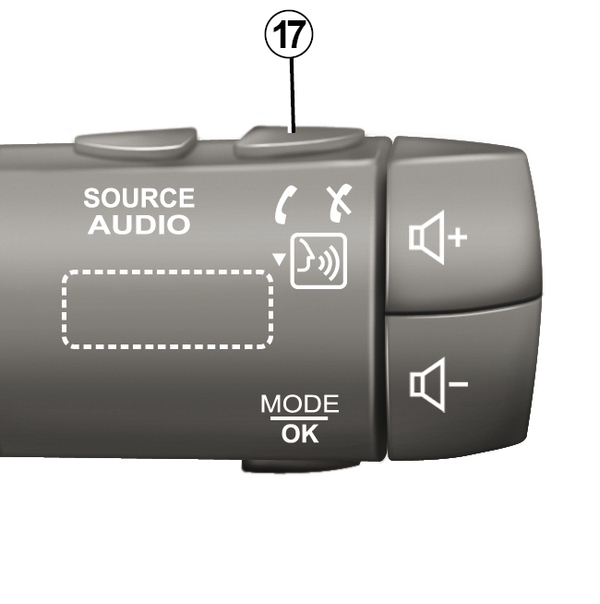
You can answer/end a call by pressing directly on the steering column control 17.
warning
For safety reasons, carry out these operations when the vehicle is stationary.
During a call
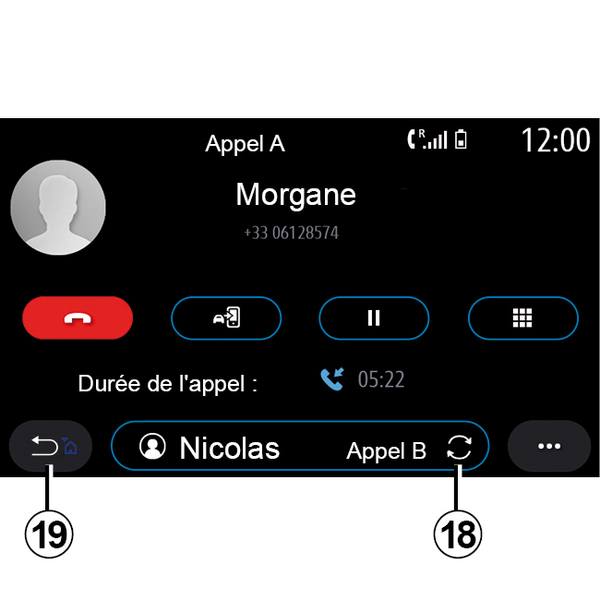
During a call you can:
- adjust the volume using the control buttons on the steering column or using the volume buttons on the multimedia screen;
- end a call by pressing "End call" 8 or by pressing the button 17 on your vehicle's steering column control;
- place a call on hold by pressing the button 14. To resume a call that is on hold, press the button 14 again;
- transfer the call to the connected phone by pressing the "Transfer to phone" button 13;
- you can answer a second call and switch between two calls by pressing 18.
Note: as soon as you answer the second incoming call, the first call will be put on hold automatically.
- Display the numerical keypad by pressing the button 15;
- return to the previous menu and the other functions by pressing 19.
Once your call ends, the multimedia system allows you to call your caller back.
Note: during a call, you can receive a second call but you cannot make a second call.
Conference call
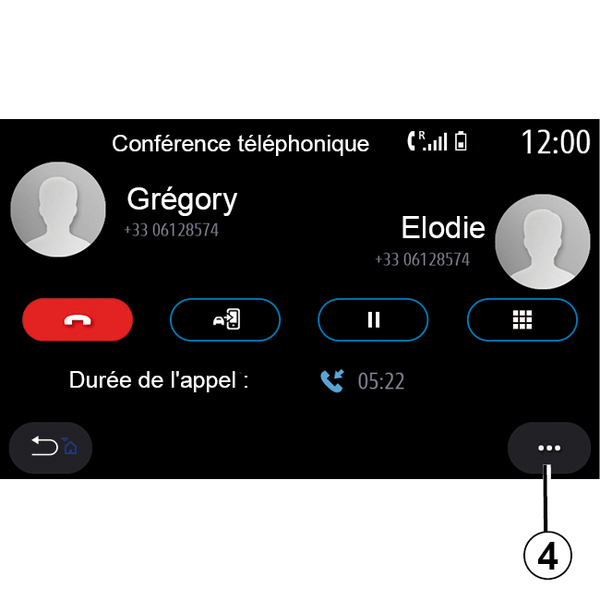
During a call you have the option of inviting the caller who you put on standby to join the call.
From the pop-up menu 4, press the "Join calls" button to activate the conference call.
Phonebook
" Contacts " menu
From the main menu, you can press "Phone" or the shortcut A from most menus, then "Contacts" to access your phonebook via your multimedia system.
The multimedia system does not manage phones equipped with "dual SIM". Configure your telephone to enable the multimedia system to access the correct directory on your telephone.
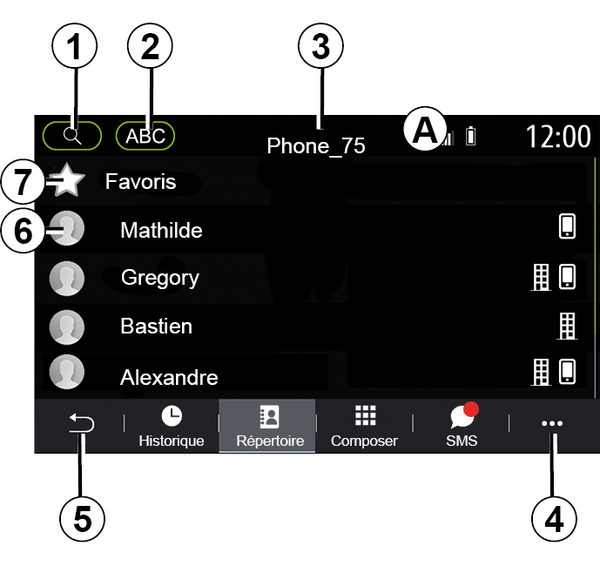
"Contacts " mode
- 1.
Search for a contact by name or number.
- 2.
Search for a contact in alphabetical order.
- 3.
Telephone connected.
- 4.
Pop-up menu.
- 5.
Return to the previous menu.
- 6.
List of contacts in the connected phone.
- 7.
Contacts stored in favourites on the phone.
Downloading the phone memory
By default, when connecting a phone, the contacts are synchronised automatically if the hands-free connection is activated Connecting, disconnecting a telephone.
Note: to access the phonebook via the multimedia system, you will need to authorise data sharing on your phone Pairing, unpairing a telephone.
Updating the phonebook
You can manually update your phone contacts in the multimedia system phonebook via Bluetooth®. Press the pop-up menu 4, then "Update list".
Searching contacts
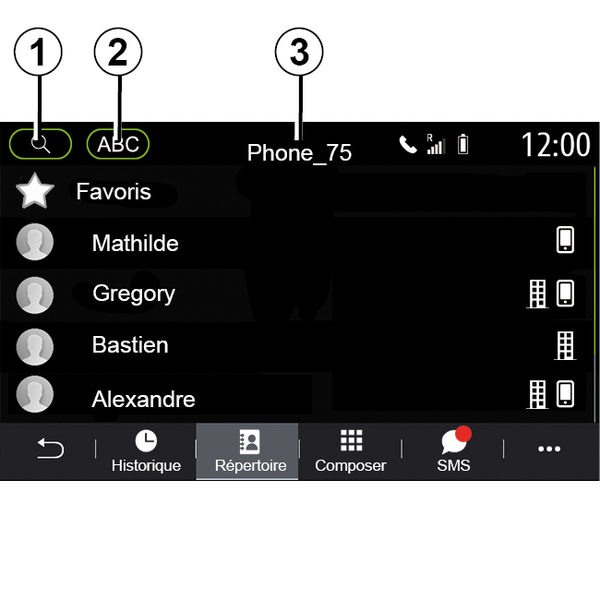
You can search for a contact by entering their name or phone number.
Press the magnifying glass 1. Enter some of the numbers or letters of the desired contact.
Press on ABC2. Select just one letter. The phonebook displays the list of contacts starting with the selected letter.
Select the phonebook
If two telephones are connected to the multimedia system at the same time, you can select which contact list is displayed.
Select the phone from the bar 3.
Confidentiality
The list of contacts for each telephone is not stored in the memory by the hands-free telephone system.
For reasons of confidentiality, each downloaded contacts list can only be viewed when the corresponding telephone is connected.
Call log
"Call log" menu
Accessing the call log
From the main menu, press "Phone" or press the shortcut A from most menus, then "History" to access all of your call history.
The call log is displayed from the most recent to the oldest.
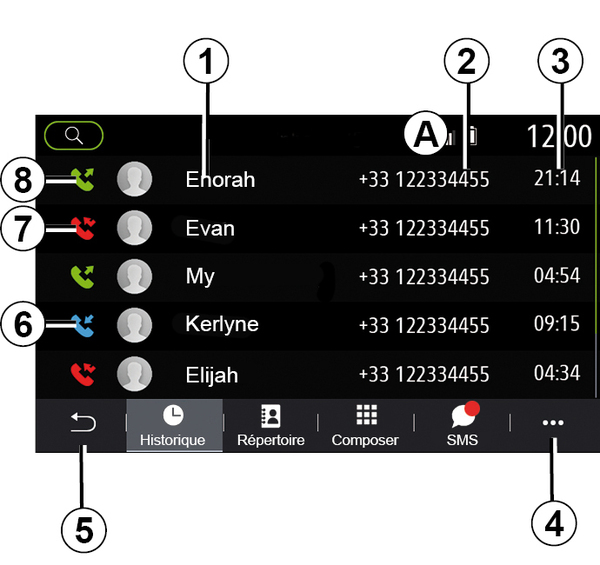
"Call in progress" mode
- 1.
Contact names.
- 2.
Contact numbers.
- 3.
Call time/date.
- 4.
Pop-up menu.
- 5.
Return to the previous menu.
- 6.
Incoming call.
- 7.
Missed call.
- 8.
Outgoing call.
Note: depending on the multimedia screen, some information may not be available.
Browsing the call log
Swipe up and down to scroll through the list of calls.
Updating the call log
Press 4 and select "Update list". A message will notify you that the data has been updated.
Making a call from the call log
Press one of the contacts or numbers to call. The call will be started automatically.
Dial number
"Dial number" menu
Making a call by dialling a number
From the main menu, press "Phone" or press the shortcut A from most menus, then "Dial" to access the keypad in order to dial a number.
Dial number
Dial the number desired using the keypad 1, then press "Call" to make the call.
From the moment the first entry is made, the multimedia system suggests a list of your contacts with the same series of numbers.
Select the contact who you wish to call, then press the "Phone" button 5 to make the call.
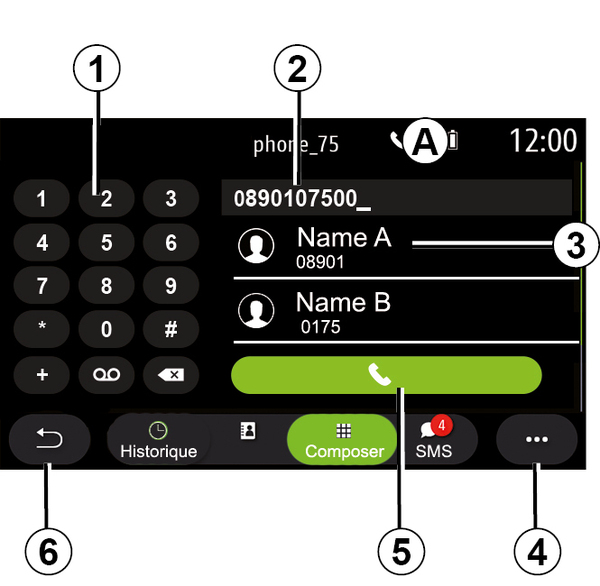
"Dial " mode
- 1.
Digital keypad
- 2.
Number dialled.
- 3.
Contacts suggestion.
- 4.
Pop-up menu.
- 5.
Call.
- 6.
Return to the previous menu.
Enter a number using voice control
You can dictate a number using the voice control included with your multimedia system. To do this, press the voice control button to display the main voice control menu. After the beep, say:
- "Call" then dictate the telephone number that you wish to call.
- or "Call" followed by the name of the contact that you wish to call.
The multimedia system displays the number provided and begins to call it.
Note: if your contact has several phone numbers (work, home, mobile, etc.), you can make a choice. E.g. "Call" - Stéphane - home.