ALPINE MULTIMEDIA SYSTEM
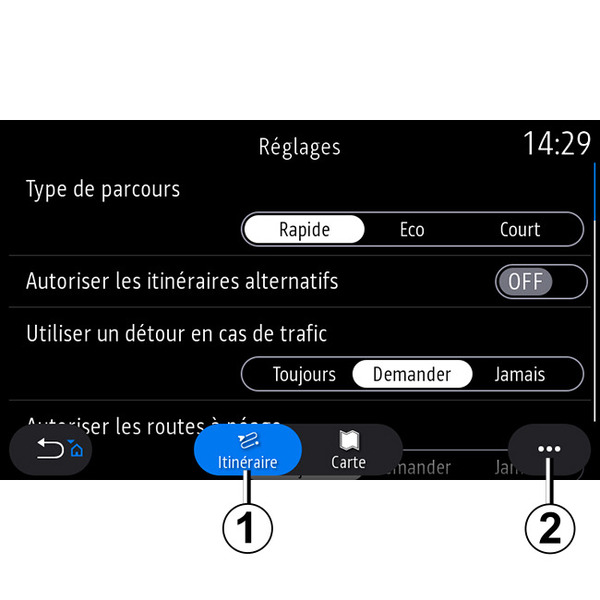
" Settings " menu
From the home screen, press the card or, from the main menu, press "Navigation".
Select the "Navigation menu", then "Settings".
warning
For safety reasons, carry out these operations when the vehicle is stationary.
« Route »
From the "Route" tab 1, you can access the settings below:
- « Type of Route » ;
- « Enable alternative route » ;
- « Use traffic detour » ;
- « Allow toll roads » ;
- « Allow motorways » ;
- "Allow ferries";
- « Allow car train » ;
- « Learning Navigation » ;
- « Destinations shared with other devices » ;
- « Allow time-restricted roads » ;
- "Allow toll roads";
- « Avoidance areas » ;
- « Allow unpaved road » ;
- ...
« Type of Route »
This setting gives you the option of a "Fast", "Eco" or "Short" route.
« Enable alternative route »
You can allow/block an alternative route by pressing "ON" or "OFF".
« Use traffic detour »
You can enable detours and configure to "Always", "Ask" or "Never".
« Allow toll roads »
This setting enables the use of toll roads and you can configure to "Always", "Ask" or "Never".
« Allow motorways »
You can enable/disable the use of motorways on the route by pressing "ON" or "OFF".
"Allow ferries"
Enable/disable the use of ferries on the route by pressing "ON" or "OFF".
« Allow car train »
Enable/disable the use of motorail along the route by pressing "ON" or "OFF".
« Learning Navigation»
Use this navigation programming function to manage the confidentiality parameters related to your navigation data programming.
The multimedia system analyses your daily journeys and journey times in order to suggest a destination without you having to configure it when the multimedia system starts. e.g. home, work, etc.
You can access the settings below:
- "Activate navigation programming" by pressing "ON" or "OFF";
- "Automatic guidance suggestion" by pressing "ON" or "OFF";
- « Delete recorded tracks ».
« Destinations shared with other devices »
From your telephone, you can plan a journey and share it with the multimedia system.
When the vehicle is started, the multimedia system will inform you: "Route planned on your smartphone".
You will have the choice between:
- « Go » ;
- "Save in favourites";
- « Ignore ».
You can allow/block destination sharing by pressing "ON" or "OFF".
« Allow time-restricted roads »
In this setting, you can take time-restricted roads and set to "Always", "When op." or "Never".
« Allow roads with time-based toll »
You can allow/block the use of toll roads along the route by pressing "ON" or "OFF".
« Avoidance areas »
You can activate/deactivate the area to be avoided by pressing "ON" or "OFF".
« Allow unpaved road »
You can allow/block the use of unpaved roads along the route by pressing "ON" or "OFF".
"Border crossing notification"
You can activate/deactivate the multimedia system notification in the event of a border crossing.
Pop-up menu
From the pop-up menu 2, you can modify the "Navigation settings".
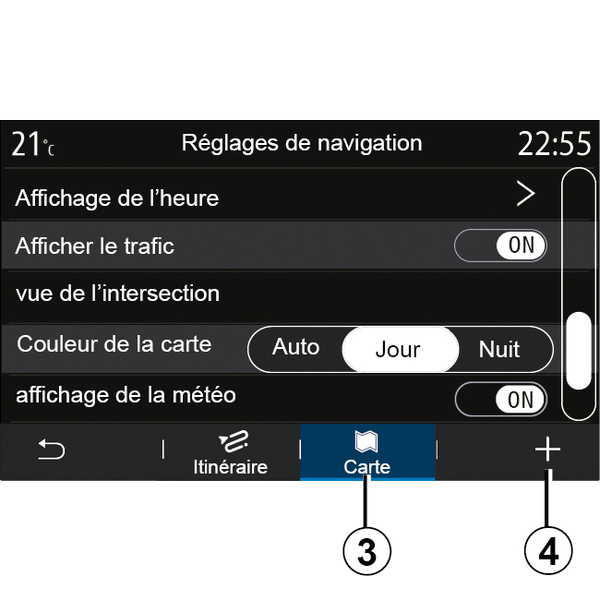
« Map »
From the "Map" tab 3, you can access the following settings:
- « Map theme » ;
- « Time display » ;
- « Traffic display » ;
- « Traffic signs » ;
- « Auto zoom » ;
- « My car » ;
- « Junction view » ;
- "Display POI";
- « Weather display » ;
- « Country information ».
« Map theme »
Use this option to select the map colour to "Auto", "Day" or "Night".
« Time display »
Using this setting, you can choose to display the "Arrival time" or to display the "Time to destination".
« Traffic display »
You can allow/block the traffic display by pressing "ON" or "OFF".
« Traffic signs »
This menu provides the following functions:
- « Traffic signs » ;
- « Overspeed sound alert » ;
- « Risk area display » ;
- « Risk area sound alert ».
You can activate/deactivate them by pressing "ON" or "OFF".
Press the "Reset" button on the pop-up menu 4 to switch all the settings to "ON".
« Auto zoom »
You can activate/deactivate the "Auto zoom" by pressing "ON" or "OFF".
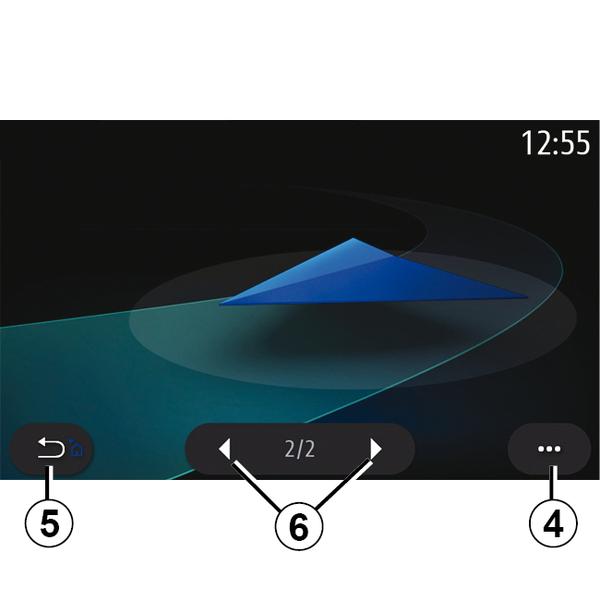
« My car »
You can change the visual representation of the vehicle by pressing the left or right arrow 6 and selecting the desired model.
To confirm your selection, remain on the desired model and press the return arrow 5.
« Junction view »
You can activate/deactivate the "Junction view" by pressing "ON" or "OFF".
"Display POI"
You can activate/deactivate the display of POI on the map:
- « Petrol station » ;
- « Parking » ;
- "Restaurant";
- "Residence/Housing";
- "Travel& Travel";
- "Shopping";
- "Hospital";
- ...
From the map, you can select the POI directly. The multimedia system will suggest several options:
- « Go » ;
- « Call ».
For more information, please see the information on "Points of interest" in the "Enter a destination" section.
« Weather display »
You can activate/deactivate the weather display by pressing "ON" or "OFF".
« Country information »
From the list of countries shown, you can consult the speed limits in force, the direction of traffic, speed unit etc.
Pop-up menu
From the pop-up menu 4, you can reset the "Navigation settings".