ALPINE MULTIMEDIA SYSTEM
" Radio " menu
From the main menu, press "Radio". If a radio station is already playing, you can press the shortcut in zone A from some pages in the "Navigation" or " Phone" menu.
warning
For safety reasons, carry out these operations when the vehicle is stationary.
tip
You can select a saved station, scroll through the radio stations by frequency or by list depending on the mode selected using the button on the steering column control.
" Radio " screen
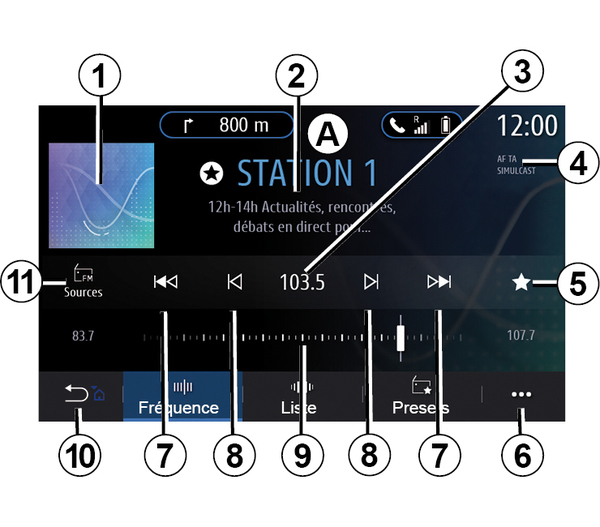
- 1.
Logo of the radio station now playing.
- 2.
The name of the current station and the frequency. Text information (artist, song etc.).
- 3.
Access to manual entry of the desired frequency.
- 4.
Indication of the activation of the traffic information and station tracking functions.
- 5.
Store the station now playing in "Presets".
- 6.
Access the pop-up menu.
- 7.
Access next or previous station.
- 8.
Access next or previous frequency.
- 9.
Frequency selector bar.
- 10.
Return to the previous screen.
- 11.
Access the audio sources menu
Note: the information available depends on the station or radio band selected.
" Frequency " mode
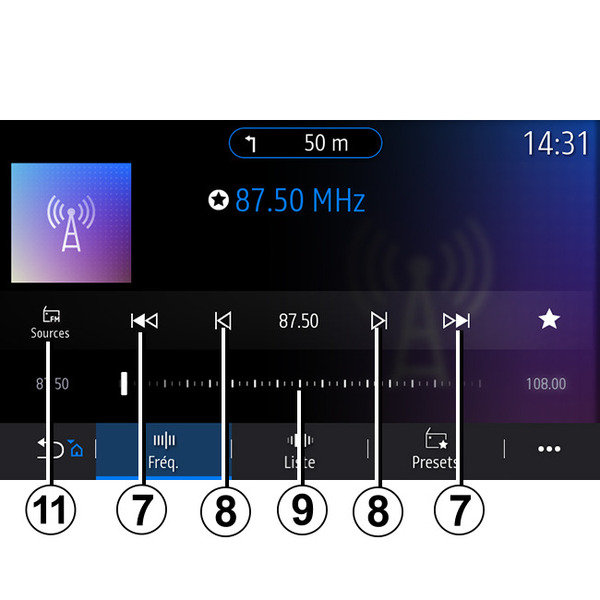
Use this mode to select radio stations by frequency in the radio band selected. To scan the frequency range, you have two options:
- search by frequency: scan the frequencies by repeatedly pressing the buttons 8 or move the cursor on the selector bar 9;
- search by station: move forwards or backwards to the next station by pressing the buttons 8.
Select a radio band
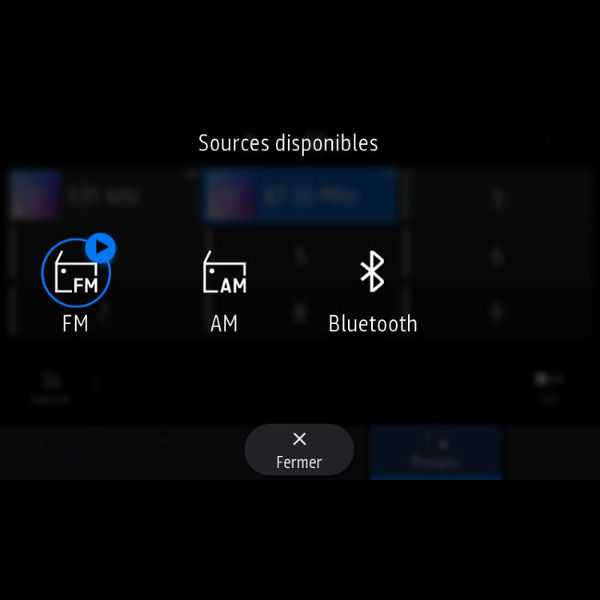
Select "FM", "AM" or "DAB" (digital terrestrial radio) by pressing "Sources" 11 on the multimedia screen.
You can also choose the radio band using the button on the steering column control.
Store a radio station as a preset

Use this function to store the station now playing.
From "Frequency" mode, press the button 5 or press and hold the logo 1 of the radio station that is currently playing and then designate a position (on one of the pages12) by pressing and holding one of the positions until you hear a beep.
You can store up to 27 radio stations.
" List " mode
This mode allows you to find a station by name from an alphabetical list.
Flick the list to scroll through all the stations. The radio station on which you stopped is played. You can also select a radio station from the list to listen to it directly.
If radio stations do not use RDS or if the vehicle is in an area with poor radio reception, the name and logo will not appear on the screen. Only their frequencies are shown, at the top of the list.
Note: the information available depends on the station or radio band selected.
" Presets " mode
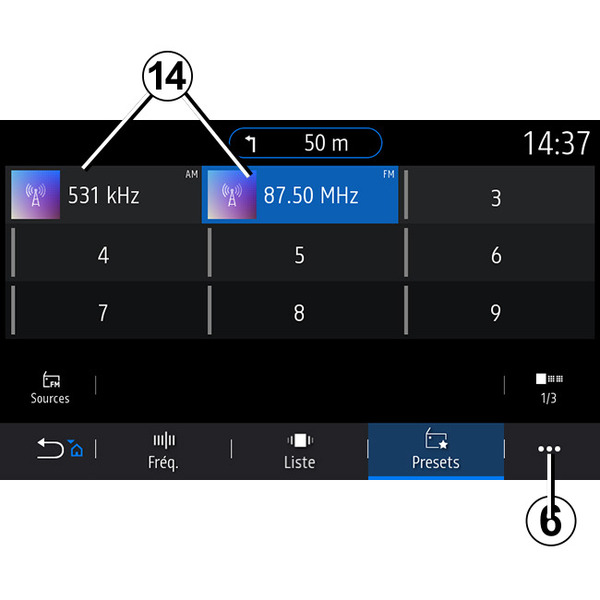
This mode enables you to recall stored stations.
For more information, refer to the "Save preset" paragraph in this section.
Press one of the buttons 14 to select the radio station that you wish to listen to.
Pop-up menu 6
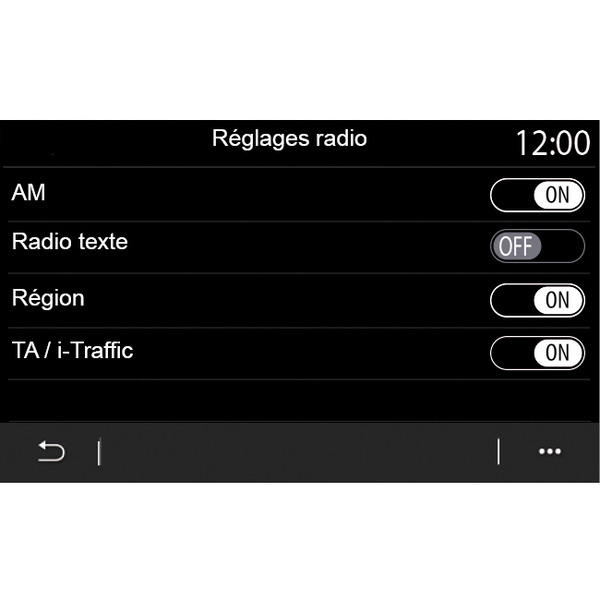
Use the pop-up menu 6 in any mode to go to the settings and configure the following radio functions:
- « Radio settings » ;
- "Sound equaliser settings";
- "Sound settings".
For more information, refer to the Settings" section.
« Radio settings »
From the settings, you can activate or deactivate the following elements:
- « AM » ;
- « Radio text » ;
- « Region » ;
- « TA/I-Traffic » ;
- "Logo";
- "HD radio";
- ...
« AM »
You can enable/disable the waveband display AM in the audio sources menu list 10 by pressing "ON" or "OFF".
« Radio text »
(text information)
Some FM radio stations broadcast text information relating to their programmes (e.g. song titles). Activate this function if you would like to see these details.
Note: this information is only available for some radio stations.
« Region »
The frequency of an "FM" radio station may change depending on the geographical area. Activate this function to continue listening to the same radio station whilst changing region. The audio system will automatically track frequency changes without interruption.
When "Region" mode is deactivated, if the signal level drops, the radio will switch to a new frequency operating as a relay for the station you were listening to previously.
Note:
- stations in the same area sometimes broadcast different programmes or use different radio station names;
- some radio stations broadcast on regional frequencies. In this case:
- with "Region" activated: the system will not switch to the transmitter for the new region, but the system will switch normally between the transmitters of the initial region;
- "Region" deactivated: the system will switch to the transmitter for the new region, even if the broadcast program is different.
« TA/I-Traffic »
(traffic information)
When this function is activated, your audio system enables traffic bulletins to be received (depending on the country) if they are broadcast on certain FM radio stations.
You must then select the frequency of the station that is transmitting traffic information. If another source is playing (USB, Bluetooth®), it will be automatically interrupted whenever traffic information is received.
« Simulcast »
Depending on the country, this function switches from a DAB station to the equivalent FM station if the digital signal is lost.
If the "FM/DAB simulcast" is activated, it will take a few seconds for the system to switch to FM terrestrial radio. A change in volume may occur.
The system will automatically switch back to DAB as soon as the digital signal is received.
Note: during the simulcast, the station name is preceded by "FM>".
"Priority to DAB"
Depending on the country, this function allows you to select an FM station (if the radio station requested is also available in digital) and switch to the equivalent DAB station to obtain better sound quality.
Note: while DAB is prioritised, the station name is preceded by "DAB>".
"Slideshow"
Depending on the country, this function allows you to display information on the programme, music or weather instead of the logo when listening to some DAB radio stations.
Depending on the digital radio station being listened to, it may send images containing visual information about these elements.
Note: this information is only available for some radio stations.
"Sound equaliser settings"
From the settings, you can activate or deactivate the following elements:
- « Natural » ;
- « Live » ;
- « Club » ;
- « Lounge ».
Note: the list of equaliser modes may vary according to the equipment.
"Sound settings"
From this menu, you can set the following:
- "Bass boost": you can use this function to increase or reduce the bass sound;
- "Bass / Medium / Treble": you can us this function to increase or decrease the bass, medium or treble sounds;
- "Speed-dependent volume control": when this function is activated, the volume of the audio system varies according to the vehicle speed. You can adjust its sensitivity or deactivate it;
- ...
For more information on the available settings, see Settings.