ALPINE MULTIMEDIA SYSTEM
Multimedia screen

Navigating a menu
The multimedia screen can be used to access the system functions. Touch the multimedia screen to select one of the menus.
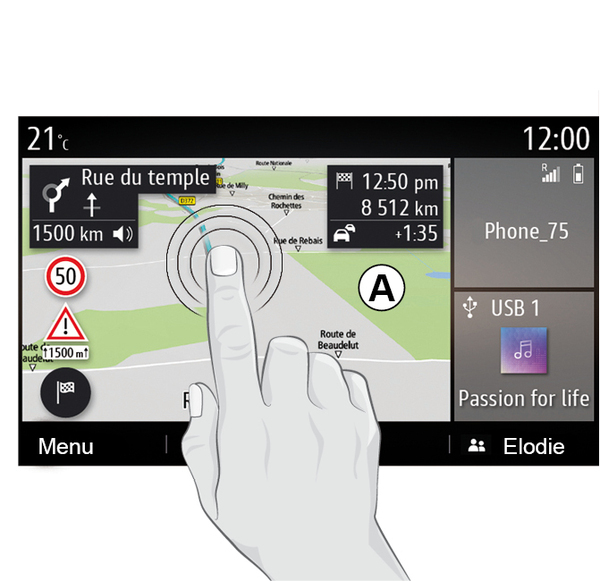
Gesture interaction
- Briefly press: touch a part of the screen with your finger then immediately take your finger off the screen.
- Press and hold: touch a part of the screen for at least 1.5 seconds.
- Zoom-in/Zoom-out: bring together two fingers or slide them apart on the screen.

- Fast "swipe": slide your finger quickly from left to right to change from home page A to home page B.
- Drag and drop: press and hold the item to be moved for at least a second and a half, drag it to the desired location, then let go.
Introduction to the home pages

Your system has several customisable home pages 1. Move from one page to another by swiping horizontally or by pressing the button 1 corresponding to the page desired.
These home pages are made up of a certain number of widgets to functions such as the navigation, the radio, etc.

These widgets grant you direct access to the main screen for the function or, in certain cases, enable you to directly control them from one of the main screens (change the radio station, for example).
For a description of the home page: General description.
Note: you can change the configuration of the home pages. Please refer to the "Add and manage widgets" section for further information.
Display of home pages, functions and information may be reversed depending on country and read direction.
Introduction to the main menu

To access the home page, press and hold button 2 on the screen.
The system has several menus, all of which can be accessed from the main menu:
- "Navigation": this menu includes all the satellite guidance functions, road maps and traffic information, depending on the country in which the vehicle is sold;
- "Radio": manage the radio and playback of audio files;
- "Music": manage the playback of audio files;
- "Telephone": pair the system with one or more mobile phones and use the hands-free mode;
- "Applications": manage your photos, videos and applications such as Alpine Telemetrics;
- "Vehicle Info": covers information related to the multimedia system;
- "Settings": manage some vehicle equipment such as the reversing camera and adjust various settings on the multimedia system, such as the display, language, etc.;
- "Suggestions & Notifications": informs you of events by category: Navigation, Multimedia, Telephone, etc.
Note: depending on the equipment, some menus may not be available.
tip
Some settings have to be modified while the engine is running in order for them to be stored by the multimedia system.
warning
For safety reasons, carry out these operations when the vehicle is stationary.
Scroll bar

The bar 3 shows the position of the current screen on the page. Swipe the multimedia screen up or down to scroll through the list and move around the page.
Pop-up menu
From most system menus you can access a pop-up menu 4 that gives access to sub-menus (delete favourites, change current route, settings, etc.) and to the user manual for your multimedia system.
Functions unavailable
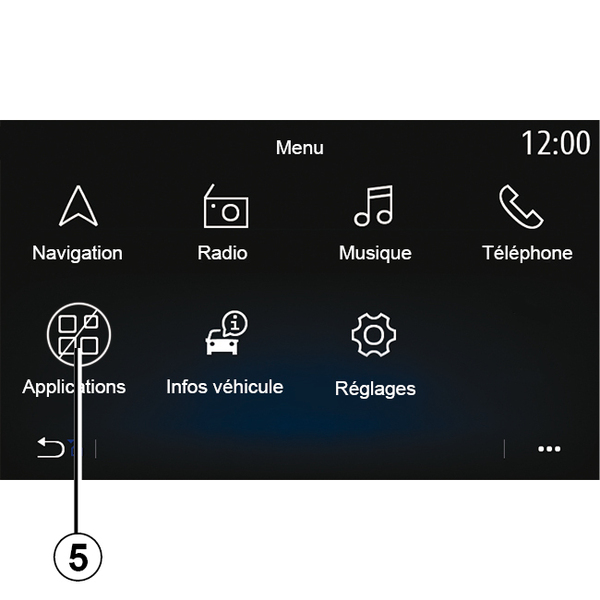
While driving, it may not be possible to access functions such as the "Video", "Photo", the tutorial and certain settings, depending on the legislation in certain countries.
Unavailable functions can be identified by the icon 5.
To access unavailable functions, stop your vehicle.
Note: in some countries, legislation requires that the parking brake be applied in order to access the applications. For further information, please contact an approved dealer.