" System " menu
From the home screen, press "Settings" then the "System". This menu enables you to adjust the following settings:
- « Displays » ;
- « Sound » ;
- « Language » ;
- « Keyboard » ;
- « Date and time » ;
- « Devices manager » ;
- « Home menu » ;
- « User profile ».
warning
For safety reasons, carry out these operations when the vehicle is stationary.
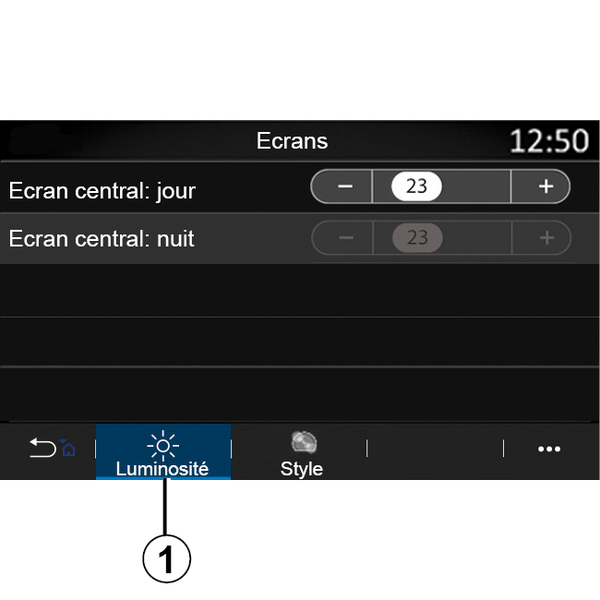
« Displays »
From the "Brightness" tab 1, you can adjust the brightness:
- on the multimedia screen;
- ...
Adjust the brightness by pressing "+" or "˗", or activate/deactivate the functions.
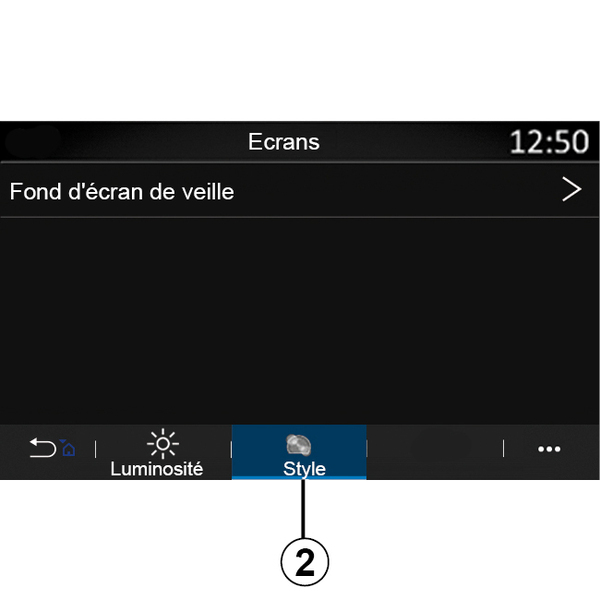
From the "Style" tab 2, you can select an image to customise the multimedia system standby screen background.
For more information on uploading images, see the section on "Applications", then "Photo".
Note: the "Central screen: daytime brightness" function settings are deactivated at night and the "Central screen: night time brightness" function settings are deactivated during the day.
« Sound »
This menu allows you to configure the different sound settings.
Depending on the equipment level, some options are not available.
The vehicle has three equipment levels:
- Standard ;
- Focal ;
- Focal Premium.
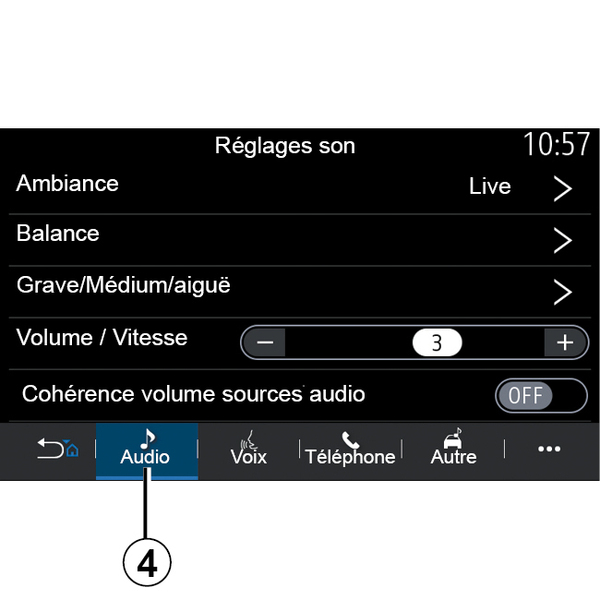
From the "Audio" tab 4, you can configure the following settings:
- select the sound equaliser;
- adjust the "Balance";
- adjust the "Bass / Medium / Treble" sound values;
- adjust the volume according to vehicle speed by pressing "+" or "˗";
- activate/deactivate the volume consistency depending on the audio sources.
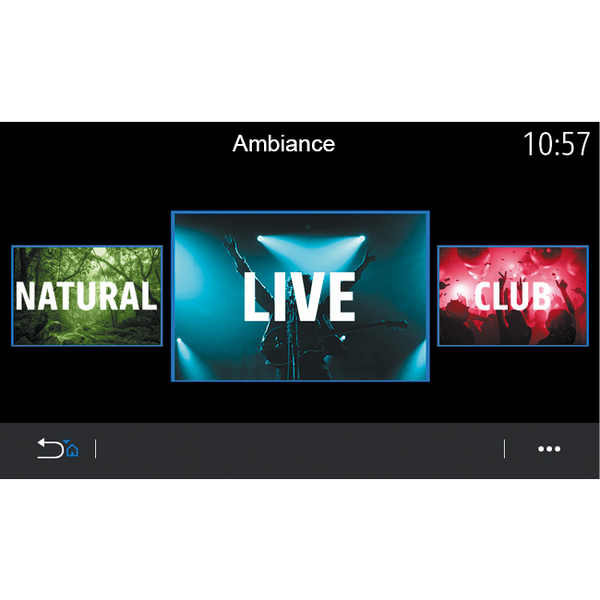
« Ambiance »
Available with the Focal or Focal Premium equipment level.
You can set one of the following predefined music equalisers:
- Natural ;
- Live ;
- Lounge ;
- Club.
« Balance »
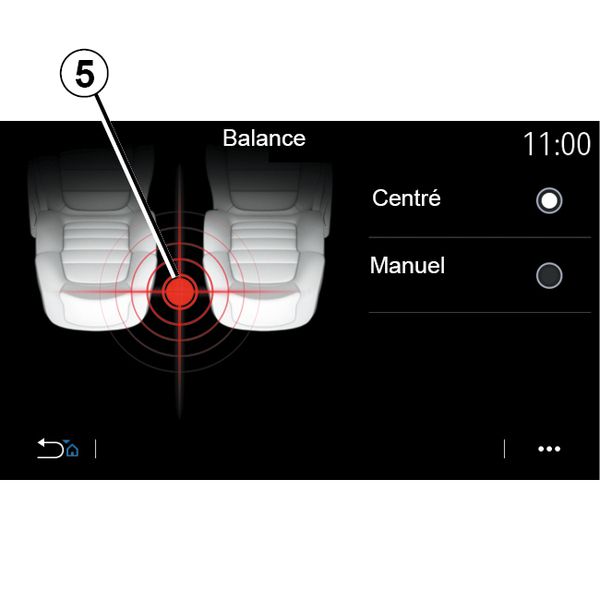
This function sets the sound distribution balance. Press "Centred" or "Manual" to optimise the sound distribution for all the vehicle occupants.
When you touch the screen or when "Manual" is selected, you can then change the settings by moving the target 5.
« Bass / Medium / Treble »
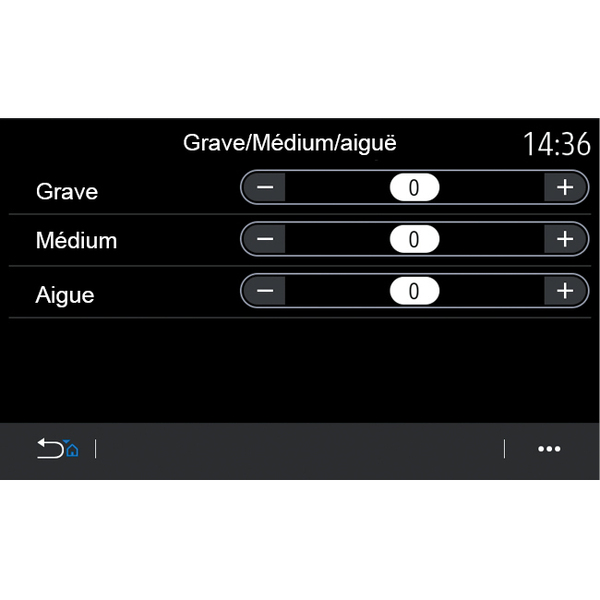
This function is used to adjust the sound distribution between the following values:
- « Bass » ;
- « Medium » ;
- « Treble ».
« Volume / Speed »
Available on the Focal and Focal Premium versions.
This setting allows the audio system to vary the volume according to the vehicle speed.
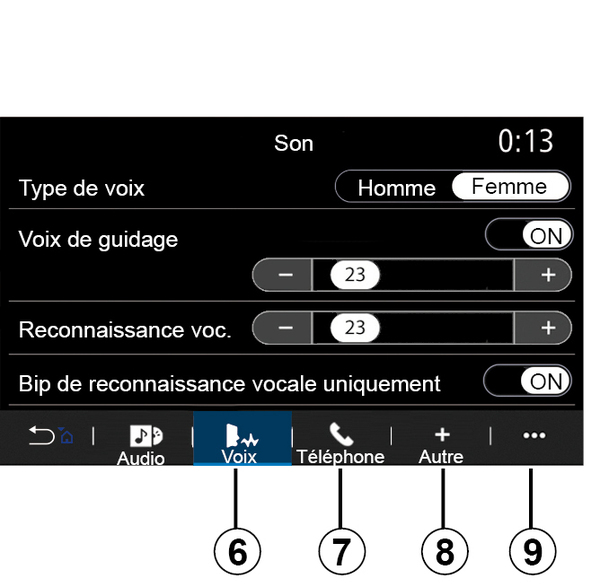
Depending on the country where the vehicle is sold, from the "Voice" tab 6, you can set the following options:
- choose the voice type for the navigation guidance instructions;
- activate/deactivate the navigation guidance voice;
- adjust the navigation guidance voice volume;
- adjust the voice recognition volume;
- activate/deactivate the voice recognition button sounds;
- activate/deactivate the voice command (Voice command auto-barge in);
- ...
From the "Phone" tab 7, you can adjust the following settings:
- adjust the volume of the telephone ringtone;
- adjust the volume of the telephone call.
From the "Other" tab 8, you can adjust the following settings:
- activate/deactivate the interior welcome sound effects;
- activate/deactivate the button sound effects;
From the pop-up menu 9, you can reset to the default settings.
« Language »
This menu lets you select a language to be applied to the vehicle. Select the desired language.
You will be informed of voice command availability for each language.
« Keyboard »
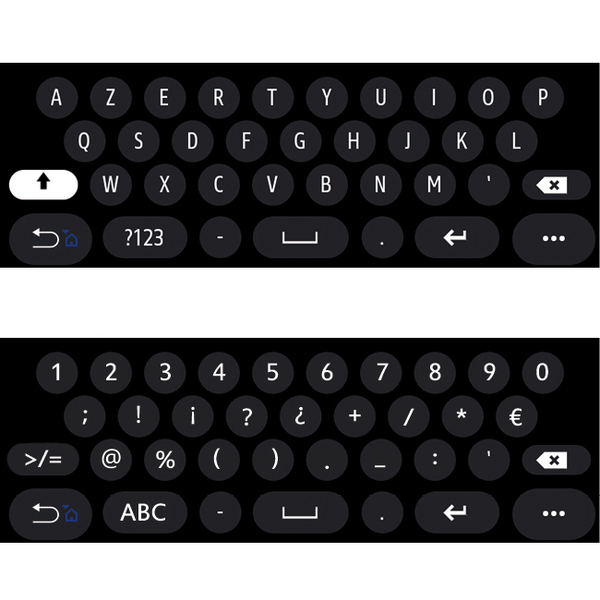
Use this menu to choose one of the following virtual keypads:
- « Alphabetic » ;
- « Azerty » ;
- « Qwerty » ;
- « Cyrillic » ;
- « Greek » ;
- ...
When you start entering text the multimedia system may suggest associated words.
You can select the keypad type from the keypad pop-up menu.
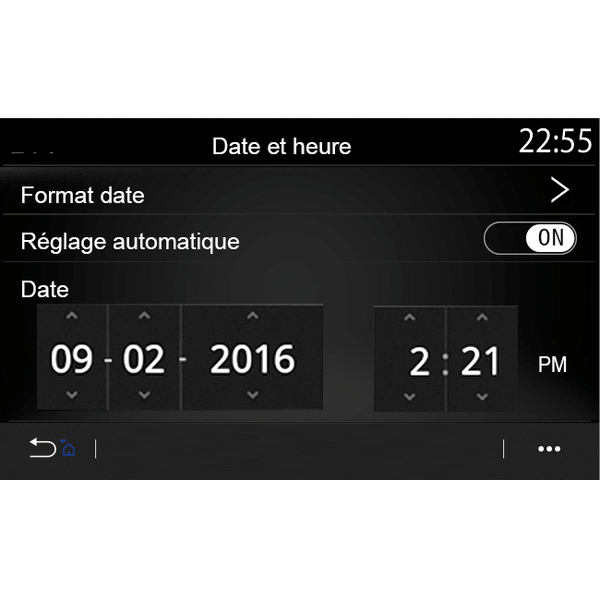
« Date and time »
You can use this menu to adjust:
- the display mode;
- the date;
- the time (12 hours or 24 hours);
- the "Analogue" or "Digital" clock;
- automatic adjustment;
- adjustment of time and date.
Note: it is recommended to keep the automatic setting.
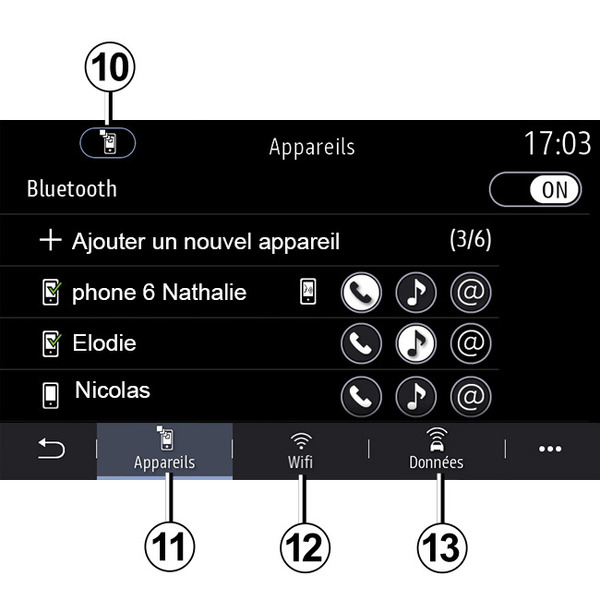
« Devices manager »
Use this menu to configure different connections to your multimedia system:
- « Bluetooth® » 10 ;
- « Devices » 11 ;
- « WIFI » 12 ;
- « Data sharing » 13.
From the "Bluetooth®" tab 10, you can pair/connect your telephone(s) to the multimedia system. For more information: Pairing, unpairing a telephone.
Note: the list of settings may vary according to the equipment.
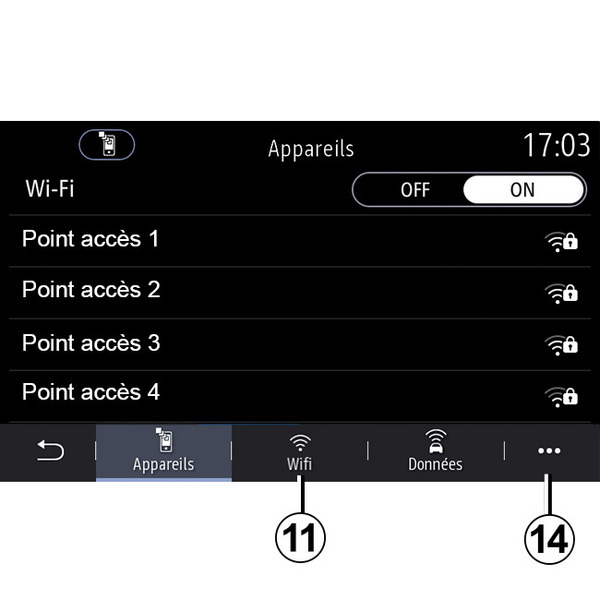
From the "WIFI" tab 11, you can use the internet connection provided by an external device (hotspot) in a shop, restaurant, residence or by a telephone, etc.
From the pop-up menu 14, you can:
- delete hotspots;
- use a hidden hotspot;
- access the connection procedure.
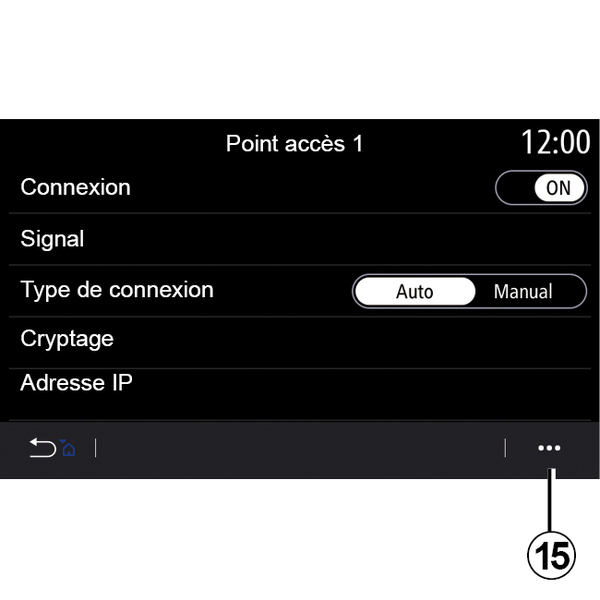
Select one of the WIFIdevices to configure its connection.
A password will be required the first time you connect to the multimedia system.
From the pop-up menu 15, you can delete the access points.
tip
When you use the "Hotspot" function, the transfer of mobile data required for it to operate may lead to additional costs not included in your telephone subscription.
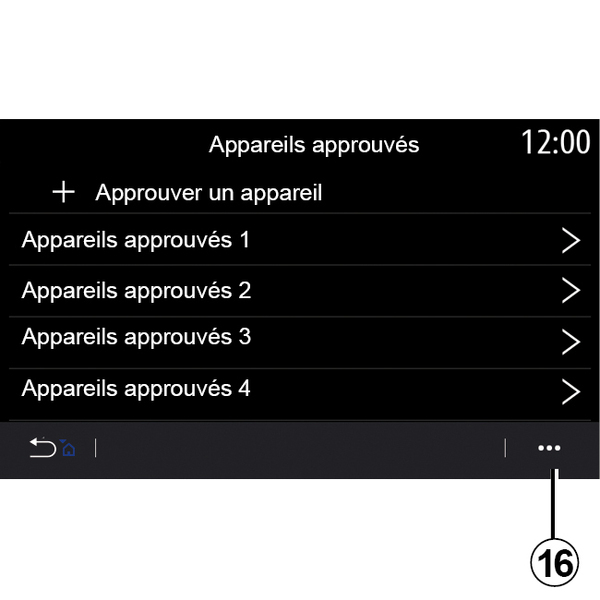
From the pop-up menu 16, you can:
- configure different connections for each authorised device;
- access the "Smartphone integration" help;
- delete an approved device;
- delete all approved devices.
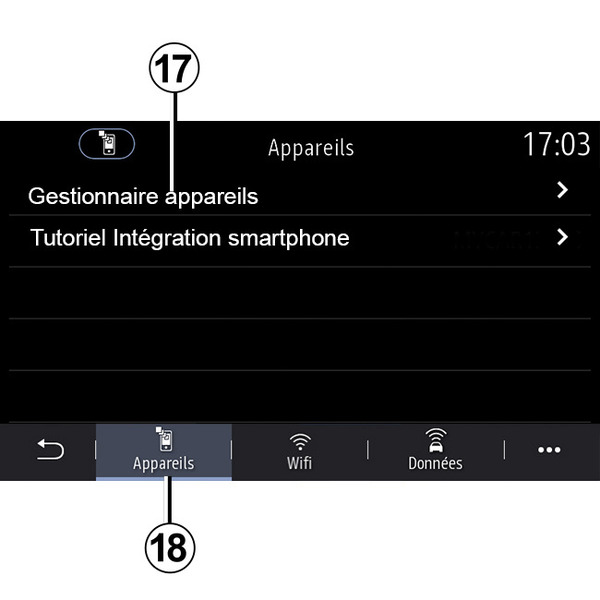
From the "Services" tab 18, you can configure the "Devices manager" 17 and access the "Smartphone Integration tutorial".
Smartphone integration tutorial
This menu explains how to activate the "Smartphone integration". Before starting, make sure that:
- your smartphone is equipped with the "Android Auto™" or "CarPlay™" application;
- this application is updated and compatible with your multimedia system;
- your smartphone is connected to the multimedia system.
For more information, please refer to "Connecting, disconnecting a telephone".
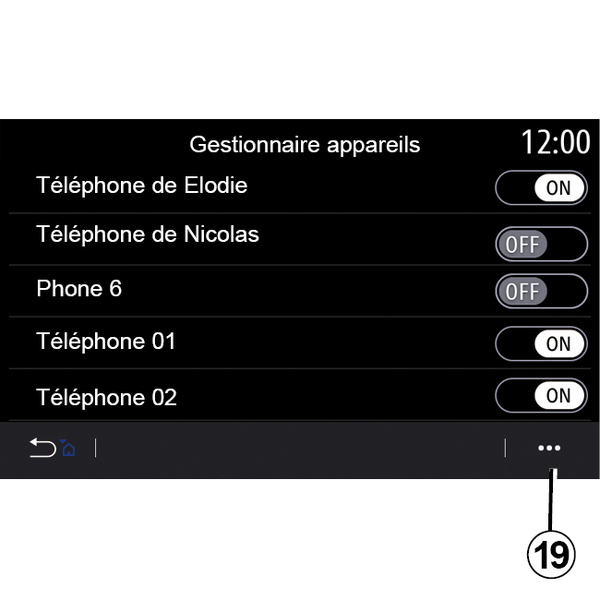
Using the "Devices manager" function 17, you can select the smartphones that you would like to connect automatically to the "Smartphone integration".
From the pop-up menu 19, you can delete devices.
Note: the list of settings may vary according to the equipment.
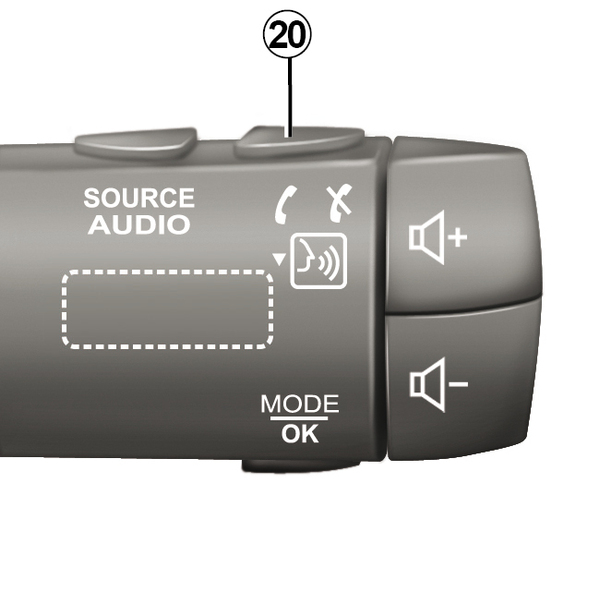
Depending on the country where the vehicle is sold, once the "Android Auto™" application or the "CarPlay™" service is working with your multimedia system, you can use the voice recognition button 20 in your vehicle to control certain smartphone functions by voice.
For more information, see the section on "Using voice recognition".
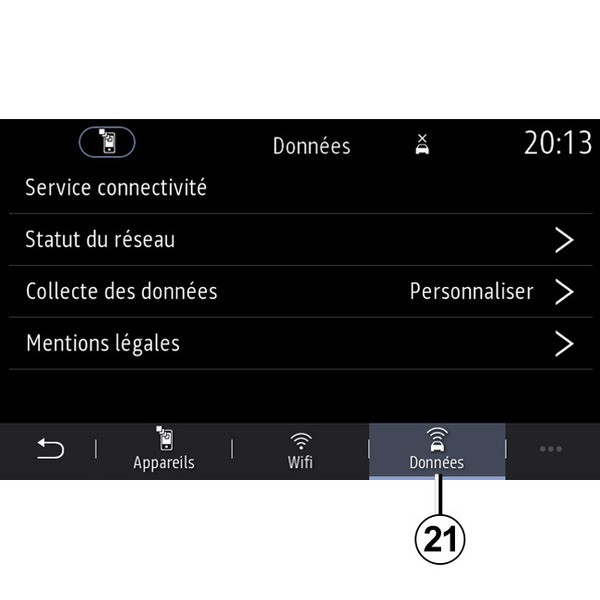
From the "Data" tab 21, you can access information on:
- which operator is responsible for connectivity to your vehicle;
- connectivity data and status;
- data sharing.
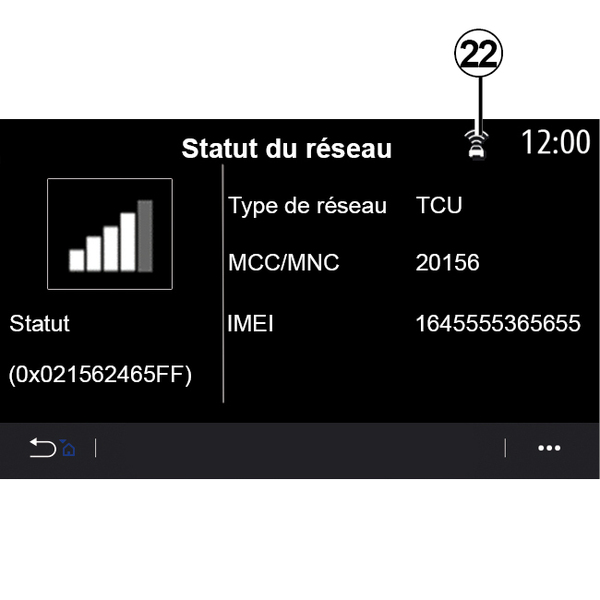
The status and connection data show you the status, reception level 22 and system ID.
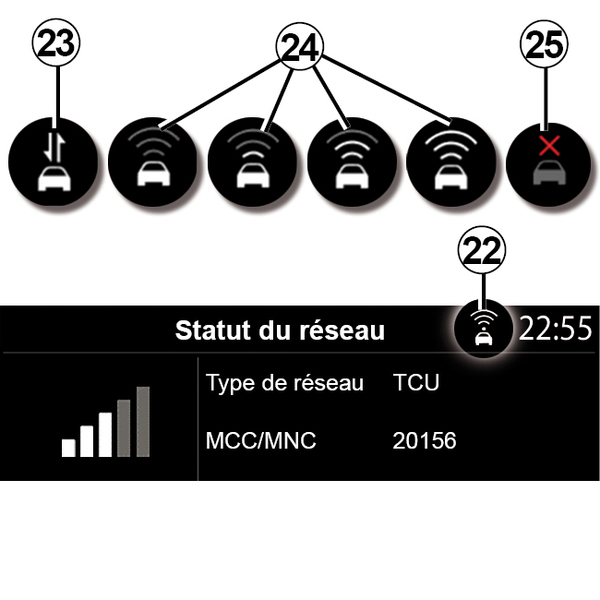
Reception level and data sharing status are indicated by the icon 22:
- data sharing on 23;
- data sharing off. Reception level 24;
- vehicle offline or outside of the coverage area 25.
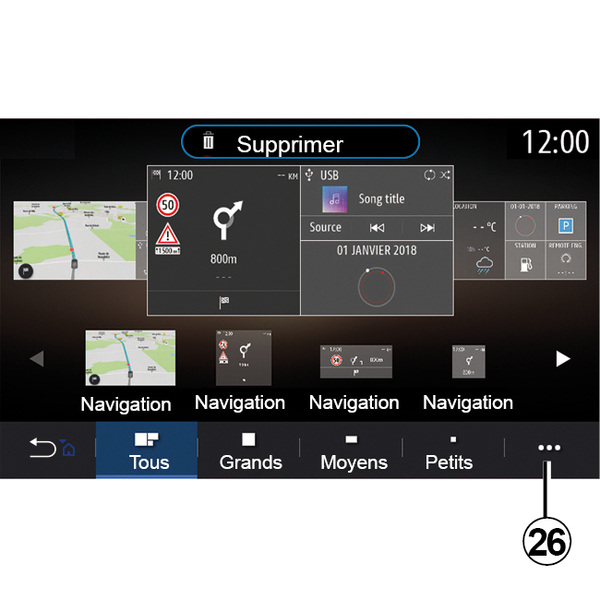
« Home menu »
Use this menu to configure the home pages for your multimedia system.
The home pages can be modified by adding the widgets of your choice and positioning them as you wish on the home pages. For more information on how to configure the home page, see Add, manage widgetsAdd, manage widgets.
From the pop-up menu 26, you can:
- delete widgets;
- reset to restore the default configuration.
« User profile »
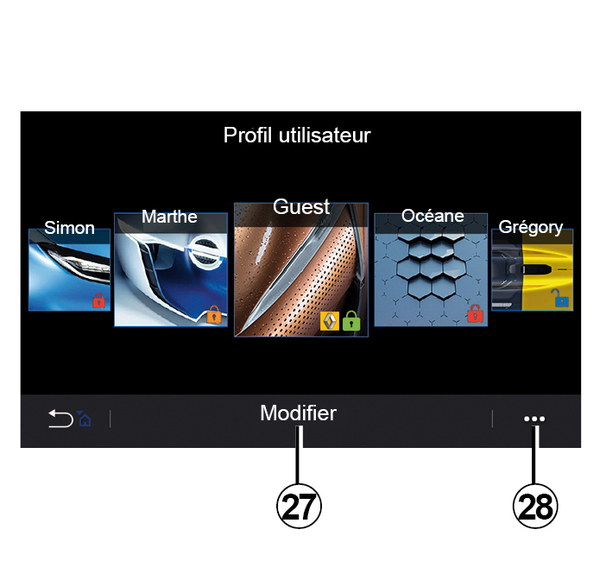
This menu lets you choose a user profile to apply to the system.
Select the desired user profile.
Features linked to user profile
The following settings are stored in the user profile:
- system language;
- set the distance unit (when available);
- configure the home page;
- display settings;
- view presets;
- adjust the radio settings;
- navigation settings;
- navigation history;
- navigation favourites;
- adjust the privacy settings (locking the profile);
- ...
"GUEST" profile
The GUEST profile gives you access to the functions on the main menu.
The "Modify" tab 27 cannot be accessed from this profile. The GUEST profile is reset when the system restarts, the settings are not stored.
From the pop-up menu 28 you can manage the various profiles.
tip
To better protect your personal data, we recommend that you lock your profile.
For more information on the use of your personal data: Activating services.
Change the name of user profile
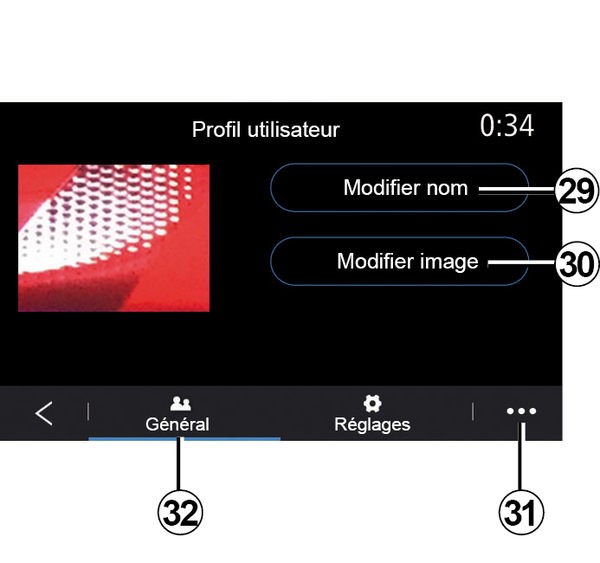
From the "General" tab 32, press the "Edit name" button 29 to rename the profile.
From the pop-up menu 31, you can:
- lock/unlock the profile;
- duplicate the profile;
- delete all settings saved with the profile;
- update the profile;
- ...
Change the photo of user profile
From the "General" tab 32, press the "Edit name" button 30 to select an image from the multimedia system or from an external storage device (USB drive). For more information on viewing photos, see the "Photo" section.