Customising the home pages
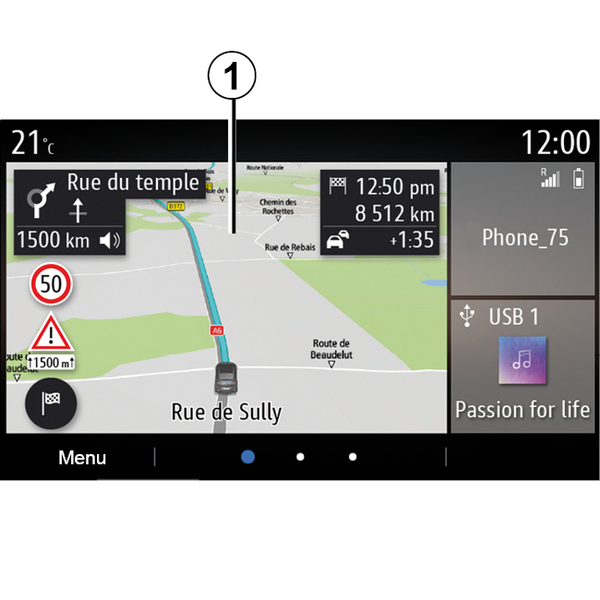
Your system contains several customisable home pages which include a number of widgets enabling access to functions such as Navigation, Radio, Settings etc.
Press on one of the home page widgets to access the function or, in certain cases, directly control the function from the main screen (e.g. to change the radio station or access your telephone).
You can configure the home pages by adding, deleting or modifying widgets.
From the home screen, press and hold the multimedia screen 1 to access the home screen customisation settings.
tip
Widget configuration is linked to the profile. If the profile changes, the widgets display changes too.
warning
For safety reasons, carry out these operations when the vehicle is stationary.
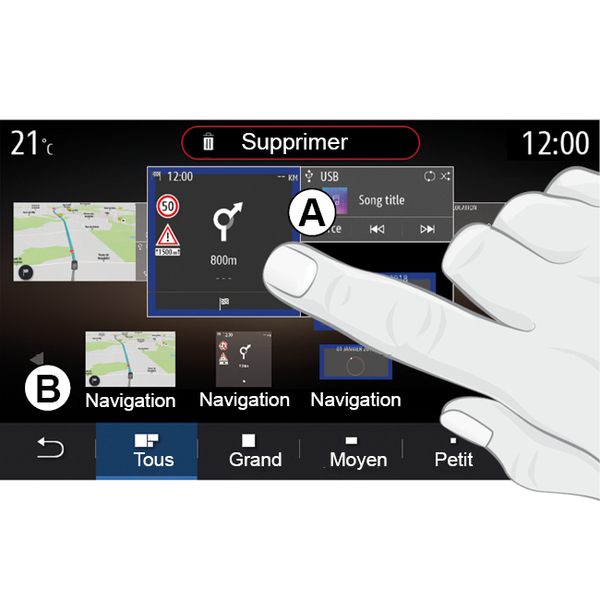
Add a widget
Select the home screen A that you wish to customise.
In zone B, select the widget that you wish to display. The selected widget changes colour to confirm the action.
Drag the widget from zone B and drop it at the position desired on the home screen A.
Customising the widgets
Select the widget in zone B by touching the screen (select/position) then select its final position in zone A.
To move a widget from one page to another, press and hold the home page, select the widget then drag and drop it to the desired page.
Note: some widgets can be used only once, depending on their size. A widget for a given function can be used only once on a page.
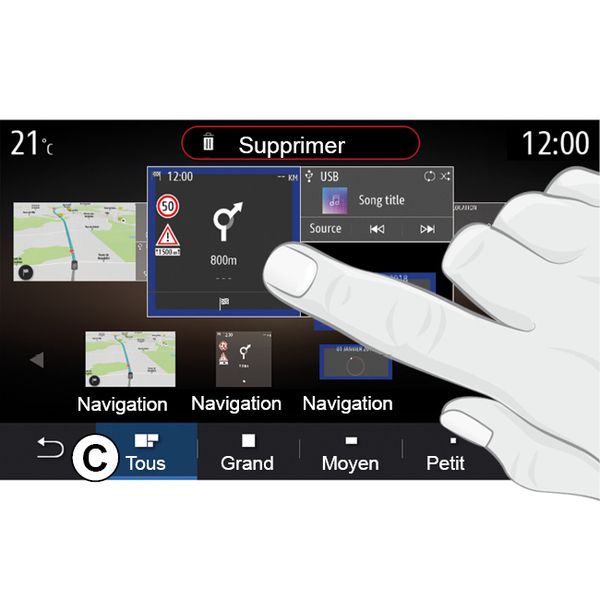
Widget size
You can adjust the widget's size by pinching/spreading one of the widget's edges. A red frame is displayed when the size limit is reached.
Depending on the equipment, you can select the widget size in the bar C. Some apps only have one size. The number of widgets displayed on the home screen may vary depending on the format of the multimedia screen. Press and hold the home page to see all of your home pages.
"Address" and "Contact" widgets
It is necessary to activate the services in order to configure these two widgets Activating services.
« Address »
The multimedia system directs you to the "Navigation" menu.
From your favourites, call log or by manual entry, select the address that you wish to designate as One Touch.
« Contact »
The multimedia system directs you to your telephone's contacts list (only if your telephone is connected to the multimedia system).
From your phonebook, select the contact that you wish to designate as One Touch.
Note: the data related to these two widgets is stored in the multimedia system even if your telephone is not connected to the multimedia system. The data is considered non-confidential.
Delete widgets
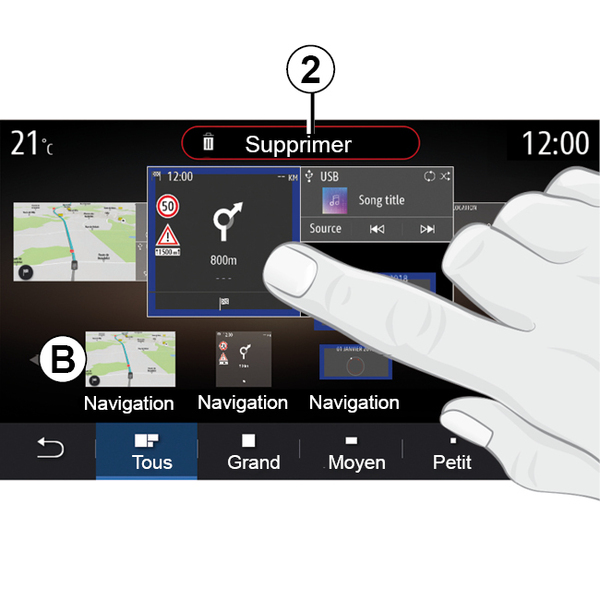
Press and hold the widget that you wish to delete. It changes colour to confirm the registration. Drag and drop on the "Delete" button 2 or slide the widget into zone B.
Note: select/position is the most efficient way to delete widgets as you only have to touch the screen: select the widget(s) then press the "Delete" button 2.
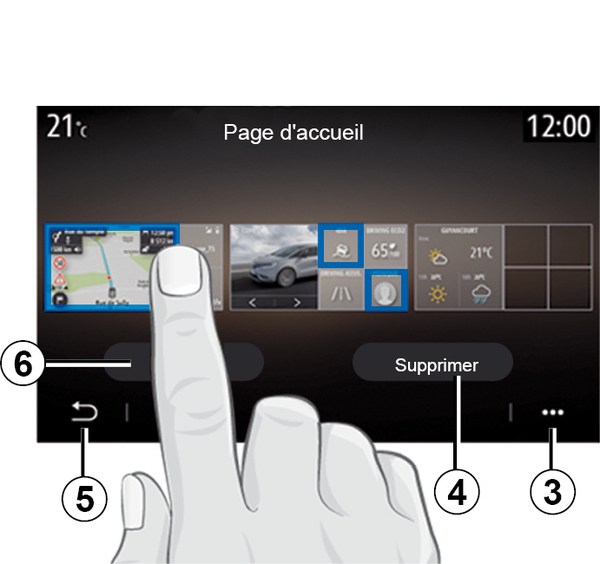
In landscape mode, you can display the full view of all your home pages. To delete widgets, from the pop-up menu 3, press the "Delete" button.
Select, depending on your choice:
- the widget(s) desired, then press the "Delete" button 4;
- all widgets from all screens, then press the "Select all" button 6 followed by "Delete" 4.
Delete a home page
To delete a home page, you must delete all of the widgets on the page.
Pop-up menu
You can use the pop-up menu 3 to:
- delete one or more widgets on the home screens;
- restore the home page default configuration.
Save and exit
To save your home screen settings and exit, press the back button 5.
warning
For safety reasons, carry out these operations when the vehicle is stationary.