ALPINE MULTIMEDIA SYSTEM
Introduction Android Auto™
"Android Auto™" is an application that enables you to replicate your smartphone on the screen of your multimedia system.
Note:
- the "Android Auto™" app only works if your smartphone is connected to your vehicle's USB port or wirelessly by Bluetooth® to enable automatic WIFI connection to your system;
- in order for the app to work properly, the USB cable used must be recognised by the manufacturer of your smartphone and have a maximum length of 1.5 metre;
- for the app to work properly with WIFI, you smartphone must be paired to the multimedia system.
For more information, see Pairing, unpairing a telephone.
First use
Download and install the "Android Auto™" application from the application download platform on your smartphone.
Connect your smartphone to your multimedia system USB port or connect it via Bluetooth® to initiate the connection WIFI.
Accept the requests on your smartphone in order to use the application.
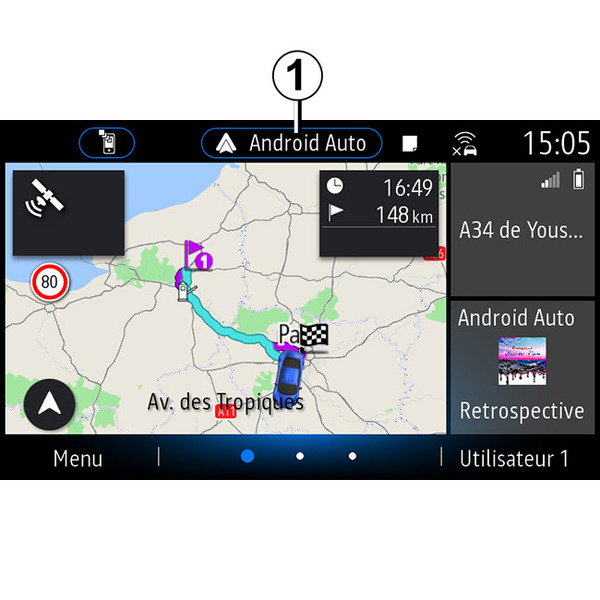
The application is launched on the multimedia system and should be visible from zone 1.
If the procedure described above fails, repeat the operation.
Introduction CarPlay™
"CarPlay™" is a pre-equipped service on your smartphone which enables you to use some apps on your smartphone via your multimedia system screen.
Note:
- the "CarPlay™" service only works if the SIRI service is activated and if your smartphone is connected to your vehicle's USB port or wirelessly using Bluetooth® to enable automatic connection to your system by WIFI;
- in order for the app to work properly, the USB cable used must be recognised by the manufacturer of your smartphone and have a maximum length of 1.5 metre;
- for the app to work properly with WIFI, you smartphone must be paired to the multimedia system.
For more information, please refer to the section on "Pairing, unpairing a telephone".
First use
Connect your smartphone to the USB port on your multimedia system or connect it via Bluetooth® to initiate the WIFI connection.
The multimedia system suggests that you:
- authorise the connection and data sharing;
- remember the preferences for the device.
Accept the requests on your smartphone in order to use the application.
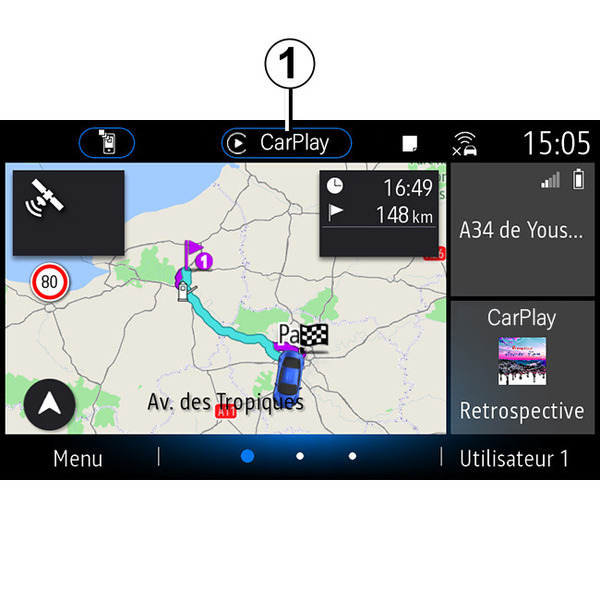
The function is launched on the multimedia system and should be visible from zone 1.
If the procedure described above fails, repeat the operation.
Voice recognition
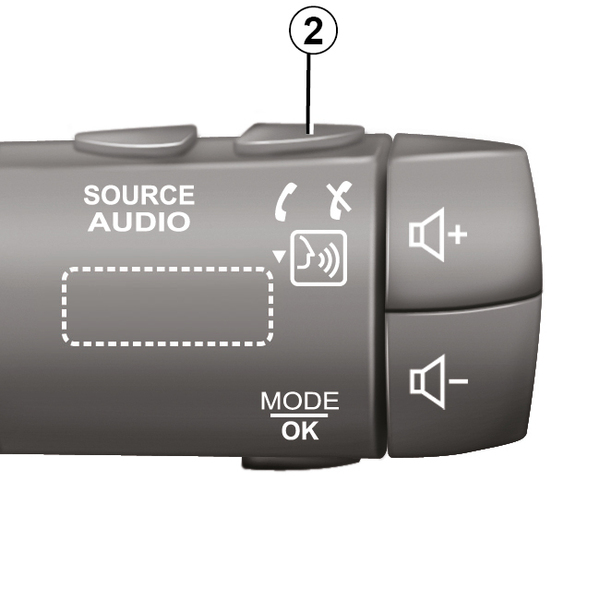
Once the "Android Auto™" apps or the "CarPlay™" function are working with your multimedia system, you can use the voice recognition button 2 in your vehicle to control certain smartphone functions by voice command:
- press briefly: activate/deactivate multimedia system voice recognition;
- press and hold: activate/deactivate voice recognition for your phone, if the phone is connected to the multimedia system.
Note: when you use "Android Auto™" or "CarPlay™", you can access your smartphone's navigation and music apps.
These applications will replace similar applications integrated into your multimedia system which are already running.
Only one navigation can be used, that of:
- « Android Auto™ » ;
- « CarPlay™ » ;
- or that integrated in your multimedia system.
Note: when you are using the "Android Auto™" app or the "CarPlay™" service, some multimedia system functions will continue to run in the background. For example, if you start "Android Auto™" or "CarPlay™" and use the navigation on your smartphone while the radio on the multimedia system is currently playing, the radio will continue to be broadcast.
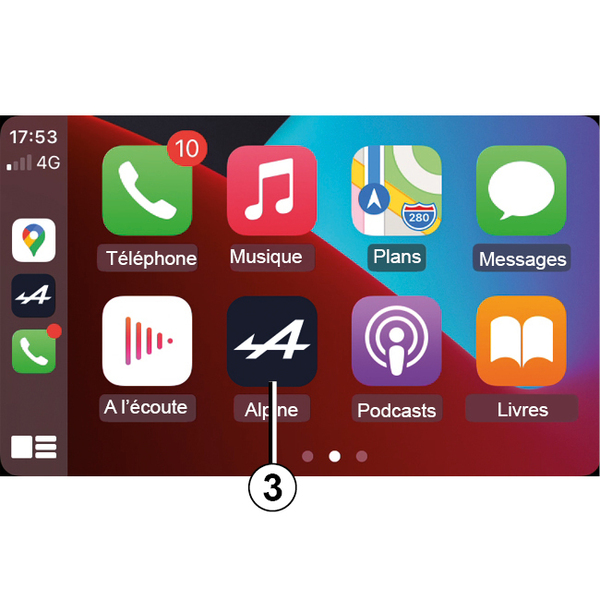
Return to the multimedia interface
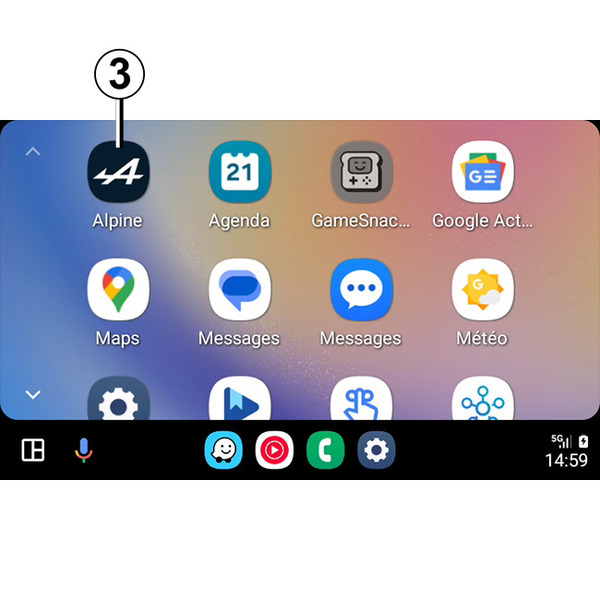
To return to the interface of your multimedia system, press the button 3 on the multimedia system screen.
tip
The availability of the functions of the "Android Auto™" app and the "CarPlay™" service depends on your telephone brand and model. For further information, please refer to the manufacturer's website if there is one.
tip
When you use the "Android Auto™" apps or the "CarPlay™" service, the transfer of mobile data required for their operation may lead to additional costs not included in your telephone subscription.