ALPINE PORTAL
"Settings" menu
warning
For safety reasons, carry out any adjustments while the vehicle is stationary.

From the "Navigation" world
 , press the "Settings" icon 1 to access the navigation settings.
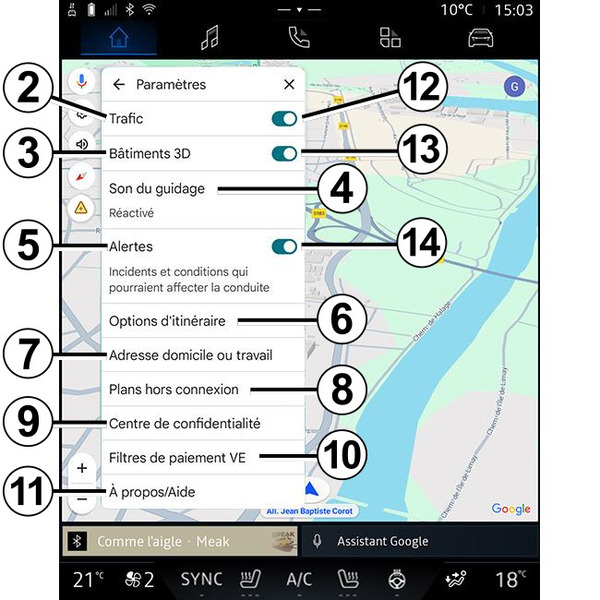
From the "Settings" icon 1 you can access the following settings:
- "Traffic" 2;
- "3D buildings" 3;
- "Guidance sound" 4;
- "Alerts" 5;
- "Route options" 6;
- "Home or work address" 7.
- "Offline maps" 8;
- "Confidentiality centre" 9;
- "EV payment filters" 10.
- "About/Help" 11 ;
- activate/deactivate the "Traffic" function 12;
- activate/deactivate the "3D buildings" function 13;
- activate/deactivate the "Alerts" function 14.
"Traffic" 2
This function enables you to receive real time traffic information such as:
- traffic information and incidents in your area;
- accidents, road works or closure of nearby roads;
- ...
Press 12 to activate/deactivate the "Traffic" function.
"3D buildings" 3
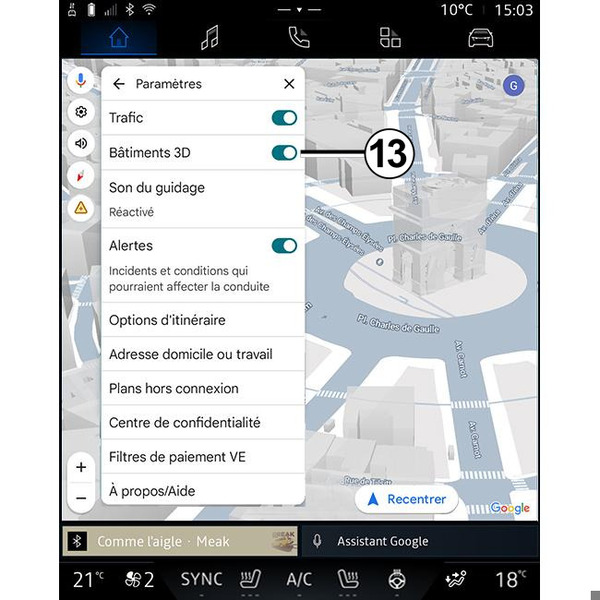
You can choose to display buildings in 3D where the mapping allows it. Press 13 to activate/deactivate the function.
"Guidance sound" 4
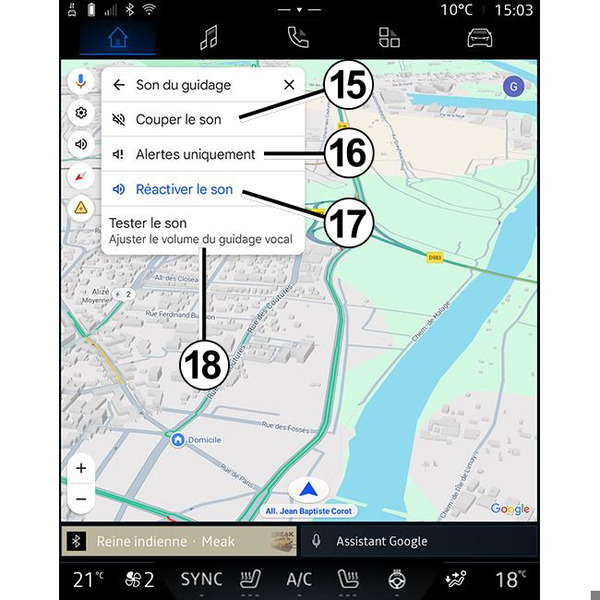
From this setting, you can:
- mute the sound of the "Navigation" 15;
- mute the sound of the "Navigation" and keep only the sound of the "Traffic" alerts 16;
- reactivate the voice guidance sound 17;
- test the sound of the "Navigation" to adjust the volume of the voice guidance 18.
"Alerts" 5
This function allows you to receive alerts in relation to incidents and conditions that could affect your driving.
To activate/deactivate the alerts, press 14.
"Route options" 6
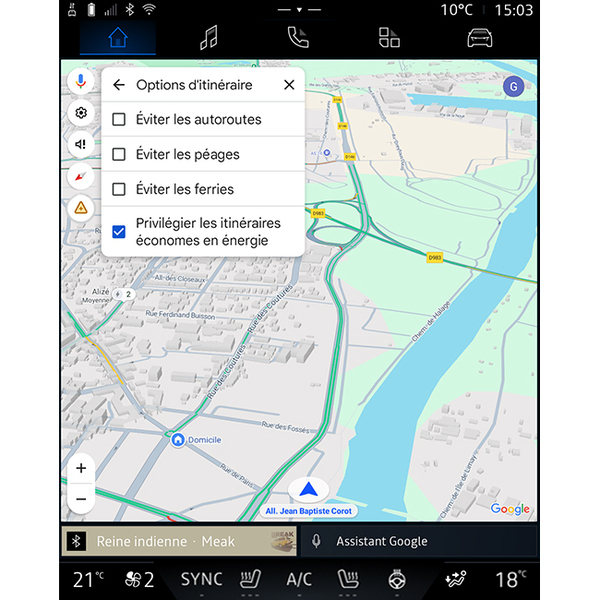
From this setting, you can activate/deactivate the following route options:
- "Avoid major roads";
- "Avoid toll roads";
- "Avoid ferries";
- "Give priority to energy efficiency".
"Home or work address"7
You can set up your home and work address from this menu.
"Offline maps" 8
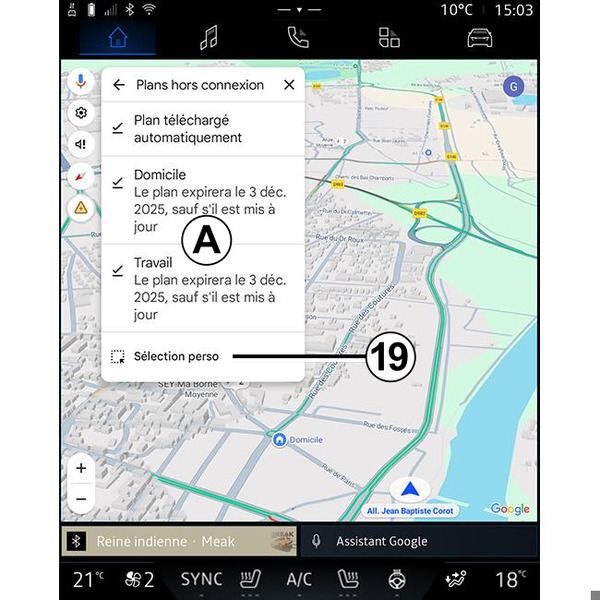
Offline maps enable you to download and save maps in your multimedia system so they can be used when you go to a location where the Internet connection is slow, cannot be accessed or do not wish to use an Internet connection.
The list of offline maps is available at A.
To add an offline map to "Custom selection", press 19.
Custom selection
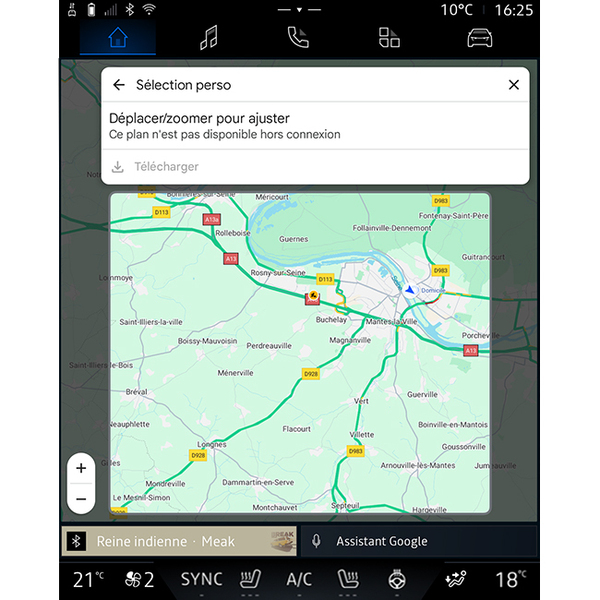
This function can be used to select an area on the map and its information to be downloaded.
Pan and zoom the map to adjust the selection to be downloaded.
"Confidentiality centre" 9
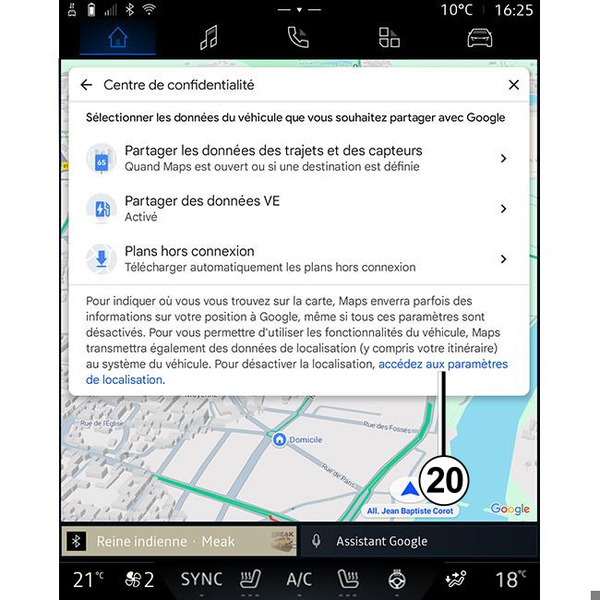
From this menu, you can configure the following data to be shared:
- "Share driving data with Google";
- "Offline maps".
To go directly to the vehicle location settings, press "Access location settings" 20 from the "Offline maps" menu.
"Share driving data with Google"
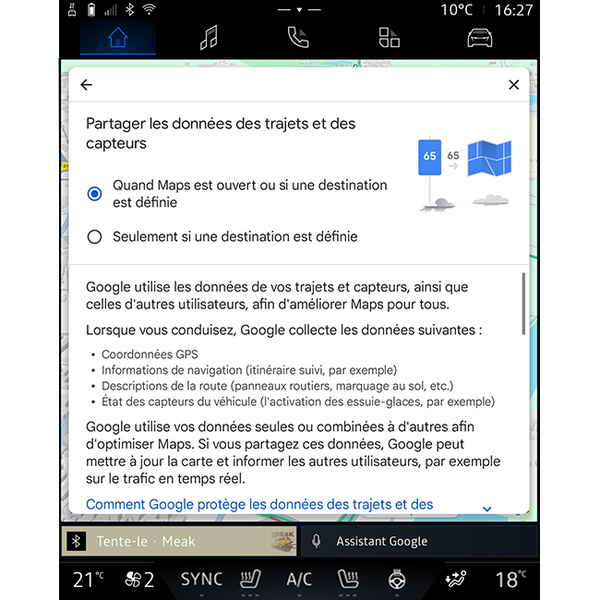
Your driving and location data can be shared with Google. These can be used to improve the information provided to you and other users by Google, such as navigation, traffic conditions in real-time, availability of "Offline maps", etc.
Sharing may be:
- "Deactivated";
- activated only "During detailed navigation";
- "Always activated".
Options for "Offline maps"
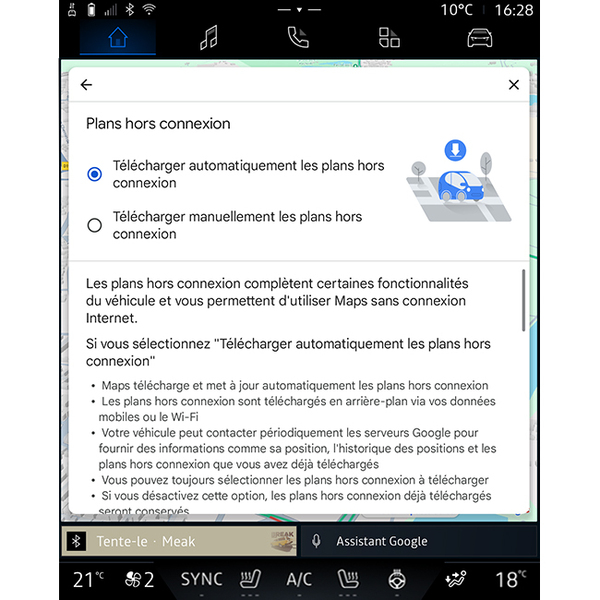
You can choose to download the offline maps update as follows:
- automatically;
or
- manually.
Note: for more information, refer to the details and instructions displayed on the multimedia screen.
"EV payment filters" 10
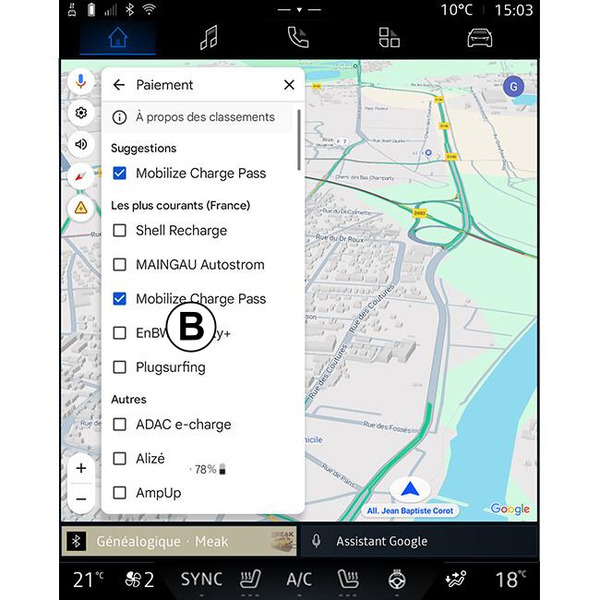
From this menu, you can select the payment options for the electric vehicle charging stations that you wish to filter in the list B.
"About/Help" 11
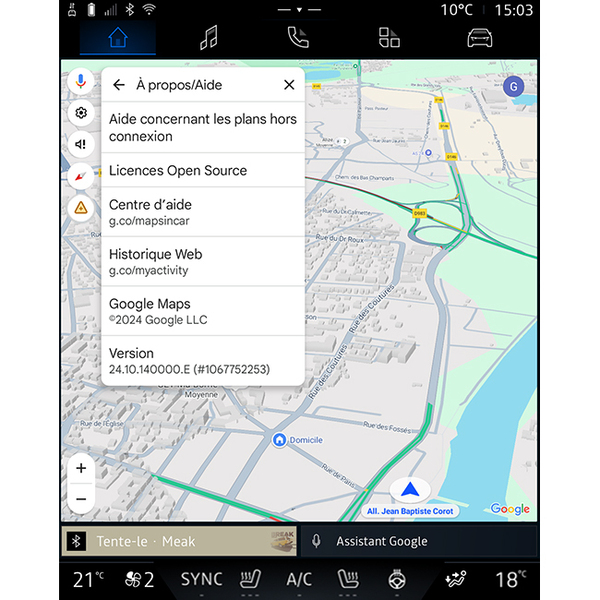
From this menu, you can access the information and using the following elements:
- "Help with offline maps";
- "Open Source licence";
- "Help centre";
- "Web history";
- « Google Maps » ;
- "Version";
- ...