ALPINE MULTIMEDIA SYSTEM
Introduction
Your multimedia system is equipped with a voice recognition system which can be used to control some of the multimedia system functions and some of your telephone functions by voice command. You can use your multimedia system or your phone while keeping your hands on the steering wheel.
Note: the position of the voice recognition button may vary. Please refer to the vehicle user manual for further information.
The voice recognition system records neither your voice nor your commands. It does not include voice assistance which can interact with the user or answer questions such as:
- "What is the weather in Paris?"
- "Are there any disruptions along my route this morning?"
Voice controls
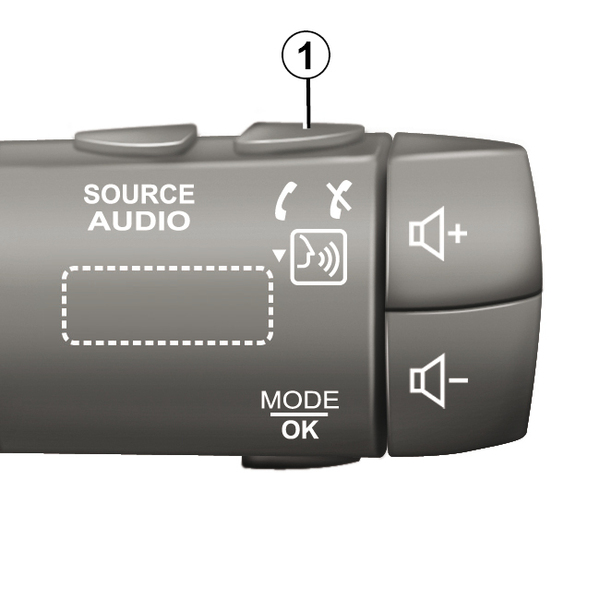
(depending on equipment)
You can use voice control to call a contact in your phonebook, enter a destination and change the radio station without touching the screen. Press the button 1 and follow the audio and visual instructions provided by the system and on the screen.
Note: this function is only available on vehicles equipped with the navigation system
Activation
Depending on the equipment, press the voice recognition button of your vehicle.
Note: when using voice recognition, always wait for an audible confirmation to sound before speaking.
Deactivation
To deactivate the voice recognition system, press and hold the voice recognition button in your vehicle or, after the beep, say "Exit".
tip
You can interrupt the synthetic voice when using voice recognition by pressing the button 1 or by dictating your command. A beep indicates that you may speak.
Using the multimedia system's voice recognition
Main voice commands for your multimedia system
Say "Main screen" or "Back" to return to the voice recognition main screen.
Say "Quit" to exit the voice recognition menu.
Say "Help" to hear the details for each system screen as well as the features available.
Say "Next page", "Previous page", "First page" or "Last page" to navigate within the voice recognition lists.
"Voice recognition" menu
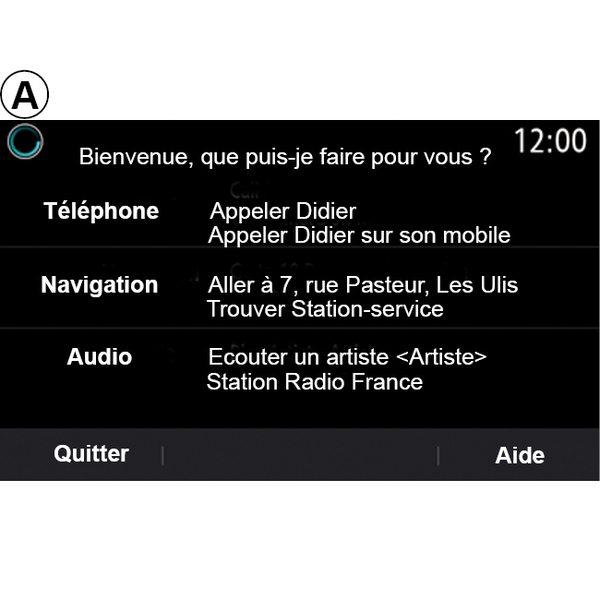
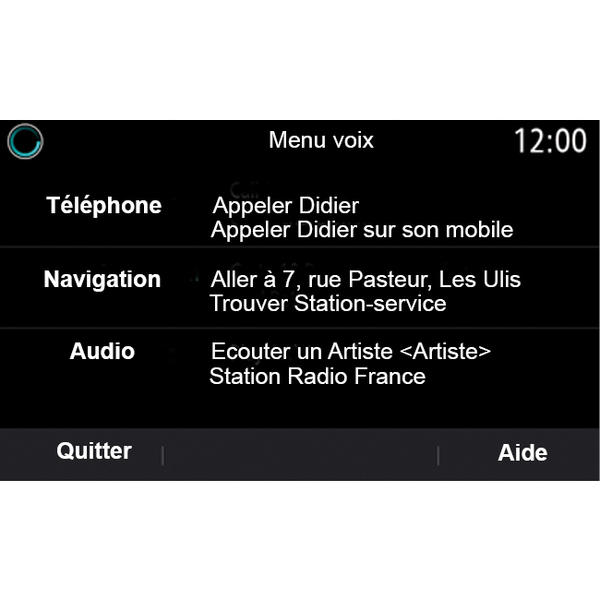
From the main voice command menu, you can control the following functions by voice command:
- « Phone » ;
- « Navigation » ;
- « Audio ».
tip
The functions shown in blue on the screen are valid commands understood by the multimedia system.
Voice recognition indicator A
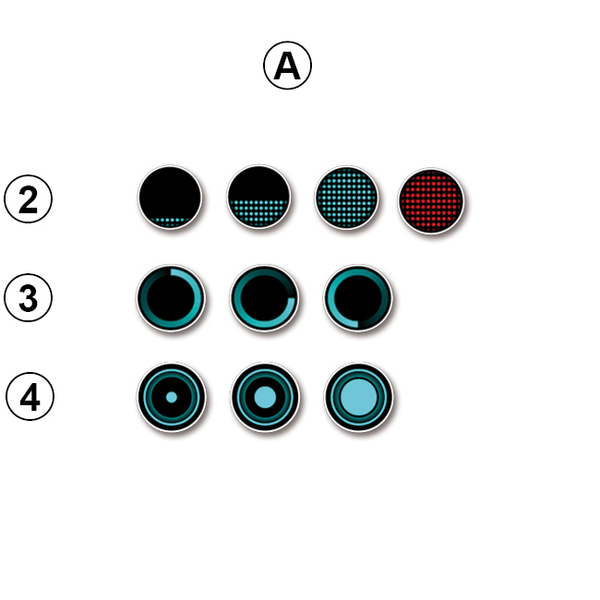
The voice recognition indicator A consists of coloured markers and icons:
- icon 2 informs you that the multimedia system is listening: the colour of indicator A indicates the performance of the voice recognition:
- low blue marker: average voice recognition;
- half-blue marker: good voice recognition;
- completely blue marker: optimum voice recognition;
- red marker: the user's voice is too loud and the system has difficulty interpreting the command.
- Icon 3 informs you that the multimedia system is analysing your command;
- icon 4: the multimedia system is responding.
tip
If functions are greyed-out this indicates that they not available or not connected. The multimedia system will suggest to connect: e.g. the telephone.
tip
Speak loudly and so that you can be understood. Use the voice recognition indicator to optimise voice recognition.
Controlling navigation with voice recognition
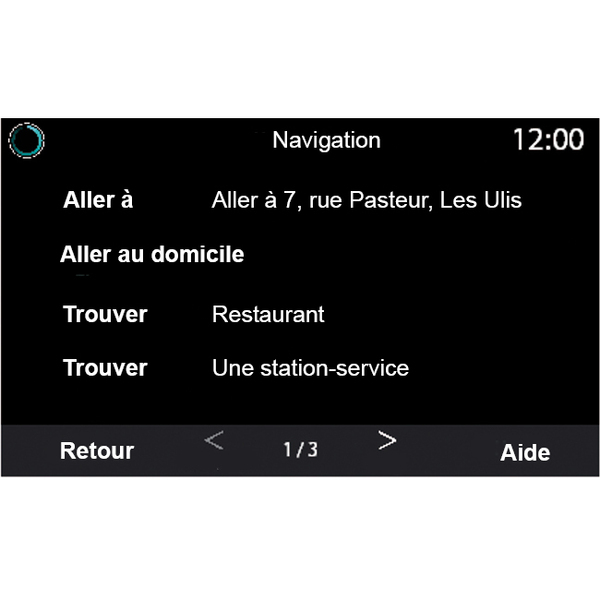
There are several ways to enter a destination using the voice control included with your multimedia system.
« Destination »
Enter a complete address using the voice command.
Press the voice control button to display the main voice control menu.
After the sound signal, say "Go to" then state the complete destination address (number, street name, destination town/city, neighbourhood).
The system will show the address it has understood, then you can confirm your destination to begin the guided navigation.
« Home »
To retrieve your home address using the voice command.
Press the voice control button to display the main voice control menu.
After the sound signal, say "Go home".
The system will indicate your pre-recorded home address. Confirm your destination to begin guidance.
« Work »
To retrieve your work address using the voice command.
Press the voice control button to display the main voice control menu.
After the sound signal, say "Go to work".
The system will indicate your pre-recorded work address. Confirm your destination to begin guidance.
Note: to use the "Go home" or "Go to work" voice function, you must first save an address.
If no address is registered, the multimedia system suggests that you enter an address.
« Favourites »
To retrieve an address saved in favourites using the voice command.
Press the voice control button to display the main voice control menu.
After the sound signal, say "Favourites" then select your destination.
The system shows you the address entered. Confirm your destination to begin guidance.
"Destination history"
To retrieve a previously entered address using voice control.
Press the voice control button to display the main voice control menu.
After the sound signal, say "Destination history" then select your destination.
The system shows you the address entered. Confirm your destination to begin guidance.
« Points of interest »
To search for a point of interest using the voice command.
After the sound signal, say "Find service station" or "Find hotel".
The navigation system suggests several POI (points of interest) in different categories.
Destination in a foreign country
The country must be changed before you say the address.
Press the voice control button to display the main voice control menu.
After the sound signal, say "Change country", then say the country in which you wish to carry out your search. After the second beep, say your destination address.
Note: you can change country as long as the country is supported by the system language.
"Points of interest" in a foreign country
During your journeys abroad, some of the vocal commands for categories may not be recognised.
If you want to search for a point of interest, say: "Points of interest by category". The multimedia system displays the points of interest categories list. Select one of the categories Enter a destination.
Using favourites with voice recognition
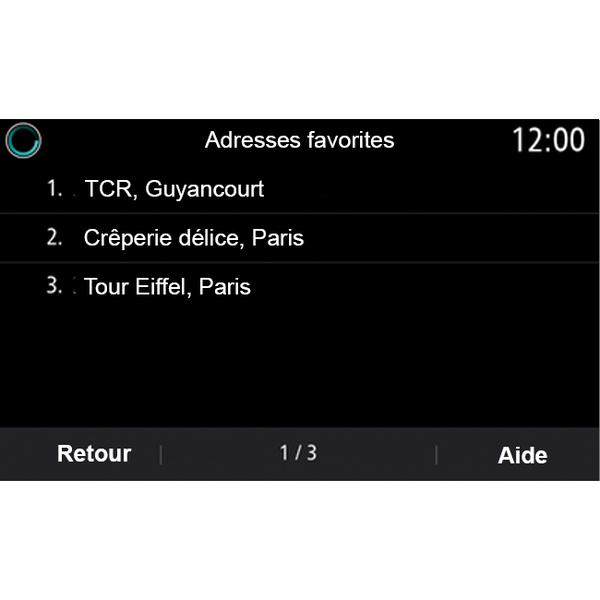
The saved addresses can be called directly using voice recognition.
Press the voice command button to display the voice command main menu.
After the sound signal, say "Display my favourites".
The system displays the saved favourite(s).
" Radio " control with voice recognition
You can activate music, radio or change waveband using the voice command included with your multimedia system.
Press the voice command button to display the voice command main menu.
After the sound signal, say:
- "FM station, "AM station", "DAB station";
or
- "X station", with X as the radio station name;
or
- "Station" followed by the desired radio frequency. e.g. for "91.8 station", say "91.8 station".
" Music " control with voice recognition
You can play music (an audio track, playlists, etc.) using the voice command included with your multimedia system. Possible auxiliary audio sources:
- "USB" (USB port);
- "AUX" (Jack socket).
Press the voice command button to display the voice command main menu.
After the sound signal, say one of the following:
- "Play artist" followed by the name of the artist;
or
- "Play track" followed by the name of the track;
or
- "Play album" followed by the name of the album;
or
- "Play genre" followed by the genre;
or
- "Playlist" followed by the name of the playlist.
Depending on the source selected, you can:
- play the next/previous track;
or
- play all titles/display the music list.
"Change audio source"
From the main menu you can change the audio source.
Press the voice command button to display the voice command main menu.
After the sound signal, say "Play" followed by the name of the source:
- "Play USB";
or
- "Play FM";
or
- "Play Bluetooth®".
Using a telephone with voice recognition
It is possible to call a number or a contact using the voice control included with your multimedia system.
Press the voice command button to display the voice command main menu.
After the sound signal, say one of the following:
- "Call" followed by the name of the contact that you wish to call;
or
- "Dial" followed by the telephone number that you wish to call.
Note: it is recommended to dictate the numerals either one at a time or two at a time.
The system displays the number indicated, say "Dial" to call the number or "Correct/"Back" to dictate another number.
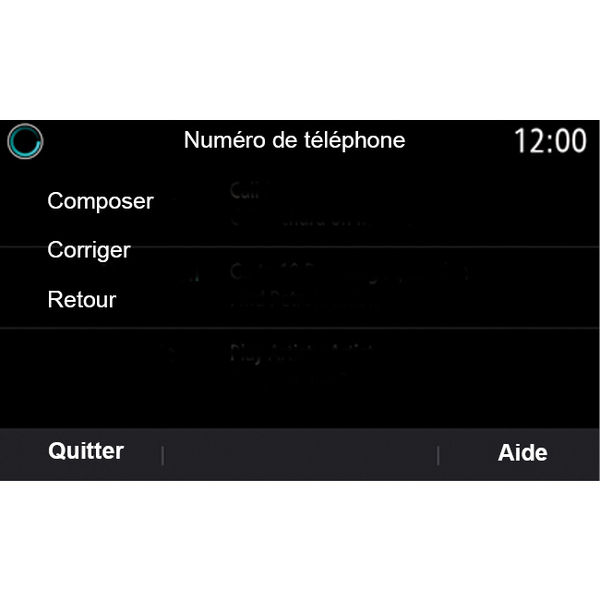
Voice control can also be used to view your call log and read an "SMS".
Press the voice command button to display the voice command main menu.
After the sound signal, say one of the following:
- "Call log" or "Recent calls";
or
- "Read SMS" or "Display SMS".
Note: only "SMS" received while driving can be read.
« Help »
For more information on using the voice functions, press the voice command button and, after the beep, say "Help".
The "Help" function is available at all times. For example, if you are on the "Phone" screen and you say "Help", the synthetic voice will help you to use the function.
Using the phone's voice recognition with the multimedia system
To use your phone's voice recognition system with your multimedia system, you should:
- connect your phone to the multimedia system Connecting, disconnecting a telephone;
- ensure that your phone has a voice recognition function compatible with your multimedia system.
Note: if your phone's voice recognition function is compatible with the multimedia system, the 5 symbol appears in the "Paired devices list" menu Connecting, disconnecting a telephone.
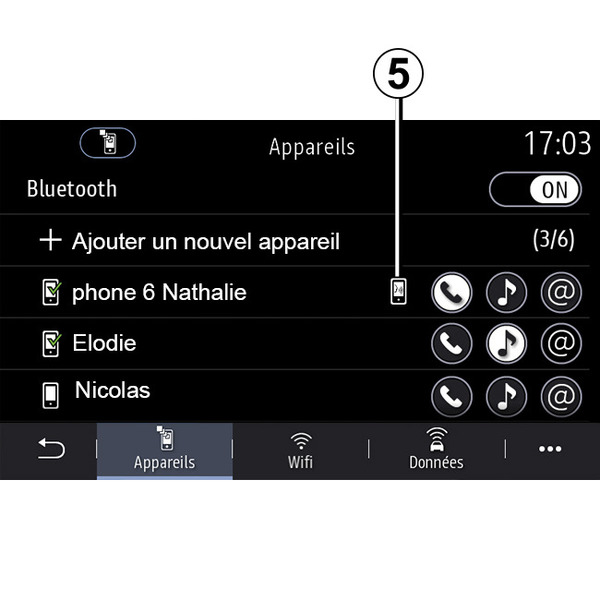
Note: if you wish to use your phone's voice recognition with the multimedia system, make sure that you are located in area with network coverage.
To activate/deactivate your phone's voice recognition system with the multimedia system, press and hold your vehicle's voice recognition button .
To activate your multimedia system's voice recognition system, press your vehicle's voice recognition button .
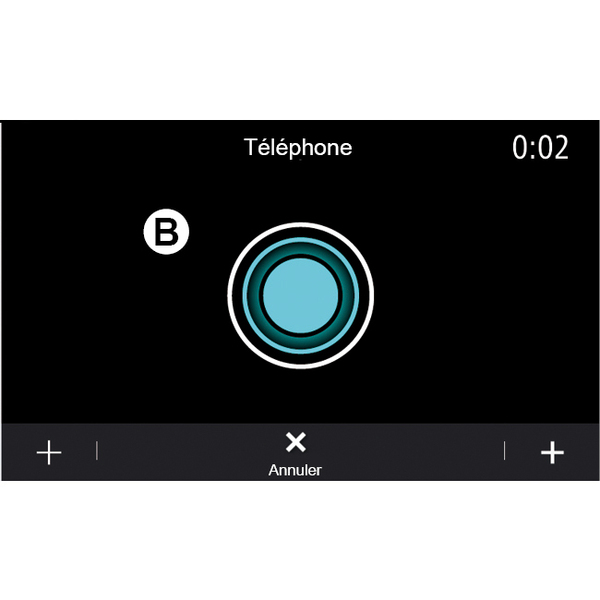
The multimedia screen displays your phone's voice control main menu on the screen B.
To reactivate your phone's voice recognition system with the multimedia system, briefly press the voice recognition button in your vehicle or on the screen B.
From the main voice control menu, you can use voice control for some of your phone's functions.
Voice recognition is deactivated:
- when reversing your vehicle;
- during calls.
Note: the voice recognition session is automatically deactivated after several seconds of inactivity.
tip
When using your phone's voice recognition with the multimedia system, the transfer of cellular data required for its operation may generate additional costs not included in your phone service contract.
Using the One Shot function
The One Shot function allows you to make a more direct and precise voice command in order to avoid going through the "Phone", "Contacts", "Navigation", "Destination" menus, etc.
To use the telephone function, you can command directly:
- "Call Didier » ;
- "Call the office";
- ...
To use the navigation function, you can command directly:
- "Go to Champs-Élysées in Paris";
- "Go home";
- ...
To use the multimedia functions, you can command directly:
- "Station Radio France » ;
- "Play Bluetooth®";
- ...
To use this function, press the voice recognition button then wait for the sound signal and state your command.