ALPINE MULTIMEDIA SYSTEM
" Music " menu
From the main menu, press "Music" or from the other menus press the shortcut in zone A.
Use this menu to listen to music from an external source (USB, AUX etc.). Select an input source connected to the system from the following list:
- "USB1" (USB port);
- "USB2" (USB port);
- « Bluetooth® » ;
- "AUX" (Jack socket).
The music sources described above may vary according to the equipment level. Only the sources that are available are displayed and can be selected on the multimedia screen.
Note:
- some formats may not be recognised by the system;
- the USB drive must be FAT32 or NTFS formatted and have a minimum capacity of 8 GB and a maximum capacity of 64 GB.
"Play" mode

- B.
Information on the audio track currently playing (song title, artist name, album title and visual of the cover, if transferred from the source).
- 1.
Shortcut to the "Navigation" menu.
- 2.
Shortcut to the "Phone" menu.
- 3.
Name of the source currently playing.
- 4.
Shortcut to the audio playlist classified by category.
- 5.
Length of the audio track playing.
- 6.
Access to the pop-up menu.
- 7.
Activate/deactivate repeat of the track or playlist.
- 8.
Access the current playlist;
- 9.
Press briefly: play the next audio track.
Press and hold: fast forward.
- 10.
Currently playing audio track progress bar.
- 11.
Pause/resume the audio track.
- 12.
Briefly press: return to the start of the current audio track.
Second brief press (less than three seconds after the first brief press): play the previous audio track.
Press and hold: fast rewind.
- 13.
Activate/deactivate random playback of the audio tracks.
- 14.
Current audio track playback time.
- 15.
Access the audio sources.

From the "Search" menu you can access the playlists classified by category ("Playlists", "Artists", "Albums", "Podcasts", etc.).
Note: only available sources can be selected. Unavailable sources won't be shown on the screen.
tip
You can change the music using the button on the steering column control.
You can sort the playback by category ("Playlists", "Artists", "Albums", "Podcasts", etc.).
When playing a track, you can:
- access the current playlist 8;
- access the next track by pressing 9 or press and hold to fast forward through the current track;
- pause by pressing 11;
- access the previous track by pressing 12 or press and hold to fast rewind the current track;
- view the scroll bar 10 and use it to select the music.
Note: depending on the input source connected, the display on the multimedia screen will vary.
" List " mode
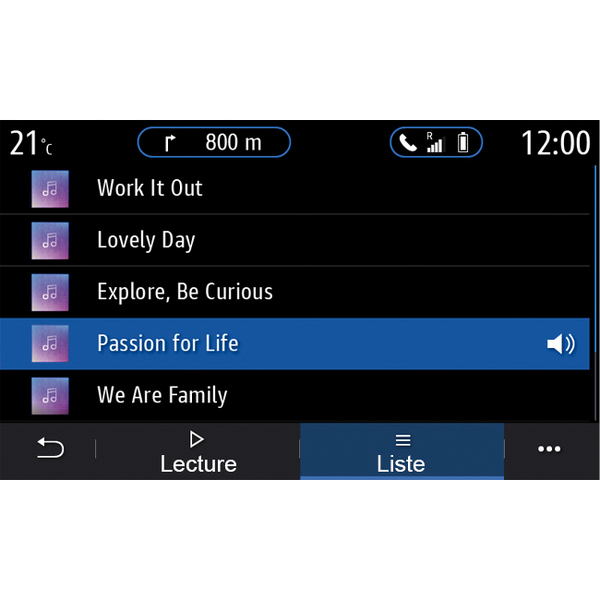
Press the "List" button to access the current playlist.
Note:
- the system plays all tracks by default;
- the playlists described above vary depending on the input source connected and its content.
Pop-up menu 6
From the pop-up menu 6, press "Audio settings" to access the sound settings (bass, balance, volume/speed, etc.).
tip
Any new USB flash drive inserted is analysed and its image is stored in the multimedia system. Depending on the USB flash drive's capacity, the multimedia screen can be put on standby. Wait a few seconds. Use only USB drives that comply with the requirements applicable to the country.