" Navigation " menu
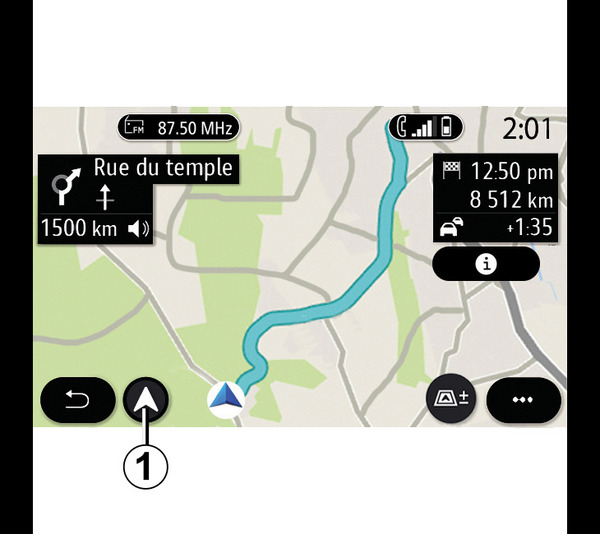
From the home screen, press the card of press "Menu" then "Navigation".
Using voice recognition to enter an address
Press the voice recognition button
 , then following the sound signal you will be able to dictate a destination town, number and/or street name and/or area. For more information, see Using voice recognition.
warning
Precautions regarding navigation
Use of the navigation system does not in any way replace the responsibility or vigilance of the driver when driving the vehicle.
warning
For safety reasons, carry out these operations when the vehicle is stationary.
Destination in a foreign country
The country must be changed before you say the address. Press the voice control button
to display the main voice control menu.
After the sound signal, say "Change country", then say the country in which you wish to carry out your search. After the second beep, say your destination address.
Note: you can change country as long as the country is supported by the system language.
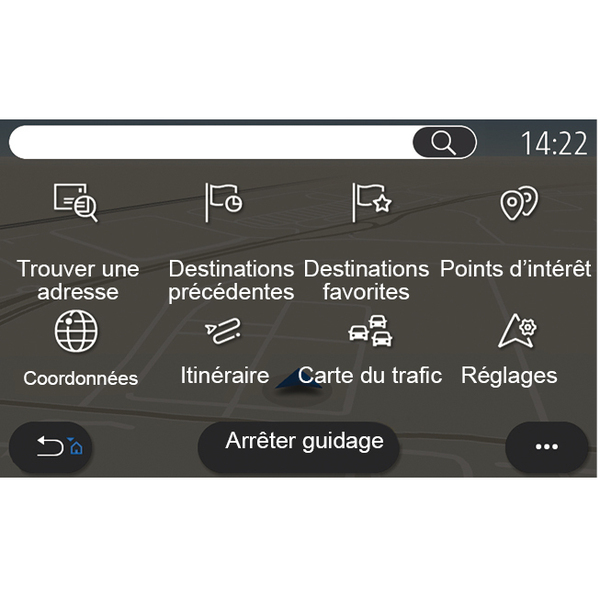
Use the navigation menu 1 to access the following functions:
- « Find an address » ;
- « Previous destinations » ;
- « Favourite destinations » ;
- « Points of interest » ;
- « Coordinates » ;
- « Route » ;
- « Traffic Map » ;
- « Settings » ;
- ...
Online Search
(depending on equipment)
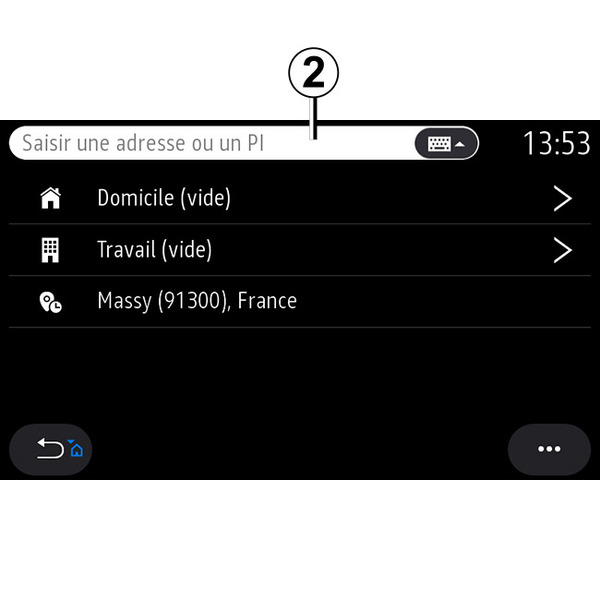
Use the Online Search function for a quick and precise search.
As soon as you enter the first letters in the search field 2, the multimedia system suggests a relevant street name, town or POI (point of interest).
Press the button 3 to view the full list of suggestions.
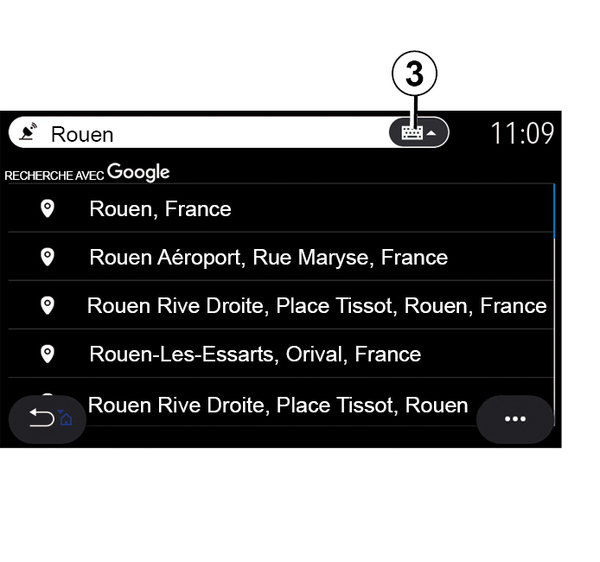
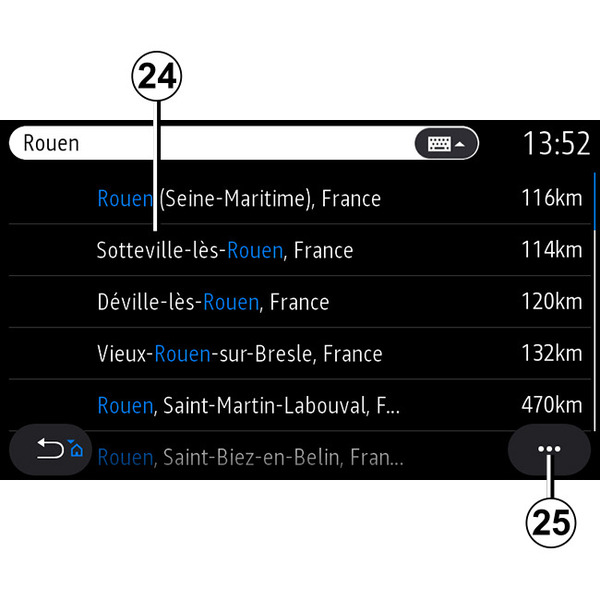
Example with "Rouen".
Note: additional information provided by your multimedia system may vary, depending on your connection type.
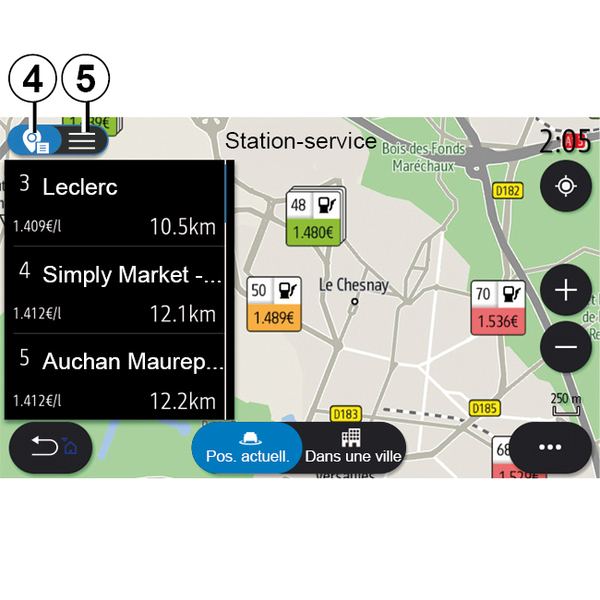
When searching for a POI (point of interest) via the "Navigation" menu, you can display a list of suggestions 5.
For more information on POI, see the information on "Points of interest" in this section.
The map display 4 shows the geographical position for each suggestion.
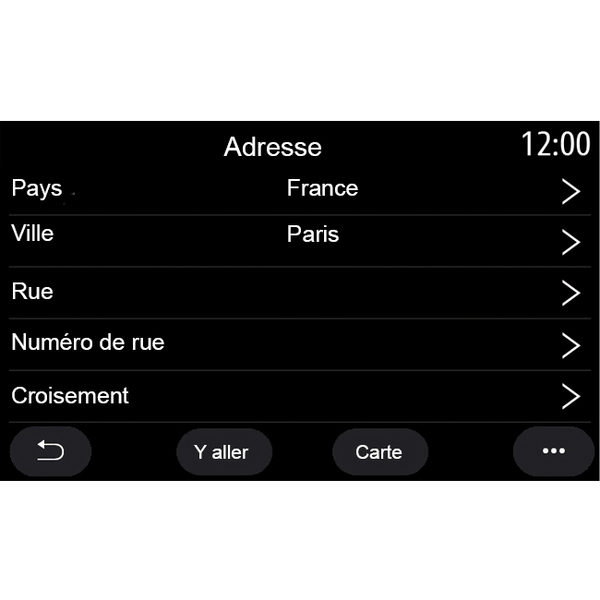
« Find an address »
From this menu you can enter a complete or partial address: country, town, post code, street, house number, intersection. On first use, the system asks you to choose the destination country. Enter the town/city name or a postcode using the keypad.
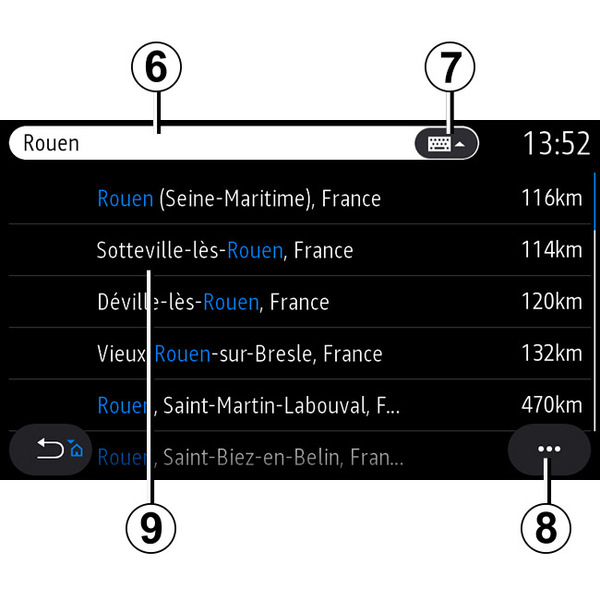
From the search area 6 you can enter a street name.
When you start entering letters, the system suggests similar street names. You can:
- press the street name displayed on the screen to confirm your selection;
- press the button 7 or scroll through the list 9 of suggested street names to access the full list corresponding to your search.
Note:
- the system will store the last towns or cities entered in its memory;
- Only addresses known to the system through the digital map are authorised.
From the pop-up menu 8, you can:
- save the selected address to your favourites;
- enter the destination co-ordinates (latitude and longitude values);
- find and show any nearby POI;
- ...
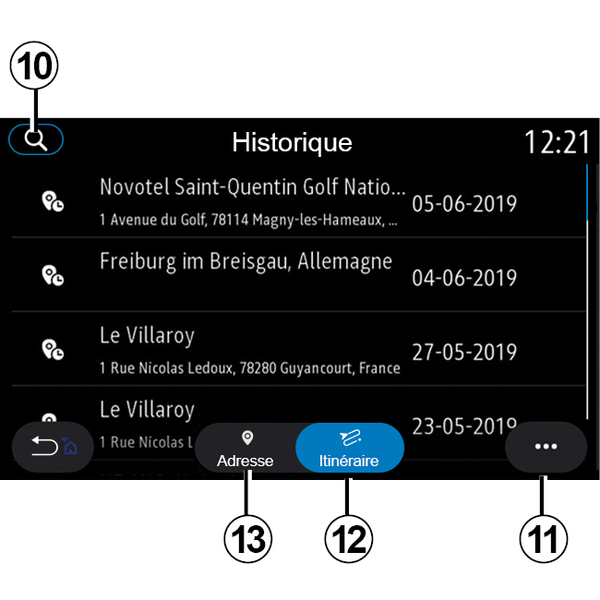
« Previous destinations »
Use this menu to select a destination from the list of recently used addresses. These are automatically stored.
From the "Address" tab 13 you can access the history of stored destinations.
Select a destination to start guidance.
From the "Route" tab 12 you can access the history of stored routes. Select a route to start guidance.
Use the magnifying glass 10 to search for an address or route saved in the history.
From the pop-up menu, 11 in the "Address" 13 and "Route" 12 tabs, you can:
- "Delete" one or more of the addresses selected;
- « Delete all » ;
- « Sort by date » ;
- « Sort by name » ;
- « Save to favourites ».
During guidance, when you search for a new destination you can set it as either:
- a stop;
- a new destination.
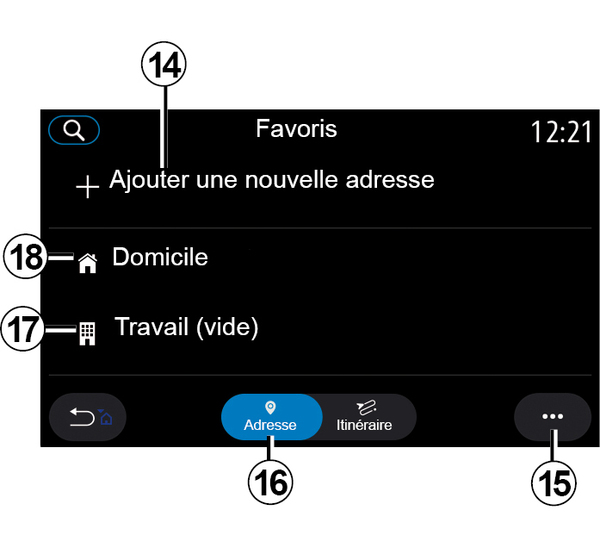
« Favourite destinations »
From the "Address" tab 16, you can:
- « Add new address » ;
- run navigation guidance to your "Home" 18 or place of "Work" 17;
- run navigation guidance to an address saved in your favourites.
When you select "Home" 18 or "Work" 17 for the first time, the system asks you to register an address.
Note: only one address for "Home" and "Work" can be stored by the multimedia system.
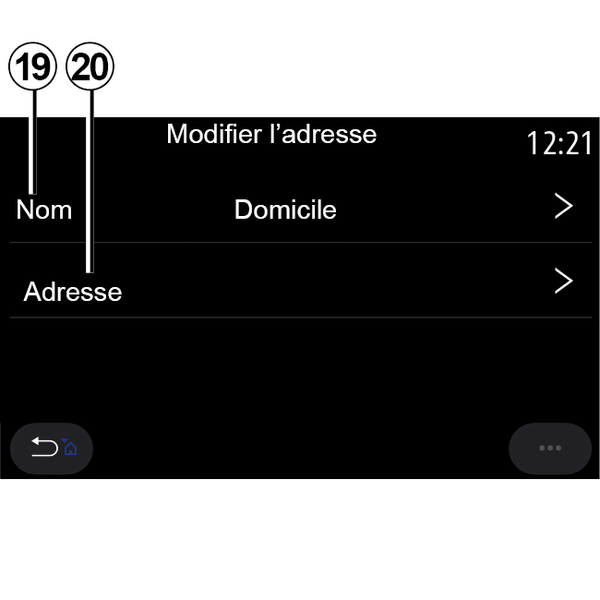
From the "Add new address" tab 14, you can:
- "Name" 19 to name your new favourite destination;
- "Address" 20 to access the following search functions:
- « Find an address » ;
- « Previous destinations » ;
- « Points of interest » ;
- « Coordinates » ;
- « On map » ;
- « Current position ».
- "Custom POI";
- « Phone » ;
- « Charging type ».
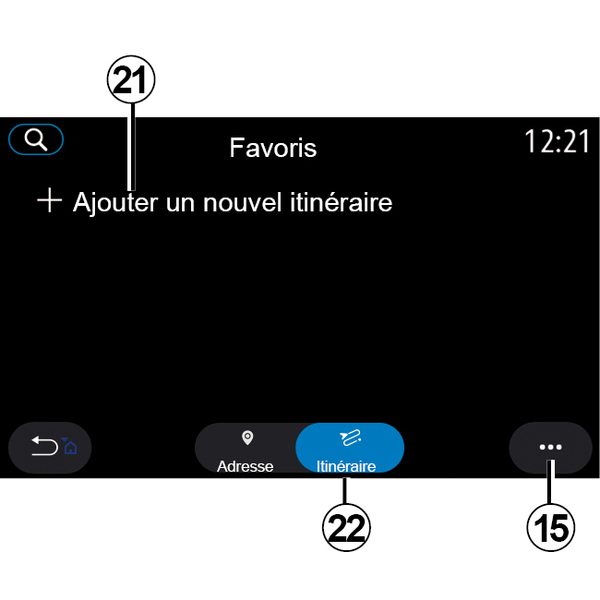
From the "Route" tab 22, you can:
- « Add new route » ;
- run a route saved in your favourites.
From the "Add new route" tab 21, you can:
- "Name", name your new favourite route;
- "Route", access the following search options:
- "Start position";
- « Add as waypoint » ;
- "Last destination used";
- « Add as destination ».
Depending on the "Add a stop" and "Add as destination" searches, you can select the following options:
- « Find an address » ;
- « Previous destinations » ;
- « Points of interest » ;
- « Coordinates » ;
- « On map ».
From the pop-up menu 15, you can:
- « Modify » :
- "Name" 19 of the favourite;
- "Address" 20 or "Route" of the favourite, depending on the tab selected.
- "Delete" (select one or more addresses);
- « Delete all » ;
- « Sort by name ».
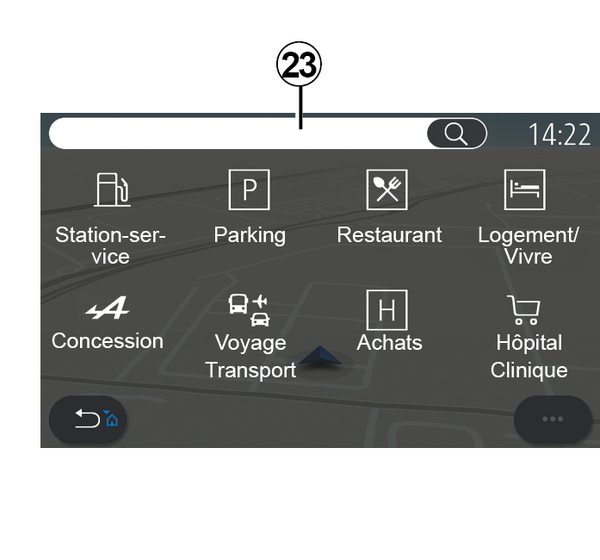
« Points of interest »
A point of interest POI is a service, establishment or tourist attraction close to a location (start point, destination city, en route etc.).
Points of interest are grouped by category: "Petrol station", "Parking", "Residence", etc.
Select the "Navigation" menu, then "Points of interest" to select a destination among points of interest.
"Search by name"
From the search area 23, enter a POI category (name of a restaurant, shop, etc.).
From the list of results 24, select a POI.
Note: the services must be activated in order to display the online search for points of interest Activating services.
From the pop-up menu 25, you can:
- "Reset" the search;
- choose the keyboard type:
- « Alphabetic » ;
- « Azerty » ;
- « Qwerty ».
"Search by category"
The navigation system suggests several POI in the category selected, according to the tab selected:
- no route in progress:
- « Nearby » ;
- "In a city" (enter the city name).
- when a route is in progress:
- "Along the route";
- « Destination » ;
- « Nearby » ;
- "In a city" (enter the city name).
From the pop-up menu 25, you can:
- display "Offline results";
- « Sort by distance ».
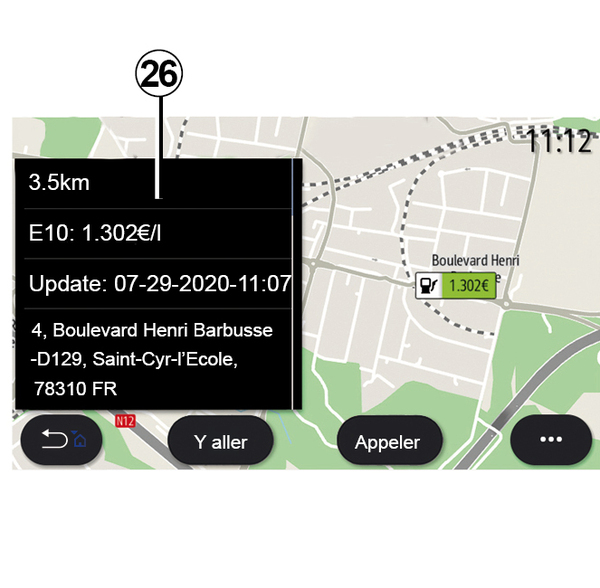
From the list 24, select a POI.
Depending on the equipment, the multimedia system can be used to:
- directly contact certain POI (to book or for information) by pressing "Call";
- start the navigation to the desired POI by pressing "Go";
- see a preview of the destination from the display 26.
From the pop-up menu, you can add the address in your favourites.
Fuel prices
(depending on equipment)
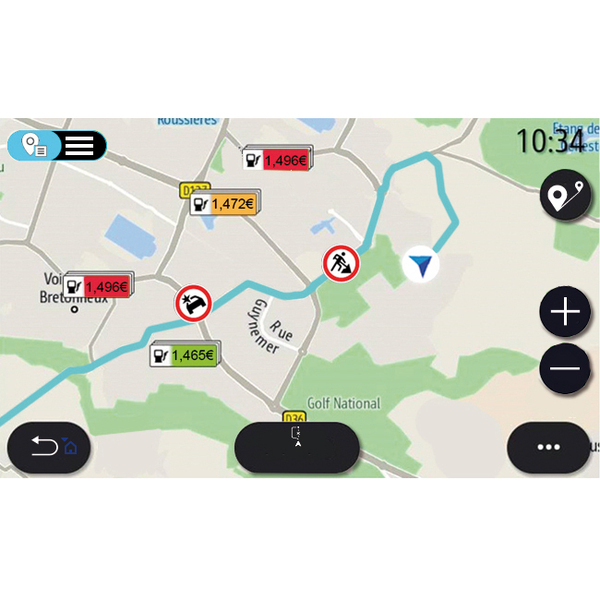
The POI "Petrol station" shows the petrol stations around your position, as well as the price of fuel for your vehicle.
The price of fuel is associated to a colour indicator:
- Green: petrol stations offering the lowest prices;
- Orange: petrol stations offering average prices;
- Red: petrol stations offering the highest prices.
Note: the services must be activated in order to display the fuel price Activating services.
« Coordinates »
From the "Navigation" menu, press "Coordinates".
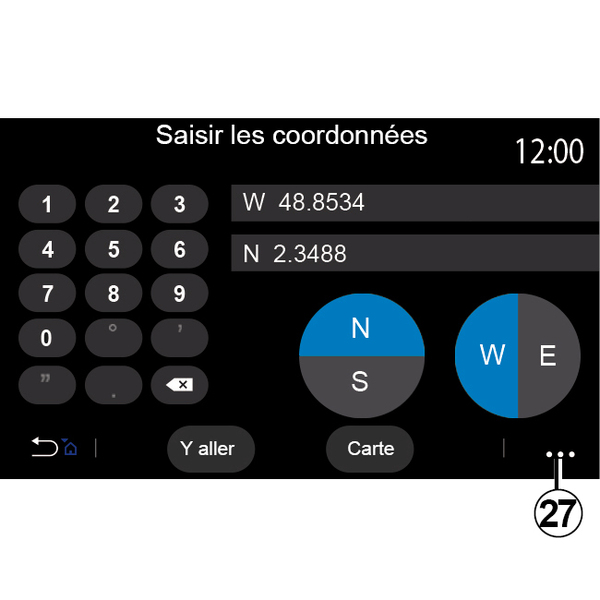
Use this menu to search for a destination by entering its coordinates.
You can select the hemisphere, then enter the "Latitude" and "Longitude" using the keyboard.
Once the coordinates have been entered, press "Go" to go directly to this destination or press "Map" to view the coordinates on the map.
From the pop-up menu 27, press:
- "UTM" to enter the coordinates in UTM format;
- "Units and formats": decimal degrees; decimal degrees and minutes; or degrees, minutes and decimal seconds;
- « Save to favourites ».
« Route »
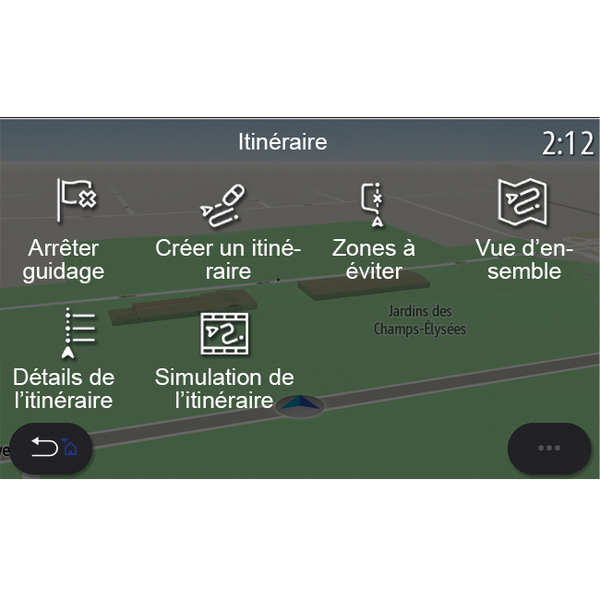
Use this function to manage a destination with associated stops. From the main menu, press "Navigation", "Menu", then press on "Route" to access the route menus.
No route in progress:
- « Create route » ;
- « Avoidance areas ».
When a route is in progress:
- « Cancel route » ;
- « Edit route » ;
- « Avoidance areas » ;
- « Overview » ;
- « Route details » ;
- « Route simulation ».
« Cancel route »
Use this function to cancel the current route.
« Edit route »
Use this function to modify your current route:
- « Start position » ;
- « Add as waypoint » ;
- « Add as destination ».
The "Add a stop" and "Add as a destination" functions offer the following options:
- « Find an address » ;
- « Previous destinations » ;
- « Points of interest » ;
- « Coordinates » ;
- « On map » ;
- ...
« Avoidance areas »
Use this function to avoid a set or defined geographical area.
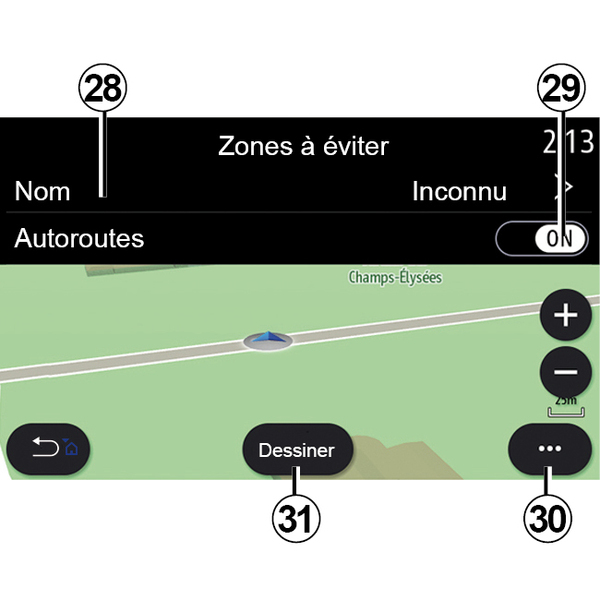
From the "Avoidance areas" menu, press "Add new avoidance area" or the previously stored areas to avoid. Press "Name" 28 to change it using the keyboard.
You can choose to avoid certain sections of motorway using the button 29.
From the pop-up menu 30, press "Select city" to manually enter the country and town or city.
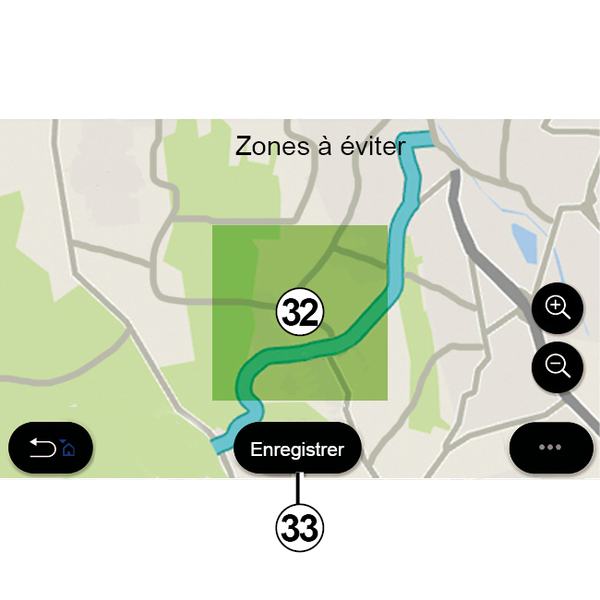
Press the "Draw" button 31 to designate an area to avoid.
Press briefly on the map to display the "Avoidance areas" 32.
Pinch/spread to enlarge or reduce the area selected.
Press the "Save" button 33 to add the selected area to the list of areas to avoid.
To modify a "Avoidance areas", select it from the list of areas to avoid and press the "Modify" button on the map.
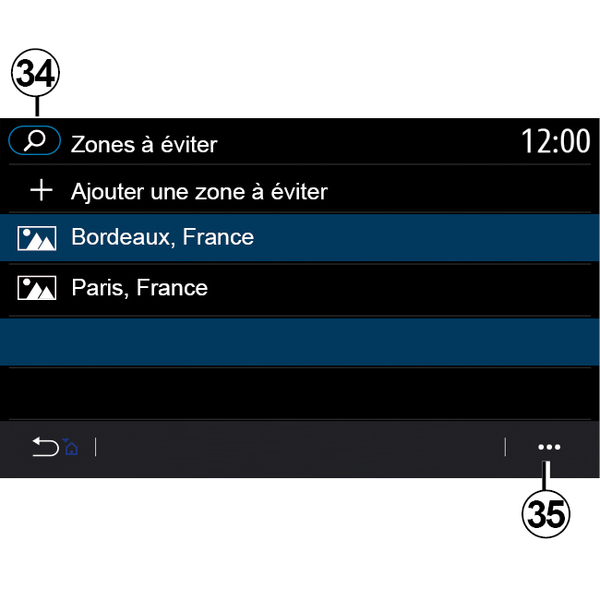
From the pop-up menu 35 on the "Avoidance areas" menu, press:
- "Delete" (select one or more areas to avoid);
- « Delete all ».
By pressing the magnifying glass 34 you can search for stored areas to avoid.
« Overview »
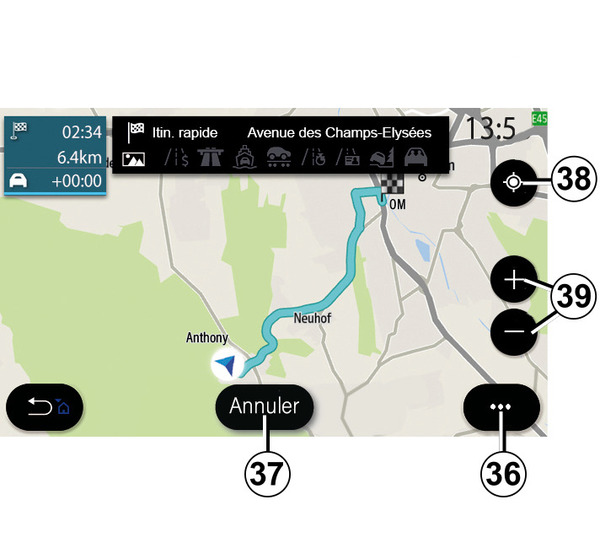
Use this function to view all of your route on a map.
To use this function, launch the navigation and select "Route" from the navigation menu, then select "Overview".
Press the button 37 to cancel the current route.
To explore the map of the route in progress, move the map by keeping your finger pressed on a part of the screen, while dragging it.
Press the zoom in or zoom out button 39 to adjust the map.
To re-centre the map, press the control 38.
From the pop-up menu 36, you can access the following functions:
- « Settings » ;
- « Route details » ;
- « Route simulation » ;
- "Country information";
- « Save to favourites » ;
- ...
Note: the functions offered in the pop-up menu will vary depending on whether the guidance is activated or not.
« Route details »
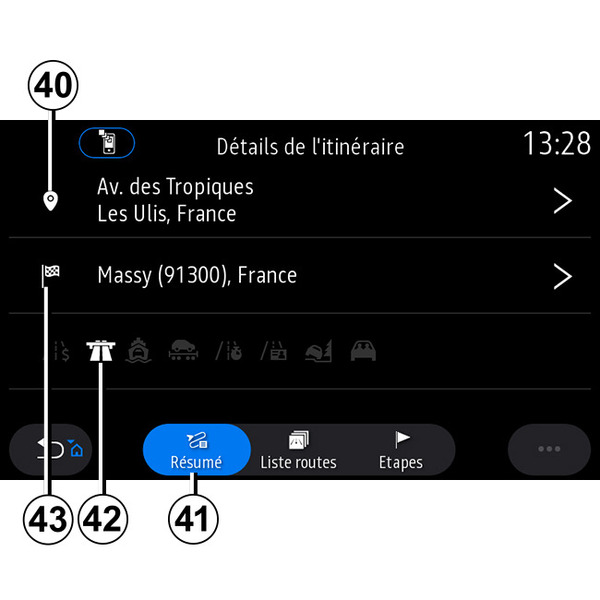
Use this function to view all the information and details for the route via several tabs:
- « Summary » ;
- « Road list » ;
- « Steps ».
From the "Summary" tab 41, you can view your:
- « Start position » 40 ;
- "Point of arrival" 43;
- "Roads taken" 42 (toll road, ferry, motorail, etc.).
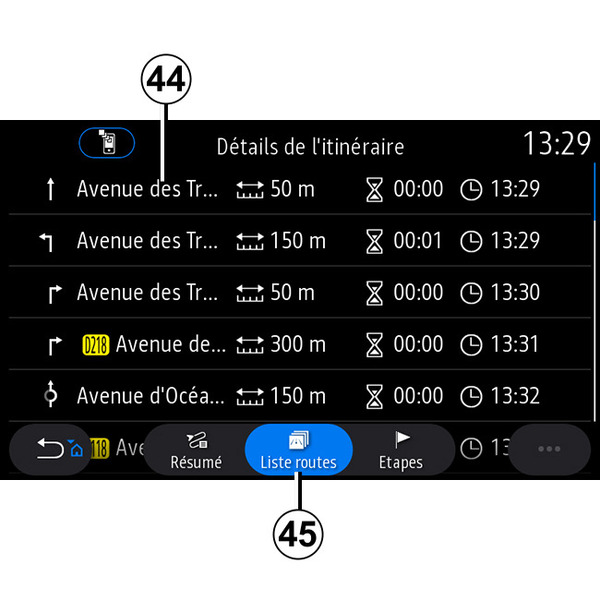
From the "Road list" tab 45, you can view the route in detail.
From the list 44 of roads to be taken along the route, you can view different directions, names of streets taken, distance remaining and time for each stage.
Press on one of the routes 44 to view it on the map and to be able to go back to previous stages or forward to the next stages using the arrows 48.
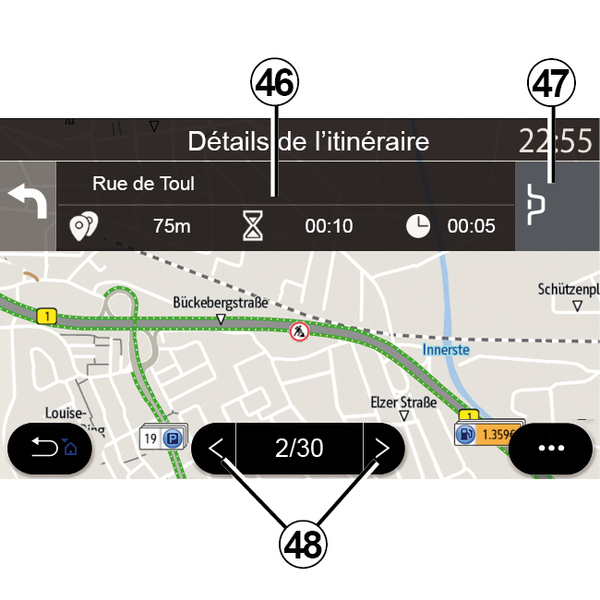
The bar 46 will display information on each stage of the journey (distance, stage duration and arrival time).
The navigation system may suggest that you avoid an event on one of your stages.
Press the "Detour" button 47 and the navigation system will calculate a detour route.
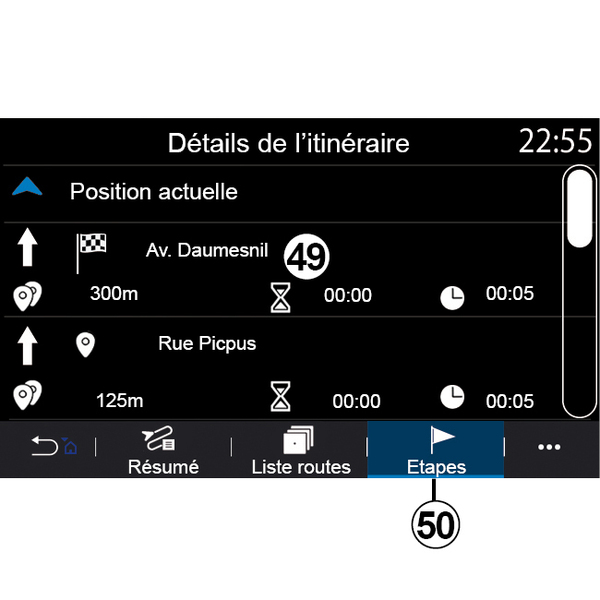
From the "Steps" tab 50 you can see the different stages of your trip (distance, journey time and arrival time).
By pressing one of the stages in the list 49, you can access the location, name, complete address and geographical coordinates.
« Route simulation »
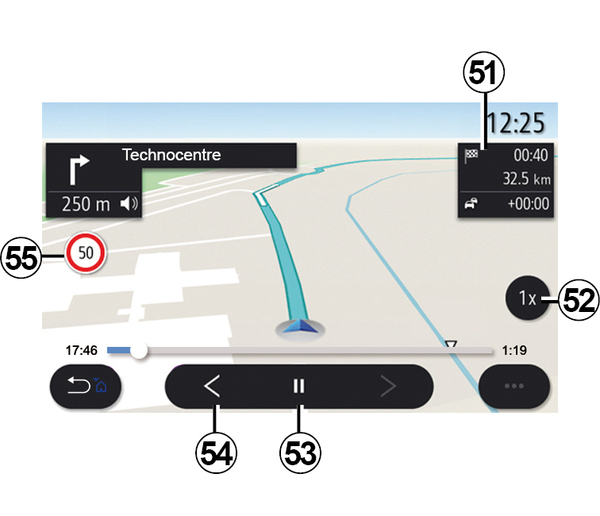
Use this function to simulate the route you will be taking to reach the destination.
Press the button 53 to stop or start the simulation.
Press the button 54 to return to the start of the route simulation.
You can modify the speed of the simulation by pressing the button 52.
During the simulation, you can view the speed limit 55 as well as the zone details 51 (distance remaining, arrival time and journey time).
Press zone 51 to switch from the display of the remaining route time to the display of the expected arrival time.
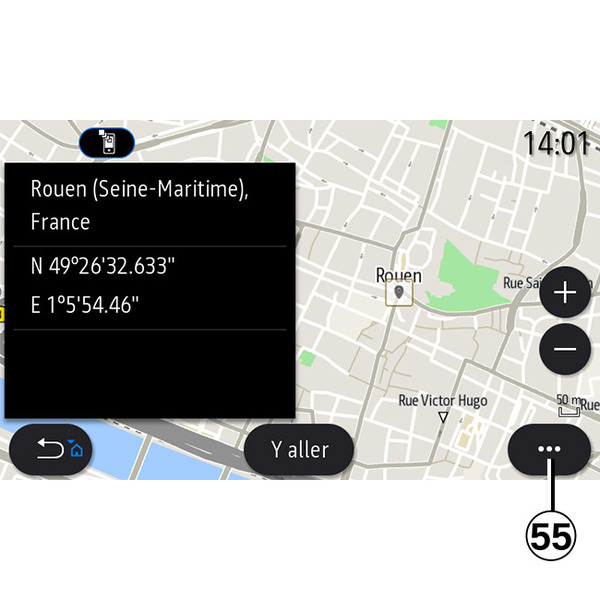
From the pop-up menu 55, you can:
- display "Online results";
- "Reset" the search;
- save your charging station in the "Favourites";
- display or hide points of interest (POI);
- ...